Silence phone call notifications except from contacts on iPhone
In this guide, we will show you a couple of methods through which you can silence phone call notifications except from contacts on your iPhone. The frequency of spam calls is on a forever high and there doesn’t seem to be any worthy measures to stop them. While you could block their phone numbers, but they would come up with a new one shortly and this vicious cycle continues.
So the next best alternative is to silence phone call notifications from all the unknown numbers, and only make your iPhone ring when someone from your contacts calls you. And in this guide, we will show you two different methods through which you could get the said job done. However, do remember to disable these tweaks if you are expecting a call from a delivery agent or other important unknown person. Once you are done with the call, you should then re-enable this tweak. So on that note, let’s get started.
- Silence phone call notifications except from contacts on iPhone Via Silence Unknown Caller Using Focus Mode
Silence phone call notifications except from contacts on iPhone
It is recommended that you go through each of the below-mentioned workarounds and then try out the one that is in sync with your requirements. So with that in mind, let’s get started.
Via Silence Unknown Caller
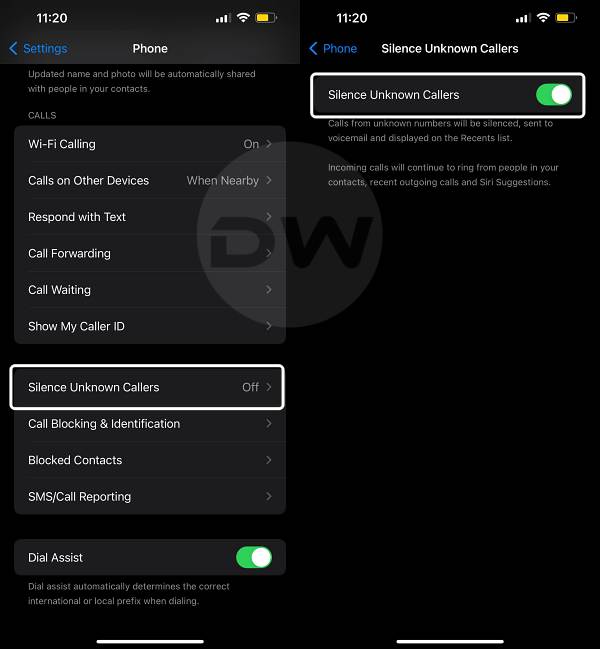
This is a built-in setting dedicated just for this task- to silence call alerts if it is coming from an unknown number. As soon as you receive a call from someone who is in your contacts, your phone will then ring once again. So to implement this setting, head over to Settings > Phone > Silence Unknown Callers > Enable the toggle next to Silence Unknown Callers.
Using Focus Mode
- Head over to Settings > Focus and select your Mode or create a new one.
- Then tap on People > Allow Notifications From and hit Next at the top right.
- Now select “Contacts Only” and then tap on Done at the top right.
- How to Update iPhone via Windows PC using Apple Devices App
- Cannot Add Emoji to a contact on iPhone iOS 17: How to Fix
- Create New Contact missing from Text Message on iPhone [Fixed]
- iPhone Cannot Print: Stuck on Gathering Printer Information [Fixed]

(Cancel Reply)
Δ
iPhone Cannot Print: Stuck on Gathering Printer Information [Fixed]
In this guide, we will show you a nifty workaround that should help you fix the issue of your iPhone being unable to print and instead being stuck on the “Gathering Printer Information” prompt. The devices from the Cupertino giant don’t seem to be having the best of times with printers. After the printer is out of paper error on Mac and AirPrint not working on iPhones, a new printer bug has seemingly made its way.
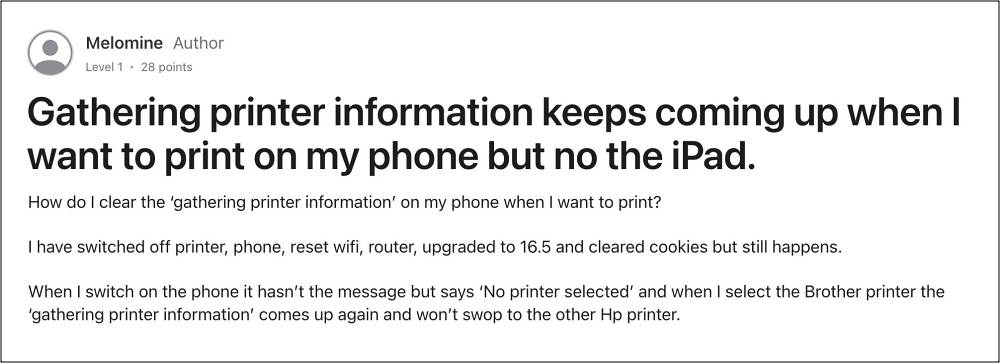
This time around, numerous users have voiced their concern that although their iPhone does show a list of available printers, but when they select it, it brings up the “Gathering Printer Information” prompt, and then they are taken back to the ‘no printers found’ screen. If you are also getting bugged by this issue, then this guide will help you rectify it. Follow along.
Fix iPhone Cannot Print: Stuck on Gathering Printer Information
As strange as it may sound, to rectify this issue, you’ll have to uninstall VPN from your device. Disabling or turning it off will not get the job done, uninstalling the VPN is the only way out. So carry out this tweak using the below-listed steps and check if it fixes the issue of your iPhone being unable to print and instead being stuck on the “Gathering Printer Information” prompt.
- To begin with, head over to Settings > General > VPN.
- Now tap on the info sign next to the VPN > Delete VPN.
- Then go to General > Profile and select the VPN profile.
- Finally, tap on Remove Profile and restart your device.
As far as the official stance on this matter is concerned, the developers have yet to acknowledge this issue, let alone give out any ETA for the rollout of a fix. As and when any of these two things happen, we will update this guide accordingly. In the meantime, the aforementioned workarounds are your best bet.
- AirPrint Printer not working on iOS 17: How to Fix
- Fix macOS 14 Sonoma ‘The Printer is out of paper’ error!
- Printer not working on macOS Sonoma: How to Fix
- Procreate Print not working on iPad: How to Fix
(Cancel Reply)
Δ
