Spatial Scene/Effect Stuck at 0% or Not Working on iOS 26 [Fixed]
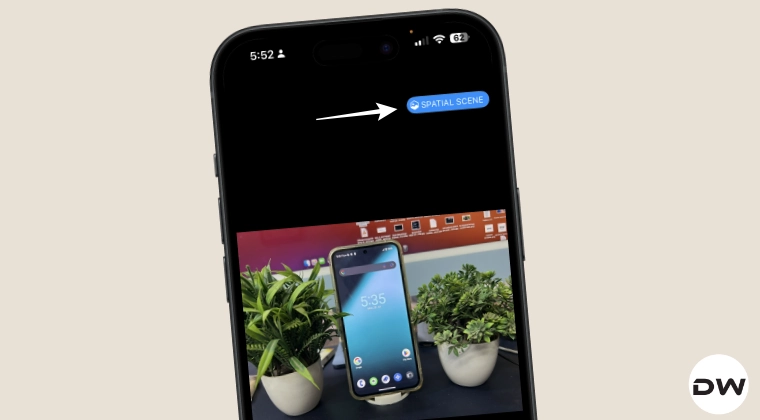
In this guide, we will show you various methods to fix the issue of the Spatial Scene/Effect stuck at 0% or not working on iOS 26. The latest iteration of the OS has just been released by the Cupertino giant, and with that, there are a slew of intriguing goodies to look forward to. One among them is Spatial Scene, which adds a three-dimensional effect to your photos and even the lock screen wallpaper.
You can either take a photo with this mode enabled beforehand or add this effect to the photo once it is captured. If we talk about the latter one, then just open the image in the Photos app, and you should see the Spatial Scene at the top right; just tap on it once to enable it. Or so we thought.
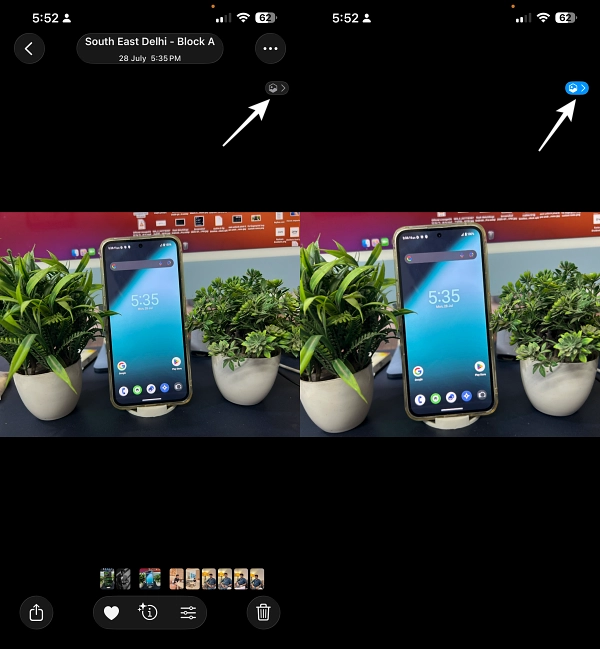
Numerous users have voiced their concern that the Spatial Scene/Effect feature is either stuck at 0% or just not working on their iPhone running the latest iOS 26. If you are also facing the same issue, then this guide will make you aware of a couple of nifty workarounds to rectify this problem. So without further ado, let’s check them out.
- Fix Spatial Scene/Effect Stuck at 0% or Not Working on iOS 26 FIX 1: Restart Device FIX 2: Turn off Battery Saver FIX 3: Disable Reduce Motion FIX 4: Download Apple Intelligence FIX 5: Reset Settings
Fix Spatial Scene/Effect Stuck at 0% or Not Working on iOS 26
It is recommended that you try out each of the below-mentioned workarounds and then see which one spells out success. So with that in mind, let’s get started.
FIX 1: Restart Device
![Spatial Scene/Effect Stuck at 0% or Not Working on iOS 26 [Fixed] - 3](https://droidwin.com/wp-content/uploads/2024/01/force-restart-Wallpaper-Limit-Reached-on-iPhone.jpeg)
While it is the basic fix, but trust us, in some cases, it might be more than enough to rectify the underlying problem. So do give it a try and see if it works in your favor or not.
FIX 2: Turn off Battery Saver
If you have enabled Low Power Mode, then Spatial Effect will be disabled. This isn’t a bug, but it’s by design, and it does make sense to turn off a resource hogging feature when your device is low on battery. So make sure to turn off Battery Saver and then check out the results. You can either do so from the Control Center or by heading over to Settings > Battery and turning off the Low Power Mode.

FIX 3: Disable Reduce Motion
As is evident by its name, the Reduce Motion feature reduces the motion of the UI, including the parallax effect of the icons. And Reduce Motion will also disable the Spatial Scene on your iPhone running iOS 26. Therefore, it is recommended to turn it off from Settings > Accessibility >Motion > Toggle off Reduce Motion.

FIX 4: Download Apple Intelligence
Make sure that Apple Intelligence has been downloaded on your device. If that is not the case, then do so right away using the below instructions.
- To begin with, connect to WiFi (Mobile Data wouldn’t work)
- Then download Apple Intelligence in Settings below the on/off button (blue words)
- Now turn off Reduced Motion in Settings> Accessibility > Motion.
FIX 5: Reset Settings
You are bound to face this issue if the system settings have been corrupted. In such cases, you should reset the settings and set it up from scratch. Here’s how it can be done:
- Head to Settings > General > Transfer or Reset iPhone.
- Tap on Reset > Reset All Settings. Wait for it to complete.
- Once done, restart your device and check out the results.
- How to Turn Off the WiFi Directly from Control Center on iPhone
- Swipe on Lock Screen to open Camera is the worst iPhone Gesture
- What is Clear in the iPhone Mail App? How it Differs from Trash?
- iPhone Stuck at ‘Charge Battery’ screen while installing iOS 26 [Fix]

(Cancel Reply)
Δ
