SSH not working in macOS Ventura: How to Fix
In this guide, we will show you the steps to fix the issue of SSH not working in macOS Ventura. Secure Shell is an encrypted/cryptographic network protocol that enables two computers to communicate and share data over the servers. Since the communication is encrypted, it is the preferred mode, especially on insecure networks. When it comes to Apple’s underlying OS, it already features a built-in SSH client [Terminal].

It is based on a client-server architecture and allows you to connect an SSH client instance with an SSH server. However, as of late, it is giving out a tough time to the users on the latest macOS. According to the affected users, SSH is not working in macOS Ventura. As a result, they are unable to log in to their Mac running Ventura from devices with deprecated keys. Apart from that, some are also getting the “no matching host key type found” error. So why is this happening?
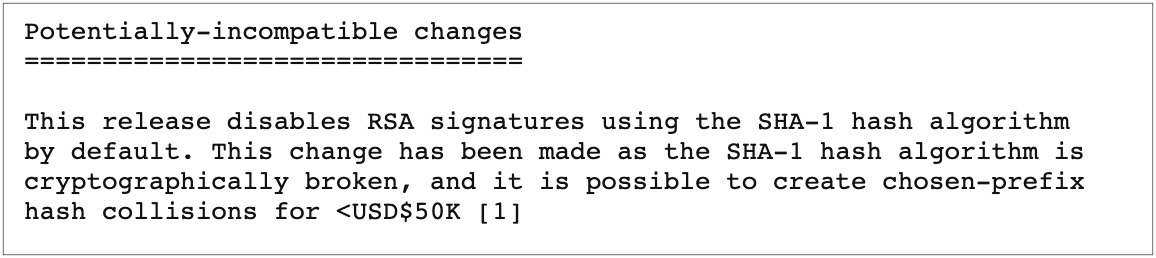
One reason could be the fact that Ventura comes with OpenSSH_9.0p1 and “This release disables RSA signatures using the SHA-1 hash algorithm by default”. So how to fix this issue? Well, advanced users could opt for the technical route of generating keys based on a more secure hash algorithm. On the other hand, beginners could make use of the nifty workaround that we shared below. Follow along.
Fix SSH not working in macOS Ventura
Droidwin and its members wouldn’t be held responsible in case of a thermonuclear war, your alarm doesn’t wake you up, or if anything happens to your PC by performing the below steps.

- Launch Finder and use the Shift+Command+G shortcut keys to bring up the Go to Folder dialog box.
- Then type in the below location and hit Enter [or you could manually go there via Macintosh HD > etc > ssh] /etc/ssh/
- Now copy the ssh_config file and paste it somewhere else [it will act as a backup].
- Then launch the original ssh_config file and add the following two lines at the end of the file: HostkeyAlgorithms +ssh-rsa PubkeyAcceptedAlgorithms +ssh-rsa
- Once done, hit the Command+S shortcut keys to save the changes.
- WiFi not working on macOS Ventura: How to Fix
- macOS Ventura Long Boot-Up Time: How to Fix
- How to Fix Specific Refresh Rate for External Display in Mac
- Mac shutdown when trying to log in: How to Fix

- John P 1 year ago Reply Need to implement this each time I update (currently Sonoma 14.6.1) so have this bookmarked for an easy refresher each time. Many thanks for posting this, Saddique!
- Joe 3 years ago Reply Unfortunately this didn’t work for me.
- Subrajit 3 years ago Reply does any one facing scp issue ?
- Ola 3 years ago Reply I did it, but it’s not working – when I try to login, nothing happens and after some time it says that the operation timed out. I tried to login to the same adress on different computer (with linux) and it worked. Remote login is also turned on, I don’t know what to do 🙁
- Jan 3 years ago Reply Thanks a lot!!
- Nana 3 years ago Reply It still shows
Permission denied (publickey).I added in etc/config as well as /ssh/config in Host* but nothing worked - Nana 3 years ago Reply Didn’t worked for me 🙁
- Uttam 3 years ago Reply Nice and easy steps to fix a headache v13.0 🙂
- rose 3 years ago Reply Hi, I’m having a problem while running scp command on macos ventura. I already edited the ssh config file but it still error while trying to run an scp command ”’subsystem request failed on channel 0 scp: Connection closed”’
- John 3 years ago Reply “You don’t have permission to write to the folder that the file “ssh_config” is in.” is the message I get when I try to change the ssl_config file. I have total admin access on my Macbook. Any Ideas?
- John 3 years ago Reply I get a permissions issue when I try to change or save the new ssh_config. You don’t have permission to write to the folder that the file “ssh_config” is in. I’m admin on my macbook and I have changed permissions to no avail.
- William R Tarello 3 years ago Reply Bummer, that didn’t work for me.
- FILIBERTO 3 years ago Reply Thanks Hassan
- Neil Johnson 3 years ago Reply Straight to the point, fixed the issue that Ventura 13.0 showed straight after upgrading. Sadique Hassan 3 years ago Reply Glad that it worked out for you Neil.
- Rohit 3 years ago Reply Thanks Sadique Hassan 3 years ago Reply 🙂
(Cancel Reply)
Δ
