Stop Keyboard Setup Assistant prompt after every Mac restart
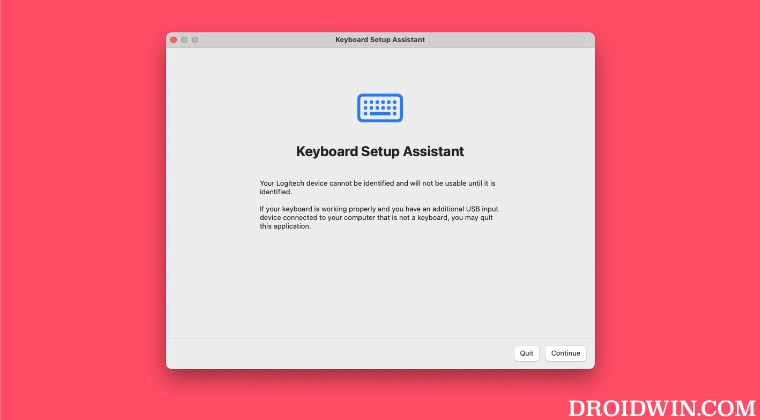
In this guide, we will show you a couple of methods to stop the keyboard setup assistant prompt that appears after every Mac restart. Numerous users using a third-party keyboard have voiced their concerns they are frequently greeted with a prompt asking them to set up their keyboard.
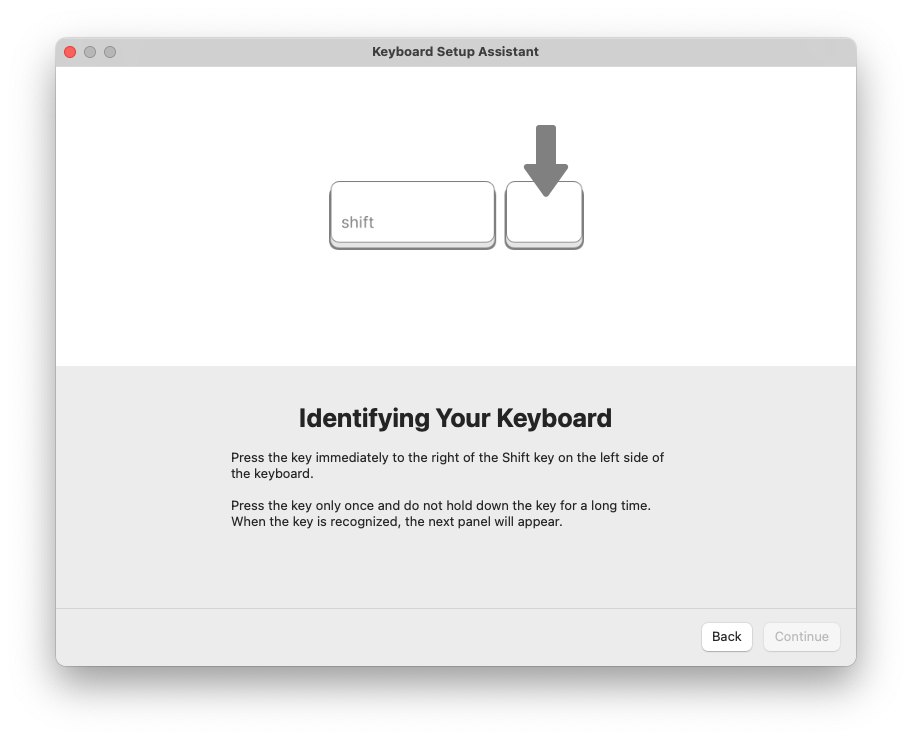
This tends to happen after every restart of their Mac and upon every re-login as well. It goes without saying that it is definitely quite an infuriating user experience. if you also echo the same thought, then this guide will make you aware of a couple of nifty methods to put an end to this irritating prompt. So without further ado, let’s get started.
- Stop the Keyboard Setup Assistant prompt after every Mac restart FIX 1: Unplug & Replug Keyboard FIX 2: Create a Local Account
Stop the Keyboard Setup Assistant prompt after every Mac restart
It is recommended that you try out each of the below-mentioned workarounds and then see which one spells out success for you. So with that in mind, let’s get started.
FIX 1: Unplug & Replug Keyboard
As soon as you see the keyboard assistant prompt after rebooting the Mac, unplug your keyboard right away. The prompt will then disappear. Once that happens, re-plug your keyboard and you will no longer get the prompt after every reboot.
FIX 2: Create a Local Account
Some users were able to resolve this issue after creating a new local account and signing in to that account. So let’s give it a try using the below-listed steps and check out the results:
- Open System Settings and select Users & Groups from the left-hand side.
- Then click on Add Account, type in your password, and select Standard under New Account.
- Fill in the rest of the details and click on Create user.
- Now login to this account and the keyboard prompt will no longer appear.
- Mac Keyboard is Not Working: How to Fix
- Apple Magic Mouse & Keyboard Lags after macOS Monterey 12.6 [Fixed]
- Logitech G Hub not working on macOS Ventura [Fix]
- Mouse Click not working in the Dialog box on Mac: How to Fix

(Cancel Reply)
Δ
