The software for the printer was installed incorrectly on Mac [Fix]
Numerous users have recently voiced their concern that they are unable to set up their printers. Whenever they are trying to do so, they are instead greeted with the “software for the printer was installed incorrectly Please reinstall the software from the manufacturer” error message on their Mac. If you are also in the same boat, then this guide will make you aware of a couple of nifty workarounds to effectivity address this bug. Follow along.
- Fix The software for the printer was installed incorrectly on Mac FIX 1: Verify Certificate Date FIX 2: Add Printer via IP Address FIX 3: Manually Place PPD Files FIX 4: Install Unsigned Drivers
Fix The software for the printer was installed incorrectly on Mac
It is recommended that you try out each of the below-mentioned workarounds and then see which one spells out success. So with that in mind, let’s get started.
FIX 1: Verify Certificate Date
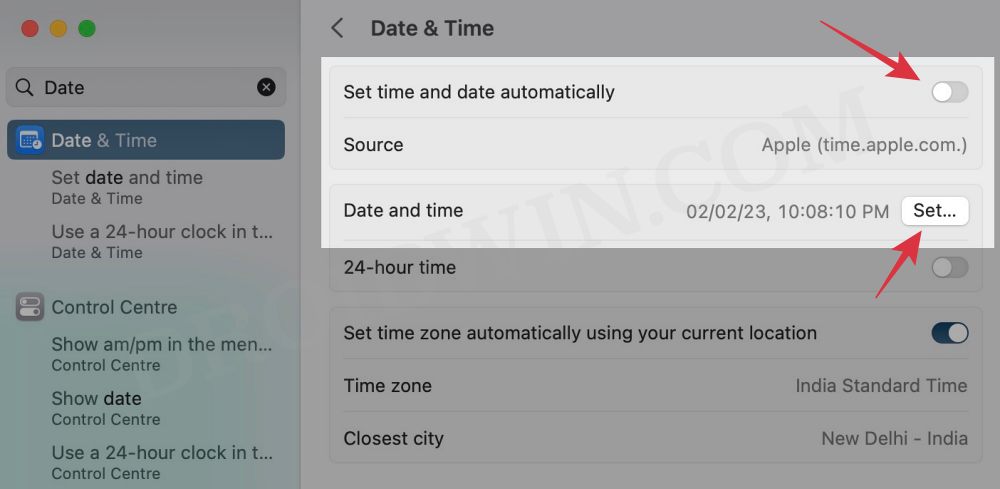
First off, make sure that the printer’s drivers aren’t expired. If they are, then you should first disconnect your Mac from the internet, change the date on your Mac prior to the expiration date, and then retry the installation. Or if that doesn’t work out, then try out our second fix listed below.
FIX 2: Add Printer via IP Address
If you’re having an expired encryption certificate for your printer and the aforementioned tweak didn’t spell out success, then your next course of action is to install the printer via its IP Address. Here’s how it could be done:
- Open S ystem Settings > Network and select your printer.
- Then note down the IP Address next to your printer.
- Now S ystem Settings and go to Printers and Scanners.
- Then select your printer from the list and delete it.
- After that, click on Add Printer.. and go to the Web tab.
- Then type in the IP Address and it will bring the printer, hit Add.
- Check if it fixes the “software for the printer was installed incorrectly” error on Mac.
FIX 3: Manually Place PPD Files
- The driver package that you have downloaded might also have a few PPD files.
- So copy those PPD files and place them at the following location /Library/Printers/PPDs/Contents/Resources/
- Now check if it fixes the “software for the printer was installed incorrectly” error on Mac.
FIX 4: Install Unsigned Drivers
If you could only get hold of the drivers from unknown developers or they are unsigned but you are ready to take the risk, then here’s how you to install these unsigned drivers.
- Go to Launchpad > Others and select Terminal.
- Then type in the below command in the terminal: sudo spctl –global-disable
- Now try installing the driver and check out the result.
- Printer not working in macOS Ventura: How to Fix
- Printer Error: Stopped Filter failed on Mac [Fixed]
- How to Clear and Rebuild Icon Cache on Mac
- Adobe Illustrator v27 crashing on Mac and Windows [Fixed]

(Cancel Reply)
Δ
The software for the printer was installed incorrectly on Mac [Fix]
Numerous users have recently voiced their concern that they are unable to set up their printers. Whenever they are trying to do so, they are instead greeted with the “software for the printer was installed incorrectly Please reinstall the software from the manufacturer” error message on their Mac. If you are also in the same boat, then this guide will make you aware of a couple of nifty workarounds to effectivity address this bug. Follow along.
- Fix The software for the printer was installed incorrectly on Mac FIX 1: Verify Certificate Date FIX 2: Add Printer via IP Address FIX 3: Manually Place PPD Files FIX 4: Install Unsigned Drivers
Fix The software for the printer was installed incorrectly on Mac
It is recommended that you try out each of the below-mentioned workarounds and then see which one spells out success. So with that in mind, let’s get started.
FIX 1: Verify Certificate Date
First off, make sure that the printer’s drivers aren’t expired. If they are, then you should first disconnect your Mac from the internet, change the date on your Mac prior to the expiration date, and then retry the installation. Or if that doesn’t work out, then try out our second fix listed below.
FIX 2: Add Printer via IP Address
If you’re having an expired encryption certificate for your printer and the aforementioned tweak didn’t spell out success, then your next course of action is to install the printer via its IP Address. Here’s how it could be done:
- Open S ystem Settings > Network and select your printer.
- Then note down the IP Address next to your printer.
- Now S ystem Settings and go to Printers and Scanners.
- Then select your printer from the list and delete it.
- After that, click on Add Printer.. and go to the Web tab.
- Then type in the IP Address and it will bring the printer, hit Add.
- Check if it fixes the “software for the printer was installed incorrectly” error on Mac.
FIX 3: Manually Place PPD Files
- The driver package that you have downloaded might also have a few PPD files.
- So copy those PPD files and place them at the following location /Library/Printers/PPDs/Contents/Resources/
- Now check if it fixes the “software for the printer was installed incorrectly” error on Mac.
FIX 4: Install Unsigned Drivers
If you could only get hold of the drivers from unknown developers or they are unsigned but you are ready to take the risk, then here’s how you to install these unsigned drivers.
- Go to Launchpad > Others and select Terminal.
- Then type in the below command in the terminal: sudo spctl –global-disable
- Now try installing the driver and check out the result.
- Printer not working in macOS Ventura: How to Fix
- Printer Error: Stopped Filter failed on Mac [Fixed]
- How to Clear and Rebuild Icon Cache on Mac
- Adobe Illustrator v27 crashing on Mac and Windows [Fixed]
(Cancel Reply)
Δ
Printer not working in macOS Ventura: How to Fix
This guide will show you various methods to fix the printer not working issue in macOS Ventura. The printer is one such hardware that has always had its fair share of ups and down with Mac [more downs than ups to be fair]. Issues with Big Sur and Monterey have already been documented in the past and unfortunately, similar behavior is being noted with the thirteenth iteration of the OS.
Numerous macOS Ventura users have voiced their concern that their printer is not working along the expected lines after updating to macOS Ventura. Whether it’s Epson, Lexmark, HP, or Oki, each of these manufacturers are currently bugged with this problem. If you are also in the same boat, then this guide will make you aware of numerous workarounds that shall help you rectify this issue. So without further ado, let’s check them out.
- Fix Printer not working in macOS Ventura FIX 1: Install Printer Update FIX 2: Reinstall Printer FIX 3: Disable Antivirus/Firewall FIX 4: For HP Printers FIX 5: For Lexmark Printers FIX 6: Reset Printer System
Fix Printer not working in macOS Ventura
It is recommended that you try out each of the below-mentioned workarounds and then see which one spells out success for you. So with that in mind, let’s get started.
FIX 1: Install Printer Update
- To begin with, go to System Settings > Printers and Scanners.
- Select your printer from the list and hit the minus sign next to it to remove it.
- Then click on Delete Printer in the confirmation dialog box.
- Once done click on the plus icon and select Add Printer or Scanner.
- After that, select the printer type: USB, Wireless, or Ethernet connection.
- Then select your printer under the “Use or Print Using” drop-down list and click on Add.
- Now click on the Apple logo and select App Store.
- Then go to the Updates tab and download and install the available printer update.
- Check if it fixes the Printer not working issue in macOS Ventura.
FIX 2: Reinstall Printer
Next up, you should consider removing and then re-adding the printers on your Mac. Doing so will refresh its underlying settings and could well rectify the issue that we are currently dealing with. So give it a try using the below given steps ad then check out the results.
- Power off your printers and go to System Settings > Printers and Scanners.
- Select your printer from the list and hit the minus sign next to it to remove it.
- Then click on Delete Printer in the confirmation dialog box.
- Now open Finder and go to Library > Printers. Then delete the folder named after your printer.
- After that, go to Library > Printers> PPD > Contents > Resources and delete the file named after your printer.
- Then go to Library > Cache and delete the folder named after your printer.
- Now restart your Mac and power on the printer.
- Go to your printer’s Download site and grab the latest drivers, corresponding to your product’s model number.
- Then launch the driver setup file and proceed with the on-screen instructions to complete the process.
- Check if it fixes the Printer not working issue in macOS Ventura.
FIX 3:Disable Antivirus/Firewall
In some instances, a firewall or antivirus might also conflict with the printer. Therefore, you should consider temporarily disabling it using the below-listed instructions and then check out the results.
- Open System Settings and select Network from the left-hand side.
- Then go to Firewall and disable the toggle next to it.
- Check if it fixes the Printer not working issue in macOS Ventura.
FIX 4: For HP Printers
In case there are any issues with the HP Smart app on your Mac, then its repercussions are bound to be faced by the printer. Therefore, you should consider uninstalling it and removing its data and then reinstalling its fresh instance from scratch. Here’s how it could be done:
- Launch Finder, go to Application, and drag and drop the HP Smart app into the trash.
- Then go to the Users/Username/Library/Application Support folder and delete the files from there, if any.
- Now download and install the latest version of the HP Smart app from the App Store.
- Check if it fixes the Printer not working issue in macOS Ventura.
FIX 5: ForLexmark Printers
When installing the Lexmark drivers, then instead of selecting the Lexmark driver, you should select AirPrint and then check if it works out in your favor. [Verify from here whether your printer supports AirLink or not]
FIX 6: Reset Printer System
If none of the aforementioned methods managed to spell out success, then your last course of action should be to reset the printer settings back to their factory default state. Here’s how it could be done:
- To begin with, go to System Settings > Printers and Scanners.
- Then right-click the blank space in the Printers list and select “Reset printing system”.
- After that, click on Reset in the confirmation dialog box.
- Wait for the process to complete [until there are no printers on the list].
- Once done, restart your Mac and go to System Preferences > Printers and scanners.
- Then click on the plus icon, select your printer from the list and click Add.
- Now click “Print Using…” and then select your printer from the list. That’s it.
- Is the knowledgeconstructiond process safe in macOS Ventura?
- Ventura Stage Manager Apps appearing on all stages [Fix]
- Mac Spotlight Search not working on Ventura: How to Fix
- Optimized Battery Charging missing in Ventura [Fixed]
(Cancel Reply)
Δ
Printer Error: Stopped – ‘Filter’ failed on Mac [Fixed]
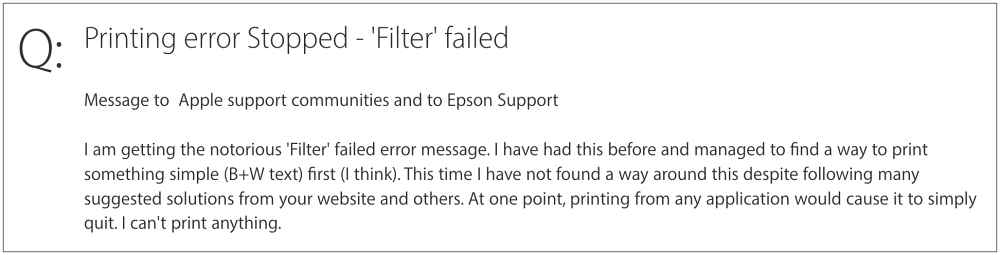
In this guide, we will show you various methods to fix the Printer Error: Stopped – ‘Filter’ failed on your Mac. Numerous users have voiced their concern that they are getting bugged with the aforementioned error whenever they try to point any document- either via wireless [WiFi] or wired [USB] printer.
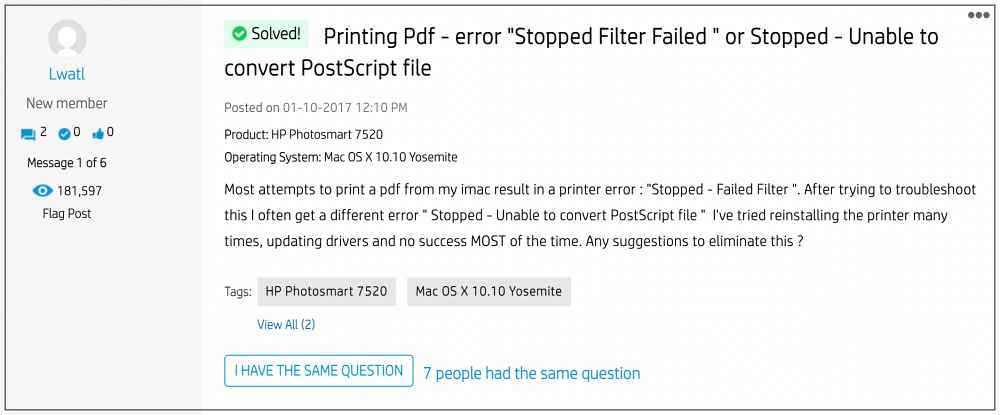
Furthermore, some users have also said that the Preview is not able to print PDFs to their printer [even though third-party software Acrobat Reader is working well and good ]. Likewise, some users have also reported that they are unable to print via Microsoft Remote Desktop and getting the same error as above. So if you are also getting the Printer Error: Stopped – ‘Filter’ failed on your Mac in any of these scenarios, then this guide shall help you rectify it. Follow along.
- Fix Printer Error: Stopped – ‘Filter’ failed on Mac FIX 1: Update the Printer Drivers FIX 2: Re-Install the Printer FIX 3: Reset Printing System
Fix Printer Error: Stopped – ‘Filter’ failed on Mac
It is recommended that you try out each of the below-mentioned workarounds and then see which one spells out success for you. So with that in mind, let’s get started.
FIX 1: Update the Printer Drivers
- To begin with, go to System Preferences > Printers and Scanners.
- Select your printer from the list and hit the minus sign next to it to remove it.
- Then click on Delete Printer in the confirmation dialog box.
- Once done click on the plus icon and select Add Printer or Scanner.
- After that, select the printer type: USB, Wireless, or Ethernet connection.
- Then select your printer under the “Use or Print Using” drop-down list and click on Add.
- Now click on the Apple logo and select Software Update or App Store.
- Then go to the Updates tab and download and install the pending updates.
- Check if it fixes the Printer Error: Stopped – ‘Filter’ failed on your Mac.
FIX 2: Re-Install the Printer
- Power off your printers and go to System Preferences > Printers and Scanners.
- Select your printer from the list and hit the minus sign next to it to remove it.
- Then click on Delete Printer in the confirmation dialog box.
- Now open Finder and go to Library > Printers. Then delete the folder named after your printer.
- After that, go to Library > Printers> PPD > Contents > Resources and delete the file named after your printer.
- Then go to Library > Cache and delete the folder named after your printer.
- Now restart your Mac and power on the printer.
- Go to your printer’s Download site and grab the latest drivers, corresponding to your product’s model number.
- Then launch the driver setup file and proceed with the on-screen instructions to complete the process.
- Now check if it fixes the Printer Error: Stopped – ‘Filter’ failed on your Mac.
FIX 3: Reset Printing System
- To begin with, go to System Preferences > Printers and Scanners.
- Then right-click the blank space in the Printers list and select “Reset printing system”.
- After that, click on Reset in the confirmation dialog box.
- Wait for the process to complete [until there are no printers on the list].
- Once done, restart your Mac and go to System Preferences > Printers and scanners.
- Then click on the plus icon, select your printer from the list and click Add.
- Now click “Print Using…” and then select your printer from the list. That’s it.
- A required firmware update cannot be installed on Mac [Fixed]
- Printer not working in Windows 11: How to Fix
- Print to PDF Option Missing in Windows 11: How to Fix
- HP Printer not working in Chromebook Chrome OS: Fix Filter Failed Error
- Randy 3 years ago Reply Nope, did not work
(Cancel Reply)
Δ
The software for the printer was installed incorrectly on Mac [Fix]
Numerous users have recently voiced their concern that they are unable to set up their printers. Whenever they are trying to do so, they are instead greeted with the “software for the printer was installed incorrectly Please reinstall the software from the manufacturer” error message on their Mac. If you are also in the same boat, then this guide will make you aware of a couple of nifty workarounds to effectivity address this bug. Follow along.
- Fix The software for the printer was installed incorrectly on Mac FIX 1: Verify Certificate Date FIX 2: Add Printer via IP Address FIX 3: Manually Place PPD Files FIX 4: Install Unsigned Drivers
Fix The software for the printer was installed incorrectly on Mac
It is recommended that you try out each of the below-mentioned workarounds and then see which one spells out success. So with that in mind, let’s get started.
FIX 1: Verify Certificate Date
First off, make sure that the printer’s drivers aren’t expired. If they are, then you should first disconnect your Mac from the internet, change the date on your Mac prior to the expiration date, and then retry the installation. Or if that doesn’t work out, then try out our second fix listed below.
FIX 2: Add Printer via IP Address
If you’re having an expired encryption certificate for your printer and the aforementioned tweak didn’t spell out success, then your next course of action is to install the printer via its IP Address. Here’s how it could be done:
- Open S ystem Settings > Network and select your printer.
- Then note down the IP Address next to your printer.
- Now S ystem Settings and go to Printers and Scanners.
- Then select your printer from the list and delete it.
- After that, click on Add Printer.. and go to the Web tab.
- Then type in the IP Address and it will bring the printer, hit Add.
- Check if it fixes the “software for the printer was installed incorrectly” error on Mac.
FIX 3: Manually Place PPD Files
- The driver package that you have downloaded might also have a few PPD files.
- So copy those PPD files and place them at the following location /Library/Printers/PPDs/Contents/Resources/
- Now check if it fixes the “software for the printer was installed incorrectly” error on Mac.
FIX 4: Install Unsigned Drivers
If you could only get hold of the drivers from unknown developers or they are unsigned but you are ready to take the risk, then here’s how you to install these unsigned drivers.
- Go to Launchpad > Others and select Terminal.
- Then type in the below command in the terminal: sudo spctl –global-disable
- Now try installing the driver and check out the result.
- Printer not working in macOS Ventura: How to Fix
- Printer Error: Stopped Filter failed on Mac [Fixed]
- How to Clear and Rebuild Icon Cache on Mac
- Adobe Illustrator v27 crashing on Mac and Windows [Fixed]
(Cancel Reply)
Δ
