Touch not working after flashing Custom ROMs on OnePlus [Fix]
In this guide, we will show you a couple of methods to fix the issue of the touch not working after flashing a custom ROM on your OnePlus device. For the past couple of months, I have been on a custom RO flashing spree on my OnePlus, and during that time frame, I came across a rather intriguing issue- the touch just refused to work! Initially, I attributed that bug to the ROM itself and got in touch with the developer of that ROM.
However, it turned out that the ROM didn’t have any issues as such and there was something wrong on my end itself. Then a few days later, the exact same thing happened, this time with a different ROM. This all but cemented the fact that something definitely not right in the methodology I am using for flashing these ROMs. So I did further investigation and finally found out the culprit. So let’s first understand what’s exactly going on behind the scenes and then we will show you the steps to rectify this bug.
- Why is Touch not working after flashing custom ROMs on OnePlus?
- Fix Touch not working after flashing Custom ROMs on OnePlus [Video] FIX 1: Change Slots FIX 2: Reflash Firmware
- How to Avoid this Issue Again?
- How to Fix Touch Sampling Rate Issue on OnePlus
Why is Touch not working after flashing custom ROMs on OnePlus?
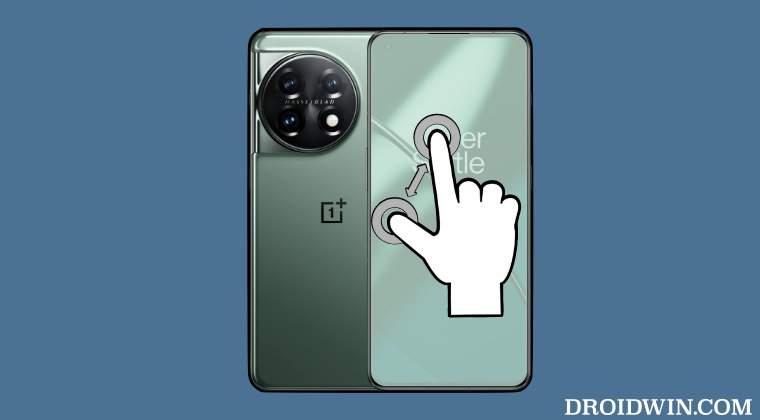
Before flashing a custom ROM, you might come across one of its requirements that your device should either be on OxygenOS 11 or OxygenOS 12. Let’s say you’re currently on OxygenOS 11, and the ROM requires 12, then you’ll have to perform an update before moving ahead. On the other hand, if you are on OxygenOS 12 and the ROM requires 11, then you’ll have to do a downgrade.
In this regard, we carry out the said task [update/dongrade] and then proceed ahead with the flashing. However, we only do this across one of the slots, but in the true sense, we need to flash the required OxygenOS 11/12 firmware across both slots. To further explain this, let’s suppose the ROM requires you to be on OxygenOS 11 and you have flashed the same in Slot A.
Then when you flash the custom ROM, a slot change will take place and your device will boot to Slot B, which still had an unsupported OxygenOS 12 firmware. As a result of this, the touch [and a few other features] will no longer work on your device. Fortunately, there does exist a couple of nifty workarounds that should help you fix this issue of the touch not working after flashing a custom ROM on your OnePlus device. So without further ado, let’s check them out.
Fix Touch not working after flashing Custom ROMs on OnePlus [Video]

Please take a backup of all the data on your device beforehand. Moreover, It is recommended that you try out each of the below-mentioned workarounds and then see which one spells out success. Droidwin and its members wouldn’t be held responsible in case of a thermonuclear war, your alarm doesn’t wake you up, or if anything happens to your device and data by performing the below steps.
FIX 1: Change Slots
In most cases, simply switching over to the other slot which has the correct firmware version should be enough to rectify the underlying issue. So refer to the below steps to give it a try and then check out the results.
- As of now, your device should be in the custom ROM’s setup screen.
- So press and hold the Power and Volume Up for a few seconds. This will power off your device.
- Then p ress and hold the Power Volume Up and Down keys for a few seconds. This will boot your device to Fastboot Mode.
- Now download and extract Android SDK Platform Tools . Then open the CMD window inside the platform-tools folder.
- Then connect your device to your PC via a USB cable. Now execute the below command to change slots: fastboot set_active other
- Finally, type in the below command to boot your device to the OS fastboot reboot
- That’s it. The touch should now be working on your OnePlus device running a custom ROM.
FIX 2: Reflash Firmware
In case the issue isn’t yet rectified, then your last course of action should eb to reflash the firmware and do a factory reset in the process as well. Here’s how it could be done:
- As of now, your device should be in the custom ROM’s setup screen.
- So press and hold the Power and Volume Up for a few seconds. This will power off your device.
- Then p ress and hold the Power Volume Up and Down keys for a few seconds.
- This will boot your device to Fastboot Mode. Now type in the below command to perform a reset fastboot -w
- Now flash the custom ROM according to the instructions laid down by the developers.
- Once done, boot to the recovery mode and again perform a factory reset.
- If you cannot access recovery, then boot to Fastboot Mode and do a reset as explained above.
- Finally, boot your device to the OS. The touch should now be working on your OnePlus running a custom ROM.
How to Avoid this Issue Again?
While both the aforementioned tweaks should rectify the issue of touch not working after flashing a custom ROM on your OnePlus device, but in the near future, you should flash the required firmware across both slots to avoid this issue in the first place.
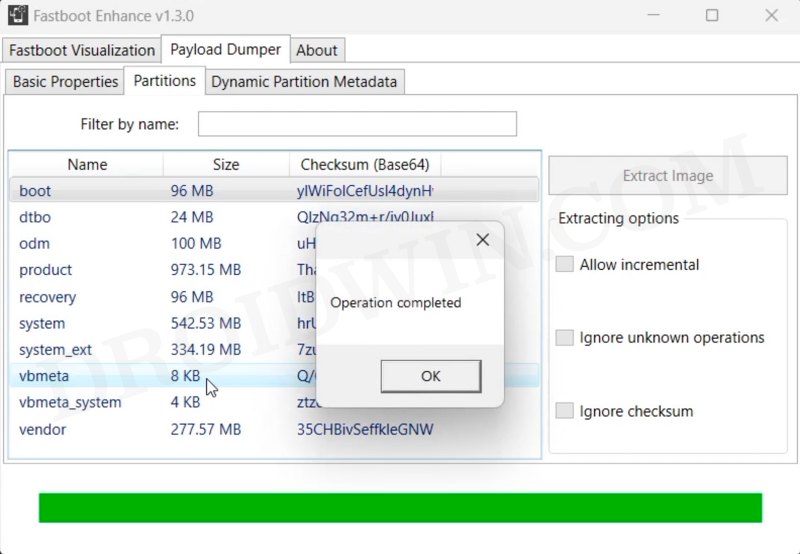
To do so, simply flash the ROM as you normally do [via the Settings menu, Oxygen Updater, Fastboot Enhance , etc], then restart your device, and again carry out the same flashing process. This will make sure that the same firmware version is flashed across both the slots and then you could then proceed ahead and flash the desired custom ROM without any issues.
How to Fix Touch Sampling Rate Issue on OnePlus
Numerous OnePlus users have voiced their concern that the OxygenOS 12 update took away the HyperTouch feature, which let you use the 360Hz touch sampling rate. It only worked at 240 Hz. Now, with the OxygenOS 12.1 update, things have taken a turn for the worse as it’s now working at only 120Hz!

Credit: OnePlus Forum Member O1619173665813
While the OEM refuses to comment on this, and there doesn’t seem to be any concrete fix for the same, but removing the screen protector seems to be the “fix” that comes with the highest success rate. However, it comes with its obvious downside that your device’s screen is now more prone to scratches and even breaking. So, try it out keeping in mind the pros and cons involved.
- How to Get all Pixel Features on OnePlus without Custom ROM!
- How to Downgrade OnePlus 11 from Android 14 to Android 13
- How to Convert OnePlus 11R from ColorOS to OxygenOS
- How to Remove Shelf from OnePlus on Swipe Down Gesture

(Cancel Reply)
Δ
