TouchTunes app not working on rooted Android: How to Fix
In this guide, we will show you the steps to fix the issue of the TouchTunes app not working on rooted Android devices. This app allows you to play your favorite music on the jukebox across numerous bars, restaurants, and local hot spots. You could create a personalized experience based on your play history and music preferences. Likewise, you could also queue up songs from a handpicked playlist or by syncing the music already on your phone.
However, a subset of users aren’t able to make full use of these features. In this regard, many users have voiced their concern that the TouchTunes app is not working along the expected lines on their rooted Android devices. If you are also facing the same issue, then this guide will make you aware of the steps to rectify this issue once and for all. Follow along.
- Fix the TouchTunes app not working on rooted Android STEP 1: Pass Play Integrity Test STEP 2: Hide Root from TouchTunes STEP 3: Whitelist URLs from Adblocker [If Required]
Fix the TouchTunes app not working on rooted Android
The below instructions are listed under separate sections for ease of understanding. Make sure to follow the same sequence as mentioned. Droidwin and its members wouldn’t be held responsible in case of a thermonuclear war, your alarm doesn’t wake you up, or if anything happens to your device and data by performing the below steps.
STEP 1: Pass Play Integrity Test
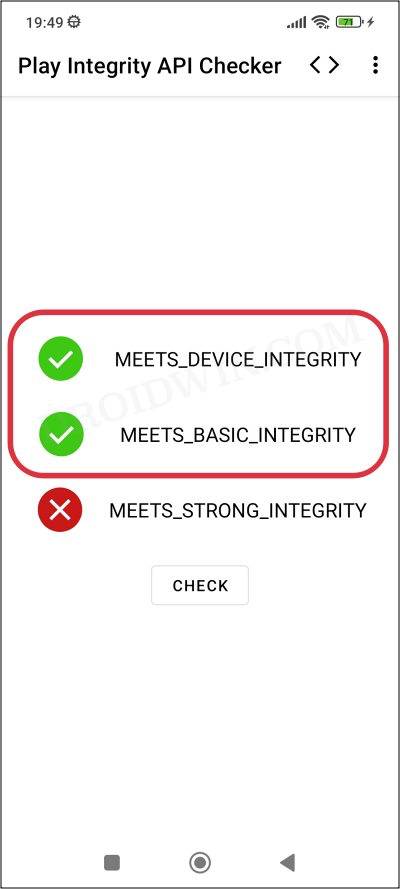
First and foremost, your device needs to pass the Play Integrity Test. If that is not the case, then you could refer to our guide on How to pass ‘Meets Device and Basic Integrity’ via Play Integrity Fix .
STEP 2: Hide Root from TouchTunes
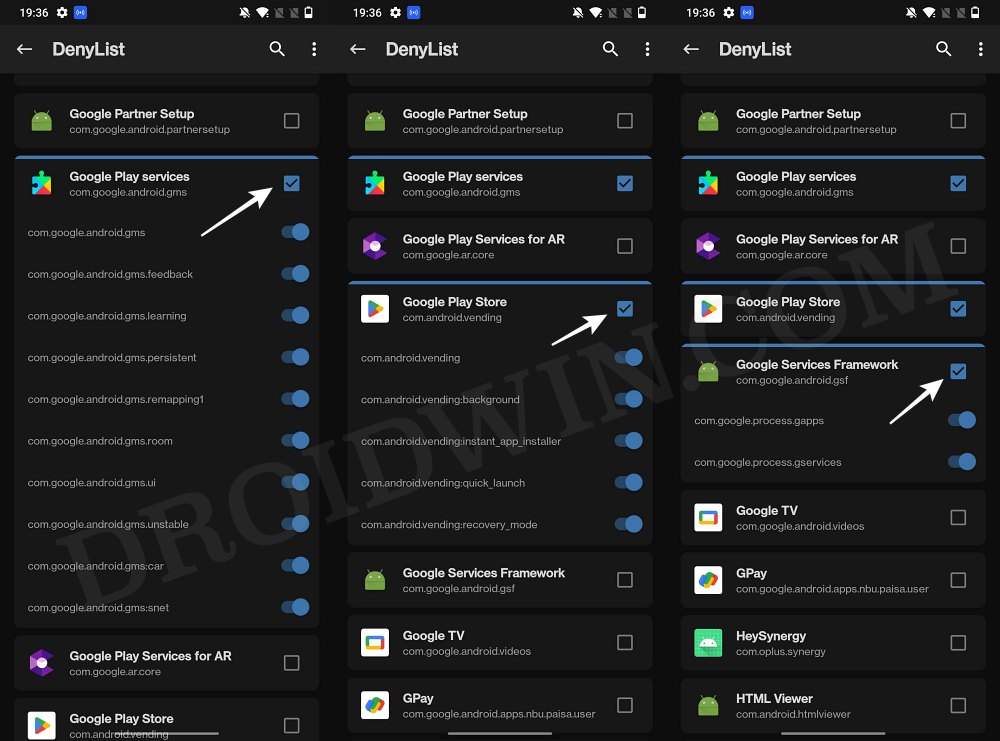
Next up, you’ll have to hide the root from the YouchTunes app. For that, you could refer to our guide on How to Hide Root from Apps via Magisk DenyList [Android 14] .
STEP 3: Whitelist URLs from Adblocker [If Required]
If you are using an ad blocker, then either uninstall it or at least add the following addresses to its whitelist:
api.leanplum.com

api.mixpanel.com

api2.mixpanel.com

api2.branch.io

cdn.branch.io

decide.mixpanel.com
- Magisk Restore Images not working: How to Fix
- How to Root Android 15 via Magisk Patched Init_Boot/Boot.img
- Direct Install Missing in Magisk: How to Fix
- What are the Best Rooted Apps/Magisk Modules in 2024?

(Cancel Reply)
Δ
