uBlock Origin Not Working in Chrome: How to Fix [2025]
In this guide, we will show you the steps to fix the issue of uBlock Origin not working in Chrome. Ads are touted as the necessary evil. On one hand, they tend to conflict with the normal workflow and usage of the contents, but on the other hand, they are the major [or in some cases like mine, the only] source of income for publishers.
Therefore, the publishers must maintain an equilibrium between the total number of ads that they display. More importantly, those ads shouldn’t be intrusive in nature but unfortunately, that is rarely the case. As a result of which, users are left with no choice but to opt for an ad-blocker. In this regard, the uBlock Origin is the go-to choice for the masses because not only is it able to block all types of ads, it’s built-in script management functionality is quite a handy tool as well.
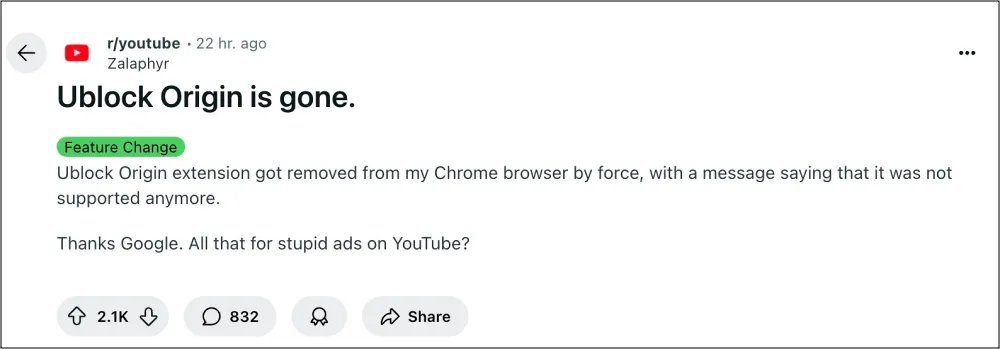
With that said, Google is currently migrating Chrome extensions from Manifest V2 to Manifest V3, which has made numerous extensions non-functional, including our beloved uBlock Origin. Unfortunately, the reports have already started pouring in , with many saying that the Silicon Valley giant has removed the extension from their browser.
Others have voiced their concern that Chrome has disabled the said extension from its Extension Store, hence they can no longer install it. If you are also facing any of these issues, then this guide will make you aware of numerous workarounds to welcome back this extension into the browser right away. So without any further ado, let’s check them out.
- Fix uBlock Origin Not Working in Chrome [2025] FIX 1: Just Enable It! FIX 2: Using “Keep For Now” Option FIX 3: Using Inspect Element Tweak FIX 4: Use GitHub FIX 5: Use uBlock Origin Lite FIX 6: Using Chrome Flags [NEW]
Fix uBlock Origin Not Working in Chrome [2025]

It is recommended that you try out each of the below-mentioned workarounds a nd then see which one spells out success. So with that in mind, let’s get started.
FIX 1: Just Enable It!
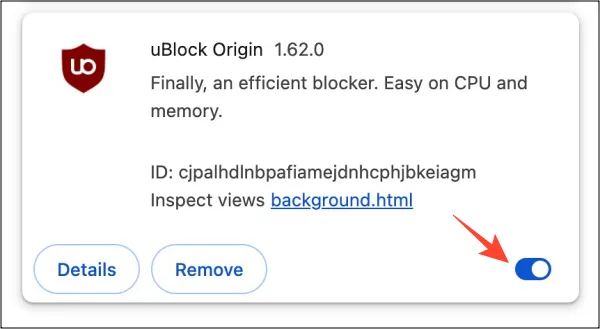
As strange as it may sound, Google seems to have simply disabled the extension from the browser’s extension page in many cases. So before moving ahead with any advanced fixes, let’s first check if that is the case with you as well. So head over to chrome://extensions/ and enable the toggle next to uBlock Origin. See if it does any good or not.
FIX 2: Using “Keep For Now” Option
- To begin with, head over to the Chrome Extension page via the below address chrome://extensions/
- Now click on the overflow icon next to uBlock Origin and select Keep for Now.
- Then scroll to the Extension section > enable uBlock Origin > Confirm again.
- Check if the uBlock Origin extension is working in the Chrome browser or not.
FIX 3: Using Inspect Element Tweak
For every change, there’s always an Inspect Element tweak that would help you revert it! And such is the case here as well. So without further ado, let’s check out what’s in store for us this time around:
- Go to the uBlock extension page , the ‘Add to Chrome’ button will be greyed out.
- So right-click on it and select Inspect.
- Then search the below-given value: disabled="" aria-describedby=“c5”
- Now change the ‘disabled’ element to ‘enabled’ and save it.
- The Add to Chrome button will now be ungreyed and you can install the extension via that button!
FIX 4: Use GitHub
What if we cannot use Chrome’s Extension page, there’s always an alternate way out. Even if the extension gets removed from the Store, you can always install it from its official GitHub page. Here’s how it can be done:
METHOD 1 [NEW]
If you are on Chrome 138 and 139, then you may directly carry out this tweak. But for Chrome 14o, you’ll first have to enable the flag: chrome://flags/#temporary-unexpire-flags-m139 and restart the browser, and then carry out the below tweak. Likewise, for Chrome 141, enable the flag chrome://flags/#temporary-unexpire-flags-m140, restart the browser, and then carry out the below steps.
- Open chrome://flags/#allow-legacy-mv2-extensions
- Enable it and relaunch your browser.
- Navigate to https://github.com/gorhill/uBlock/releases
- Choose the release you want to install – currently latest stable is 1.65.
- In the “Assets” section, find the “chromium” file (e.g. uBlock0_1.65.0.chromium.zip ) and download it.
- Extract the file on your machine.
- Open chrome://extensions/
- Enable the “Developer mode”.
- Click on “Load unpacked”.
- Select the uBlock0.chromium folder and load it.
METHOD 2:
- Download the uBlock Extension ZIP file from its GitHub page and extract it to your PC.
- Then head over to Chrome’s extension page via the below URL chrome://extensions/
- Now enable the Developer Mode at the top right and then click on Load Unpacked.
- Then select the extracted extension. It will be loaded to the browser and you can then use it.
FIX 5: Use uBlock Origin Lite
If none of the aforementioned methods spelled out success, then your last course of action should be to switch over to the lighter version of this extension. This is a trimmed down version of uBlock and behold fewer features in its arsenal but will at least help you in blocking those intrusive pop-ups. So grab it from the web store and test it out right away!
FIX 6: Using Chrome Flags [NEW]

- Launch Chrome and head over to the flags page via the below URL: chrome://flags
- Then go to the required URL depending on the browser version [overflow icon > Help > About Google Chrome] version 138: chrome://flags/#temporary-unexpire-flags-m137 version 139: chrome://flags/#temporary-unexpire-flags-m138
- Now, click on Default, select Enabled, and restart the browser.
- Now disable the first three flags given below and enable the fourth one: chrome://flags/#extension-manifest-v2-deprecation-warning [Disabled] chrome://flags/#extension-manifest-v2-deprecation-disabled [Disabled] chrome://flags/#extension-manifest-v2-deprecation-unsupported [Disabled] chrome://flags/#allow-legacy-mv2-extensions [Enabled]
- Finally, restart the browser and you can now use uBlock Origin on Chrome.
What about version 140? Unfortunately, on version 140 [and higher], there will be no such flags to carry out this tweak. With that said, you can create a Chrome shortcut, add the below parameter to it, and launch Chrome via that shortcut.
chrome.exe --disable-features=ExtensionManifestV2Unsupported,ExtensionManifestV2Disabled
That’s it. These were the five different methods that should help you fix the issue of uBlock Origin not working in Chrome. We will be updating this guide with more tweaks to bypass this limitation as soon as we get hold of them. So stay tuned!
- How to Remove Recent from Left Hand Side in Reddit
- How to Block Admiral Popup in any Browser
- YouTube start video with 5 second delay with ad blocker on Firefox
- How to Hide or Block all Twitter Blue Subscribers tweets [Video]

(Cancel Reply)
Δ
