Unbrick Motorola Razr 40 Ultra via Fastboot Commands
In this guide, we will show you the steps to unbrick your Motorola Razr 40 Ultra via Fastboot Commands. When it comes to flip devices, then the latest offering from Motorola has grabbed the attention of the masses. While it’s is still in its early stage, but you could still unlock its bootloader and root it via Magisk . This in turn will allow you to welcome a plethora of mods and tweaks onto your device.
However, this is just one side of the coin. Carrying out these tweaks has its fair share of downsides as well. Just a slight deviation from the instructions and your device might end up in a bootloop or soft brick state. Fortunately, even then, you could still unbrick your Motorola Razr 40 Ultra by flashing the Fastboot ROM via Fastboot Commands. And in this guide, we will show you how to do just that. Follow along.
- How to Unbrick Motorola Razr 40 Ultra via Fastboot Commands STEP 1: Install Android SDK STEP 2: Download Motorola Razr 40 Ultra Firmware STEP 3: Boot Motorola Razr 40 Ultra to Fastboot Mode STEP 4: Unbrick Motorola Razr 40 UltraMotorola Razr 40 Ultraedge 40 via Fastboot
How to Unbrick Motorola Razr 40 Ultra via Fastboot Commands
The below instructions are listed under separate sections for ease of understanding. Make sure to follow the same sequence as mentioned. Droidwin and its members wouldn’t be held responsible in case of a thermonuclear war, your alarm doesn’t wake you up, or if anything happens to your device and data by performing the below steps.
STEP 1: Install Android SDK

To begin with, install the Android SDK Platform Tools on your PC. This is the official ADB and Fastboot binary provided by Google and is the only recommended one. So download it and then extract it to any convenient location on your PC. Doing so will give you the platform tools folder, which will be used throughout this guide.
STEP 2: Download Motorola Razr 40 Ultra Firmware
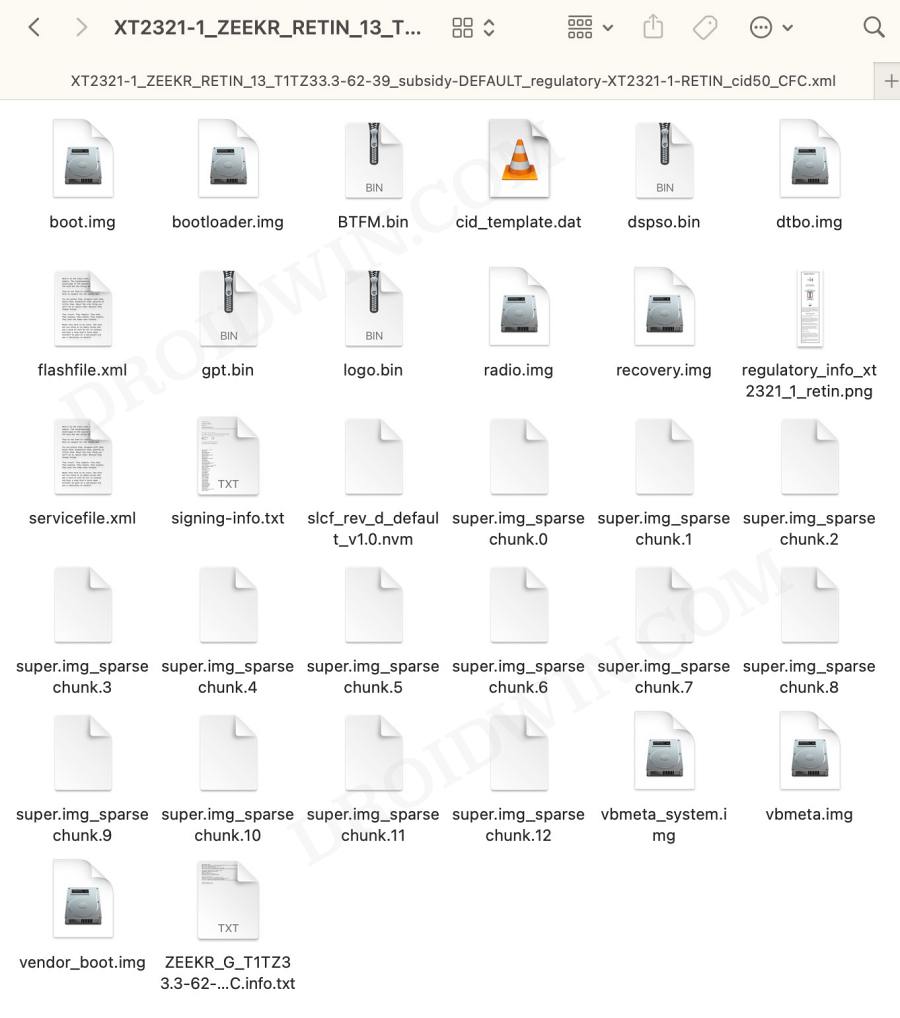
Now, get hold of the stock firmware for your device from a trusted site [such as Lolinet ]. Once downloaded, extract it to the platform tools folder on your PC.
STEP 3: Boot Motorola Razr 40 Ultra to Fastboot Mode
In most cases, a soft-bricked or boot-looped device might already be in the Fastboot Mode. However, if you are stuck in a bootloop, then long-press the Power key to turn it off. Then press and hold the Power and Volume Down keys (or Power and Volume Up) together to boot your device to Fastboot Mode.
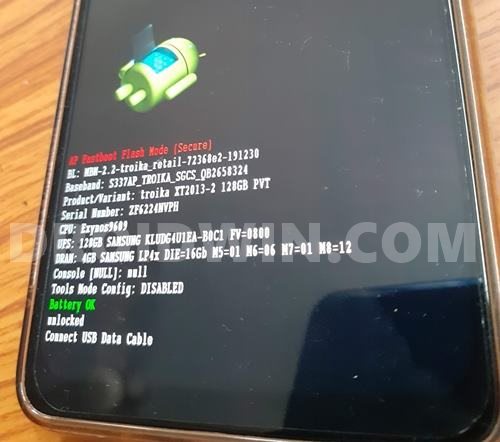
However, if you are unable to power off the device, then let its battery drain out. Once that happens, connect it to the charger. Then as soon as it is about to boot up, use the Power and Volume Up/Down keys and it will straightaway boot to Fastboot Mode.
STEP 4: Unbrick Motorola Razr 40 UltraMotorola Razr 40 Ultraedge 40 via Fastboot
- Now type in the following commands in the CMD window that is opened in the platform-tools folder. Make sure to execute one command at a time.
- Moreover, if you get an error while executing that command, just skip that command and move over to the next one, don’t leave the process mid-way.
- Likewise, as soon as you execute the last command, your device will reboot to the OS. Fastboot flash partition gpt.bin Fastboot flash bootloader bootloader.img Fastboot flash vbmeta vbmeta.img Fastboot flash vbmeta_system vbmeta_system.img Fastboot flash radio radio.img Fastboot flash bluetooth BTFM.bin Fastboot flash dsp dspso.bin Fastboot flash logo logo.bin Fastboot flash boot boot.img Fastboot flash vendor_boot vendor_boot.img Fastboot flash dtbo dtbo.img Fastboot flash recovery recovery.img Fastboot flash super super.img_sparsechunk.0 Fastboot flash super super.img_sparsechunk.1 Fastboot flash super super.img_sparsechunk.2 Fastboot flash super super.img_sparsechunk.3 Fastboot flash super super.img_sparsechunk.4 Fastboot flash super super.img_sparsechunk.5 Fastboot flash super super.img_sparsechunk.6 Fastboot flash super super.img_sparsechunk.7 Fastboot flash super super.img_sparsechunk.8 Fastboot flash super super.img_sparsechunk.9 Fastboot flash super super.img_sparsechunk.10 Fastboot flash super super.img_sparsechunk.11 Fastboot flash super super.img_sparsechunk.12 Fastboot erase apdp Fastboot erase apdpb Fastboot erase debug_token Fastboot erase carrier Fastboot erase userdata Fastboot erase metadata Fastboot erase ddr Fastboot oem fb_mode_clear Fastboot reboot

(Cancel Reply)
Δ
