Unbrick Motorola via Blank Flash and EDL Mode
In this guide, we will show you the steps to unbrick your Motorola device by flashing the Blank Flash file in EDL Mode. While the OEM had quite a start with the launch of the G series alongside Google. However, it soon went into oblivion, and concerns about its existence were already beginning to pop up when all of a sudden it came back and in quite some style. Its recent devices in the form of the Edge series behold quite an impressive specs sheet and are priced quite aggressively as well.
Apart from that, the devices from Motorola have been known to be quite an active player in the custom development as well. Be it for flashing custom ROMs, installing a custom recovery, or gaining administrative privileges by rooting, there’s quite a lot to look forward to. However, this is just one side of the coin. Trying out these tweaks could prove to be quite risky as well and there’s always a chance of things going south. If it is a softbrick or bootloop, then you could easily fix it by flashing the firmware via Fastboot.
But what if the device is in a hard-bricked state? Well, if your device has an underlying Qualcomm chipset, then you could make use of the Emergency Download Mode and subsequently flash the Blank Flash file. This will then take you to the Fastboot Mode. After that, you may then flash the stock firmware via Fastboot Commands or using the LMSA Tool. So on that note, let’s get started with the tutorial to unbrick your Motorola device by flashing the Blank Flash file in EDL Mode.
- Unbrick Motorola via Unbrick Tool | Without Blank Flash [NEW] Supported Devices Instruction Steps
- Unbrick Motorola via Blank Flash and EDL Mode STEP 1: Install Android SDK STEP 2: Install Qualcomm USB Drivers STEP 3: Download Blank Flash STEP 4: Boot Motorola to EDL Mode EDL Mode via Hardware Key Combination EDL Mode via Blank Flash EDL Mode via TWRP EDL Mode via TWRP and ADB Command STEP 5: Verify EDL Mode Connection STEP 6: Unbrick Motorola via Blank Flash file and EDL Mode
Unbrick Motorola via Unbrick Tool | Without Blank Flash [NEW]
Droidwin and its members wouldn’t be held responsible in case of a thermonuclear war, your alarm doesn’t wake you up, or if anything happens to your device and data by performing the below steps.
Supported Devices
Note: More devices might be supported than what is listed below. Even if your device is not listed below, you may try it out and see if it works for you or not.
*Edge 2021 SD778

*Edge 20 Lite

*Edge 20 Pro XT2153-1

*Edge 20

*Edge 30

*Edge 30 Pro

*Edge 30 Plus

*Edge Plus

*Edge X30

*Edge

*G50 XT2137-2

*G9 Power 2021

*Defy 2021

*G Pure

*E 2020

*Moto E5 Plus

*E5 SD425

*Moto E6

*Moto E7 Plus

*Moto G 5G

*Moto G Play 2021

*Moto G Power 2022)

*G Power 2021

*G Stylus VZW

*G Stylus 5G

*Moto G6 Play

*Moto G6 Plus

*Moto G6

*G7 Play

*G7 Plus

*G7 Power

*Moto G7

*G8 Play

*G8 Plus

*G8 Power XT2041-7

*Moto G8

*G9 Play

*G9 Plus

*G9 Power

*Moto G10

*Moto G30

*Moto G31

*Moto G41

*Moto G50 5G

*Moto G50

*G52 XT2221-1

*G52 XT2221-2

*Moto G60

*Moto G71 5G

*Moto G82

*Moto G100

*Moto G200 5G

*One Power

*One Zoom

*Z3 Play

*Moto Z4

*One 5G ACE

*One Action

*One Fusion Plus

*One Fusion

*One Hyper

*One Macro

*One Vision

*Motorola One

*P30 Note

*P30 Play

*Razr 5G XT2071-5

*Motorola Razr 2019
Instruction Steps
- Install Qualcomm EDL Drivers or MediaTek Drivers , depending on your device’s chipset.
- Now download the tool from below and extract it to your PC. DOWNLOAD LINK [Credit: XDA Senior Member mark 332]
- Then launch it, select the model, and hit Unbrick.
- Then connect your device to EDL Mode [Qualcomm] or BROM Mode [MediaTek]: EDL Mode: With device powered off, press and hold the Volume Up and Down Keys and then connect your device to the PC via a USB cable. BROM Mode: With device powered off, press and hold the Volume Up and Down Keys and then connect your device to the PC via a USB cable. If this does not work out, then try connecting your powered off device without pressing any keys.
- Wait for the flashing to complete. Once done, it will repair the Bootloader/Fastboot Mode and boot your device to this mode.
- You may now download the Fastboot ROM , extract it, and launch the flash_all.bat file to flash the ROM.
Unbrick Motorola via Blank Flash and EDL Mode
The below process will wipe off all the data from your device. Moreover, it also requires an unlocked bootloader. Droidwin and its members wouldn’t be held responsible in case of a thermonuclear war, your alarm doesn’t wake you up, or if anything happens to your device and data by performing the below steps.
STEP 1: Install Android SDK
First and foremost, you will have to install the Android SDK Platform Tools on your PC. This is the official ADB and Fastboot binary provided by Google and is the only recommended one. So download it and then extract it to any convenient location on your PC. Doing so will give you the platform-tools folder, which will be used throughout this guide.

STEP 2: Install Qualcomm USB Drivers
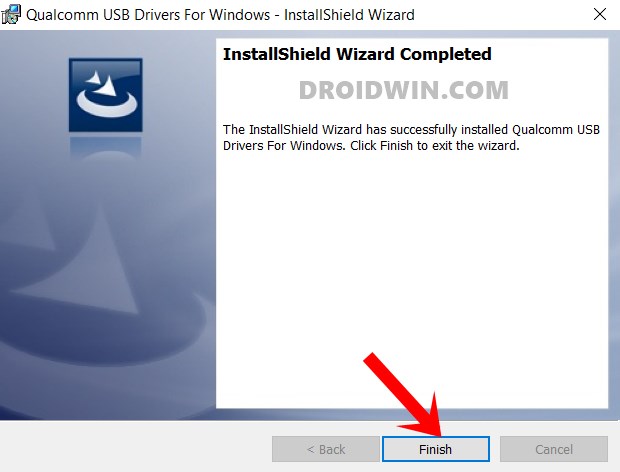
Next up, download and install the Qualcomm HS-USB QDLoader 9008 Drivers on your PC. This will help your PC to identify the connected device in the EDL Mode.
STEP 3: Download Blank Flash
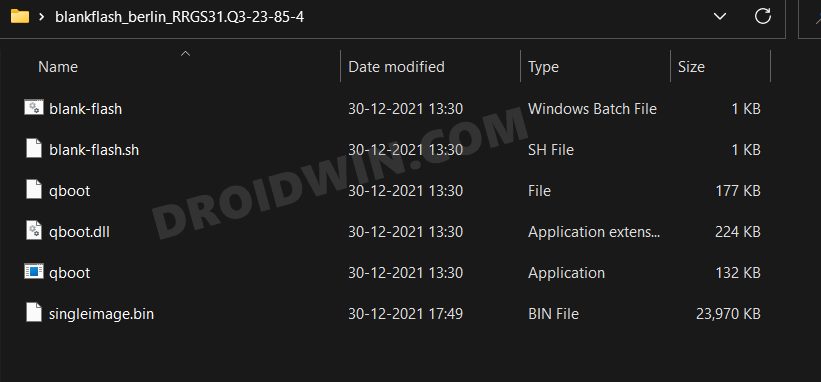
Get hold of the blank flash file corresponding to your device from the Lolinet Mirrors. Once downloaded, extract it to the platform-tools folder on your PC.
STEP 4: Boot Motorola to EDL Mode
You will now have to boot your device to EDL Mode, for that, there are two broad approaches that you could take- using hardware key combinations or via Commands. The benefit of Hardware Keys is that you could use them at any point in time, irrespective of the current device state. On the flip side, there isn’t any universal key combination that we could suggest, though the first step is powering off your device. After that, you could try out one of the following permutations-
EDL Mode via Hardware Key Combination
- Press and hold the Vol Up Vol Down and Power keys
- Press and hold the Vol Up OR Vol Down and Power keys
- Press and hold both the Volume keys and then connect it to the PC via USB cable.
EDL Mode via Blank Flash
If you are able to access the Fastboot Mode, then there are quite a few methods through which you could boot your Motorola device to the EDL Mode. Let’s start with the blank flash method-
- Transfer all the contents of the blank flash file to the platform-tools folder.
- Then open CMD inside the platform-tools folder and execute the below command- fastboot oem blankflash
- It should boot your device to the EDL Mode.
EDL Mode via TWRP
- If your device has a working TWRP, then download the twrp.img file.
- Then transfer it to the platform-tools folder on your PC.
- After that, open CMD inside the platform-tools folder
- Now execute the below command to boot your device to TWRP fastboot boot twrp.img
- Once booted to TWRP, go to Reboot and select EDL.
- Your device will now boot to EDL Mode.
EDL Mode via TWRP and ADB Command
- To begin with, boot your device to TWRP using the above-given instructions.
- Then open CMD inside the platform-tools folder
- After that, execute the below command to boot your device to EDL Mode adb reboot edl
STEP 5: Verify EDL Mode Connection
In most cases, the device wouldn’t show any prompt whether it is booted to EDL Mode or not. To verify the same, you will have to take the help of your PC. Here’s how-
- First off, carry out the above EDL Mode steps
- Then connect your device to the PC via USB cable
- After that, launch Device Manager from the Start Menu.
- Now expand the Ports or Other Devices section.
- Your device should be listed as Qualcomm HS-USB QDLoader 9008. This signifies a successful EDL mode.
On the other hand, if it shows as QHUSB BULK, then reverify the driver installation, use a different USB cable, change USB ports, etc. Try out these tweaks until your device gets listed as Qualcomm HS-USB QDLoader 9008.
STEP 6: Unbrick Motorola via Blank Flash file and EDL Mode
- As soon as your device boots to EDL, double click on the blank-flash.bat file to run it.
- Once that is done, your device will now boot to the Fastboot Mode.
- Now download the stock firmware for your device and extract it inside the platform-tools folder.
- You could now refer to our guide on How to Flash Stock Firmware via Fastboot Commands , or you may flash the firmware via Motorola Rescue and Smart Assistance .
- Once the flashing is complete, use the below command to boot your device to the OS fastboot reboot

- Gab P. 3 years ago Reply This helped me unbrick an otherwise hard-bricked device! Thank you!
(Cancel Reply)
Δ
