Unbrick OnePlus 10 Pro/10T/10R: Flash Firmware via Fastboot
In this guide, we will show you the steps to unbrick your OnePlus 10 Pro/10T/10R by flashing the stock firmware via Fastboot commands. The Chinese OEM took a different strategy this time around by launching the Pro variant of its flagship first. And it has left no stone unturned in pushing it to the top of the priority queue of the users. In this regard, it has recently rolled out the latest Android 13 update for this device, thereby adding more brownie points to its rich arsenal.
Then if we shift our focus towards custom development, then it has already made a name for itself in this short time frame. Be it for flashing custom ROMs [in order to escape the ColorOS ecosystem], installing a custom recovery, or gaining admin access by rooting it via Magisk, there’s a lot to look forward to.
On the flip side though, these mods could spell out trouble for your device as well. Even the slightest of mistakes is enough to send it to a bootloop or softbrick state. Well, even if that happens, you could easily unbrick your OnePlus 10 Pro/10T/10R by flashing the stock firmware via Fastboot commands. And in this guide, we will show you how to do just that. Follow along.
- Unbrick via Fastboot ROM
- Unbrick OnePlus 10 Pro/10T/10R: Flash Firmware via Fastboot Commands STEP 1: Install Android SDK STEP 2: Download OnePlus 10 Pro/10T/10R Firmware STEP 3: Extract OnePlus 10 Pro/10T/10R Payload.bin STEP 4: Boot Bricked OnePlus 10 Pro/10T/10R to Fastboot Mode STEP 5: Format Device via Fastboot STEP 6: Flash OnePlus 10 Pro/10T Firmware via Fastboot Commands STEP 7: Flash OnePlus 10 Pro/10T Firmware Files in FastbootD Mode
- Unbrick OnePlus 10 Pro/10T by Resizing Partition and Flashing Firmware STEP 1: Flash OnePlus 10 Pro/10T Firmware via Fastboot Commands STEP 2: Flash OnePlus 10 Pro/10T Firmware Files in FastbootD Mode STEP 3: Resize Logical Partition on OnePlus 10 Pro/10T STEP 4: Flash Logical Partition on OnePlus 10 Pro/10T STEP 5: Reboot Device
- Flash NE2215Export and NE2213GDPR via Fastboot
Unbrick via Fastboot ROM
- The easiest of all the methods, you just need to download the Fastboot ROM from below [corresponding to your region] and extract it onto your PC [Credit: XDA Senior Member docnok63]. EU: https://androidfilehost.com/?fid=15664248565197183368 IN: https://androidfilehost.com/?fid=15664248565197183429 Global: https://androidfilehost.com/?fid=15664248565197183433
- Then reboot your device to the Fastboot Mode via the Power and Volume Down key combinations.
- After that, launch the install_all.bat file and the flashing will start. Your device will boot to FastbootD and Fastboot during the flashing process, this is completely normal.
- Once done, your device should boot to the OS, if that doesn’t happen, then you may manually do so via the fastboot reboot command
Unbrick OnePlus 10 Pro/10T/10R: Flash Firmware via Fastboot Commands
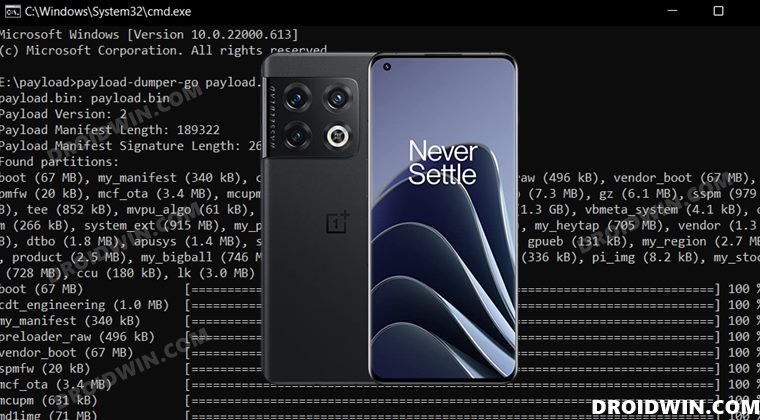
The below process will wipe off all the data from your device. So take a complete device backup beforehand by any means possible. Droidwin and its members wouldn’t be held responsible in case of a thermonuclear war, your alarm doesn’t wake you up, or if anything happens to your device and data by performing the below steps.
STEP 1: Install Android SDK

First and foremost, you will have to install the Android SDK Platform Tools on your PC. This is the official ADB and Fastboot binary provided by Google and is the only recommended one. So download it and then extract it to any convenient location on your PC. Doing so will give you the platform-tools folder, which will be used throughout this guide to unbrick your OnePlus 10 Pro/10T via Fastboot commands.
STEP 2: Download OnePlus 10 Pro/10T/10R Firmware
Next up, download the stock firmware for your device from the below link. OnePlus provides its firmware in payload.bin, which you need to extract in order to get hold of the partition files. I have already done that for a few firmware versions. So if your device has the same firmware/build installed, then you could directly download the Fastboot ROM [extracted payload] instead of the payload.bin
ONEPLUS 10 PRO FASTBOOT ROM AND STOCK FIRMWARE


OnePlus 10T Stock Firmware Collection
Download OnePlus 10R Fastboot ROM, Stock Firmware, Boot.img
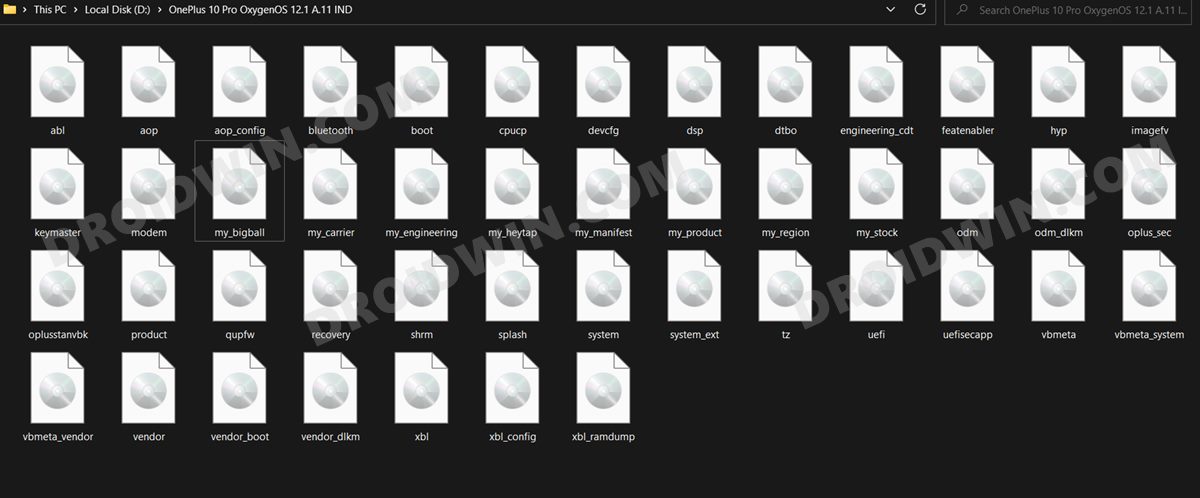
STEP 3: Extract OnePlus 10 Pro/10T/10R Payload.bin
If you have downloaded the Fastboot ROM, then you could skip this step. On the other hand, if you have a payload.bin firmware, then you will have to extract it first and get the resultant IMG files. To do so, you may refer to our guide on How to Extract OnePlus Payload.bin file. Once extracted, make sure to transfer all the files to the platform-tools folder.
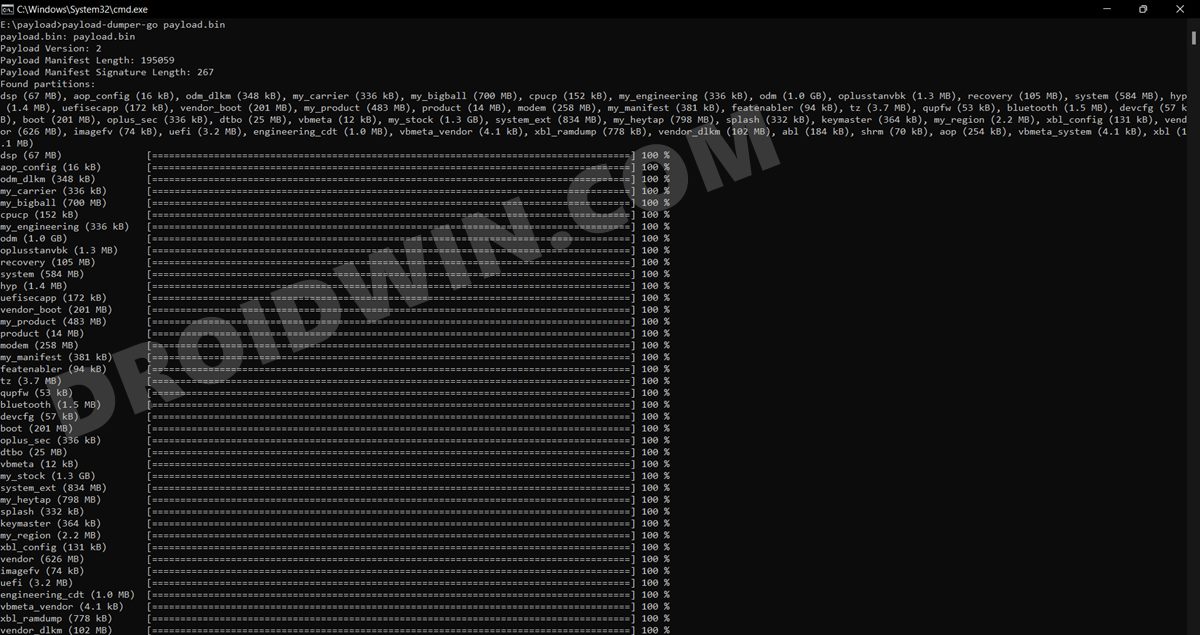
STEP 4: Boot Bricked OnePlus 10 Pro/10T/10R to Fastboot Mode
In most cases, a soft-bricked or boot-looped device might already be in the Fastboot Mode. However, if you are stuck in a bootloop, then long-press the Power key to turn it off. Then press and hold the Power and Volume Down keys (or Power and Volume Up in some devices) together to boot your device to Fastboot Mode.
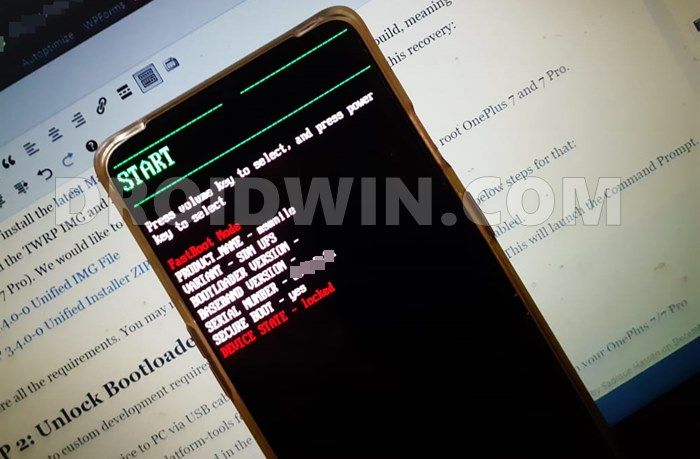
However, if you are unable to power off the device, then let its battery drain out. Once that happens, connect it to the charger. Then as soon as it is about to boot up, use the Power and Volume Up/Down keys and it will straightaway boot to Fastboot Mode.
STEP 5: Format Device via Fastboot
- Head over to the platform-tools folder where the extracted ROM is present.
- Then go to its address bar, type in CMD in its address and hit Enter. This will launch the CMD window.
- Now execute the below command to perform a factory reset (optional but recommended) fastboot -w
STEP 6: Flash OnePlus 10 Pro/10T Firmware via Fastboot Commands
Execute the below commands in the CMD window [that is opened in the platform-tools folder] to flash the partition file. Make sure to execute one command at a time. Furthermore, if you get an error, then don’t leave the process mid-way, rather move over to the next flashing command.
fastboot flash bluetooth bluetooth.img

fastboot flash boot boot.img

fastboot flash cpucp cpucp.img

fastboot flash dtbo dtbo.img

fastboot flash engineering_cdt engineering_cdt.img

fastboot flash modem modem.img

fastboot flash oplus_sec oplus_sec.img

fastboot flash oplusstanvbk oplusstanvbk.img

fastboot flash recovery recovery.img

fastboot flash shrm shrm.img

fastboot flash splash splash.img

fastboot flash tz tz.img

fastboot flash uefi uefi.img

fastboot flash uefisecapp uefisecapp.img

fastboot flash vbmeta vbmeta.img

fastboot flash vendor_boot vendor_boot.img

fastboot flash vbmeta_system vbmeta_system.img

fastboot flash vbmeta_vendor vbmeta_vendor.img
STEP 7: Flash OnePlus 10 Pro/10T Firmware Files in FastbootD Mode
- o begin with, boot your device to FastbootD Mode using the below command: fastboot reboot fastboot
- Now execute the below commands in the CMD window [that is opened in the platform-tools folder] to flash the remaining files- fastboot flash abl abl.img fastboot flash aop aop.img fastboot flash aop_config aop_config.img fastboot flash devcfg devcfg.img fastboot flash dsp dsp.img fastboot flash featenabler featenabler.img fastboot flash hyp hyp.img fastboot flash imagefv imagefv.img fastboot flash keymaster keymaster.img fastboot flash my_bigball my_bigball.img fastboot flash my_carrier my_carrier.img fastboot flash my_engineering my_engineering.img fastboot flash my_heytap my_heytap.img fastboot flash my_manifest my_manifest.img fastboot flash my_product my_product.img fastboot flash my_region my_region.img fastboot flash my_stock my_stock.img fastboot flash vendor vendor.img fastboot flash odm odm.img fastboot flash odm_dlkm odm_dlkm.img fastboot flash product product.img fastboot flash qupfw qupfw.img fastboot flash system system.img fastboot flash system_ext system_ext.img fastboot flash vendor vendor.img fastboot flash vendor_dlkm vendor_dlkm.img fastboot flash xbl xbl.img fastboot flash xbl_config xbl_config.img
- Finally, execute the below command to boot your device to the OS fastboot reboot
Unbrick OnePlus 10 Pro/10T by Resizing Partition and Flashing Firmware
In this section, we will flash a few bootloader.img files in the Fastboot Mode, then boot to FastbootD Mode and flash a few files there. After that, we will delete and create the logical partitions and then flash the logical partitions files. So without further ado, let’s get started. Make sure to carry out STEP 1 to 5 from the above section first and then refer to the below instructions.
STEP 1: Flash OnePlus 10 Pro/10T Firmware via Fastboot Commands
Execute the below commands in the CMD window [that is opened in the platform-tools folder] to flash the partition file. Make sure to execute one command at a time. Furthermore, if you get an error, then don’t leave the process mid-way, rather move over to the next flashing command.
- To begin with, set A Partition as the active one using the below command. This is because we will be flashing all the files to this partition only. fastboot –set-active=a
- Then flash the following files in the Fastboot Mode fastboot flash –slot=all boot boot.img fastboot flash –slot=all modem modem.img fastboot flash vendor_boot vendor_boot.img fastboot flash vbmeta vbmeta.img fastboot flash vbmeta_system vbmeta_system.img fastboot flash vbmeta_vendor vbmeta_vendor.img
- You will now have to flash the rest of the files in FastbootD Mode, so move over to the next step.
STEP 2: Flash OnePlus 10 Pro/10T Firmware Files in FastbootD Mode
- To begin with, boot your device to FastbootD Mode using the below command: fastboot reboot fastboot
- Now execute the below commands in the CMD window to flash the partition files to both the slots. fastboot flash –slot=all abl abl.img fastboot flash –slot=all aop aop.img fastboot flash –slot=all bluetooth bluetooth.img fastboot flash –slot=all cpucp cpucp.img fastboot flash –slot=all devcfg devcfg.img fastboot flash –slot=all dsp dsp.img fastboot flash –slot=all dtbo dtbo.img fastboot flash –slot=all engineering_cdt engineering_cdt.img fastboot flash –slot=all featenabler featenabler.img fastboot flash –slot=all hyp hyp.img fastboot flash –slot=all imagefv imagefv.img fastboot flash –slot=all keymaster keymaster.img fastboot flash –slot=all oplus_sec oplus_sec.img fastboot flash –slot=all oplusstanvbk oplusstanvbk.img fastboot flash –slot=all qupfw qupfw.img fastboot flash –slot=all shrm shrm.img fastboot flash –slot=all splash splash.img fastboot flash –slot=all tz tz.img fastboot flash –slot=all uefisecapp uefisecapp.img fastboot flash –slot=all xbl xbl.img fastboot flash –slot=all xbl_config xbl_config.img fastboot flash –slot=all xbl_ramdump.img xbl_ramdump.img
STEP 3: Resize Logical Partition on OnePlus 10 Pro/10T
It’s now time to resize the logical partitions by deleting and creating them. You just need to copy-paste the below commands one at a time.
fastboot delete-logical-partition odm_a

fastboot delete-logical-partition odm_b

fastboot delete-logical-partition system_a

fastboot delete-logical-partition system_b

fastboot delete-logical-partition system_ext_a

fastboot delete-logical-partition system_ext_b

fastboot delete-logical-partition product_a

fastboot delete-logical-partition product_b

fastboot delete-logical-partition vendor_a

fastboot delete-logical-partition vendor_b

fastboot delete-logical-partition my_carrier_a

fastboot delete-logical-partition my_carrier_b

fastboot delete-logical-partition my_engineering_a

fastboot delete-logical-partition my_engineering_b

fastboot delete-logical-partition my_heytap_a

fastboot delete-logical-partition my_heytap_b

fastboot delete-logical-partition my_manifest_a

fastboot delete-logical-partition my_manifest_b

fastboot delete-logical-partition my_product_a

fastboot delete-logical-partition my_product_b

fastboot delete-logical-partition my_region_a

fastboot delete-logical-partition my_region_b

fastboot delete-logical-partition my_stock_a

fastboot delete-logical-partition my_stock_b

fastboot delete-logical-partition odm_a-cow

fastboot delete-logical-partition odm_b-cow

fastboot delete-logical-partition system_a-cow

fastboot delete-logical-partition system_b-cow

fastboot delete-logical-partition system_ext_a-cow

fastboot delete-logical-partition system_ext_b-cow

fastboot delete-logical-partition product_a-cow

fastboot delete-logical-partition product_b-cow

fastboot delete-logical-partition vendor_a-cow

fastboot delete-logical-partition vendor_b-cow

fastboot delete-logical-partition my_carrier_a-cow

fastboot delete-logical-partition my_carrier_b-cow

fastboot delete-logical-partition my_engineering_a-cow

fastboot delete-logical-partition my_engineering_b-cow

fastboot delete-logical-partition my_heytap_a-cow

fastboot delete-logical-partition my_heytap_b-cow

fastboot delete-logical-partition my_manifest_a-cow

fastboot delete-logical-partition my_manifest_b-cow

fastboot delete-logical-partition my_product_a-cow

fastboot delete-logical-partition my_product_b-cow

fastboot delete-logical-partition my_region_a-cow

fastboot delete-logical-partition my_region_b-cow

fastboot delete-logical-partition my_stock_a-cow

fastboot delete-logical-partition my_stock_b-cow


fastboot create-logical-partition odm_a 1

fastboot create-logical-partition odm_b 1

fastboot create-logical-partition system_a 1

fastboot create-logical-partition system_b 1

fastboot create-logical-partition system_ext_a 1

fastboot create-logical-partition system_ext_b 1

fastboot create-logical-partition product_a 1

fastboot create-logical-partition product_b 1

fastboot create-logical-partition vendor_a 1

fastboot create-logical-partition vendor_b 1

fastboot create-logical-partition my_carrier_a 1

fastboot create-logical-partition my_carrier_b 1

fastboot create-logical-partition my_engineering_a 1

fastboot create-logical-partition my_engineering_b 1

fastboot create-logical-partition my_heytap_a 1

fastboot create-logical-partition my_heytap_b 1

fastboot create-logical-partition my_manifest_a 1

fastboot create-logical-partition my_manifest_b 1

fastboot create-logical-partition my_product_a 1

fastboot create-logical-partition my_product_b 1

fastboot create-logical-partition my_region_a 1

fastboot create-logical-partition my_region_b 1

fastboot create-logical-partition my_stock_a 1

fastboot create-logical-partition my_stock_b 1
STEP 4: Flash Logical Partition on OnePlus 10 Pro/10T
It’s now time to flash the logical partitions on your device. So use the below commands for the same-
fastboot flash vendor vendor.img

fastboot flash odm odm.img

fastboot flash system system.img

fastboot flash system_ext system_ext.img

fastboot flash product product.img

fastboot flash my_carrier my_carrier.img

fastboot flash my_engineering my_engineering.img

fastboot flash my_heytap my_heytap.img

fastboot flash my_manifest my_manifest.img

fastboot flash my_product my_product.img

fastboot flash my_region my_region.img

fastboot flash my_stock my_stock.img
STEP 5: Reboot Device
Now that we are done with all the command execution processes, it’s time to check out the results. So use the below command to boot your device to the OS:
fastboot reboot
- Download and extract the desired EDL ROM ZIP from below. NE2215export_11_C.26_202301101951016 : Download NE2213GDPR_11_C.21_2022102318590000: Download
- Then type in the commands that follow, one at a time, to flash the partition files:
fastboot flash modem_a radio/modem.img


fastboot flash modem_b radio/modem.img


fastboot flash boot_a images/boot.img


fastboot flash boot_b images/boot.img


fastboot flash vbmeta_system_a images/vbmeta_system.img


fastboot flash vbmeta_system_b images/vbmeta_system.img


fastboot flash vbmeta_a images/vbmeta.img


fastboot flash vbmeta_b images/vbmeta.img


fastboot flash vendor_boot_a images/vendor_boot.img


fastboot flash vendor_boot_b images/vendor_boot.img


fastboot flash vbmeta_vendor_a images/vbmeta_vendor.img


fastboot flash vbmeta_vendor_b images/vbmeta_vendor.img
Now reboot your device to FastbootD Mode via the below command then flash the rest of the files in that mode
fastboot reboot fastboot


fastboot flash --slot=all init_boot images/init_boot.img


fastboot flash --slot=all aop radio/aop.img


fastboot flash --slot=all aop_config radio/aop_config.img


fastboot flash --slot=all bluetooth radio/bluetooth.img


fastboot flash --slot=all cpucp radio/cpucp.img


fastboot flash --slot=all devcfg radio/devcfg.img


fastboot flash --slot=all dsp radio/dsp.img


fastboot flash --slot=all dtbo images/dtbo.img


fastboot flash --slot=all my_engineering images/my_engineering.img


fastboot flash --slot=all system_dlkm images/system_dlkm.img


fastboot flash --slot=all vendor_dlkm images/vendor_dlkm.img


fastboot flash --slot=all my_stock images/my_stock.img


fastboot flash --slot=all my_stock images/my_stock.img


fastboot flash --slot=all my_preload images/my_preload.img


fastboot flash --slot=all my_heytap images/my_heytap.img


fastboot flash --slot=all my_carrier images/my_carrier.img


fastboot flash --slot=all my_region images/my_region.img


fastboot flash --slot=all my_bigball images/my_bigball.img


fastboot flash --slot=all my_manifest images/my_manifest.img


fastboot flash --slot=all engineering_cdt images/engineering_cdt.img


fastboot flash --slot=all featenabler radio/featenabler.img


fastboot flash --slot=all hyp radio/hyp.img


fastboot flash --slot=all imagefv radio/imagefv.img


fastboot flash --slot=all keymaster radio/keymaster.img


fastboot flash --slot=all oplus_sec radio/oplus_sec.img


fastboot flash --slot=all oplusstanvbk radio/oplusstanvbk.img


fastboot flash --slot=all qupfw radio/qupfw.img


fastboot flash --slot=all recovery images/recovery.img


fastboot flash --slot=all shrm radio/shrm.img


fastboot flash --slot=all splash images/splash.img


fastboot flash --slot=all tz radio/tz.img


fastboot flash --slot=all uefi radio/uefi.img


fastboot flash --slot=all uefisecapp radio/uefisecapp.img


fastboot flash --slot=all xbl radio/xbl.img


fastboot flash --slot=all xbl_ramdump radio/xbl_ramdump.img


fastboot flash --slot=all system images/system.img


fastboot flash --slot=all system_ext images/system_ext.img


fastboot flash --slot=all vendor images/vendor.img


fastboot flash --slot=all product images/product.img


fastboot flash --slot=all my_product images/my_product.img


fastboot flash --slot=all odm images/odm.img


fastboot flash --slot=all abl radio/abl.img
- Now, use the below command to boot your device to Recovery Mode from FastbootD fastboot reboot recovery
- Then do a Format Data/Factory Reset from the Recovery.
- Once done, select Reboot System to boot your device to the OS
- How to Install Indian ROM on Chinese OnePlus 10 Pro
- Download and Install Android 13 on OnePlus 10 Pro
- How to Root OnePlus 10 Pro via Magisk Patched Boot.img
- How to Unlock Bootloader on OnePlus 10 Pro

- Saif 2 years ago Reply Can we use this method on OnePlus 9rt?
- hushyar 3 years ago Reply thank you so much u saved my OP 10 pro.
- MUSTAFA 3 years ago Reply phone bricked after this command any help please no charge no led no bootloader Microsoft Windows [Version 10.0.22000.978] (c) Microsoft Corporation. All rights reserved. C:\Users\Admin\Desktop\platform-tools_r33.0.3-windows\platform-tools>fastboot devices 6313f9e fastboot C:\Users\Admin\Desktop\platform-tools_r33.0.3-windows\platform-tools>fastboot flash bluetooth bluetooth.img Sending ‘bluetooth’ (1436 KB) OKAY [ 0.047s] Writing ‘bluetooth’ OKAY [ 0.031s] Finished. Total time: 0.172s C:\Users\Admin\Desktop\platform-tools_r33.0.3-windows\platform-tools>fastboot flash boot boot.img Sending ‘boot_b’ (196608 KB) OKAY [ 5.096s] Writing ‘boot_b’ OKAY [ 0.361s] Finished. Total time: 5.629s C:\Users\Admin\Desktop\platform-tools_r33.0.3-windows\platform-tools>fastboot flash cpucp cpucp.img Sending ‘cpucp’ (148 KB) OKAY [ 0.012s] Writing ‘cpucp’ OKAY [ 0.000s] Finished. Total time: 0.114s C:\Users\Admin\Desktop\platform-tools_r33.0.3-windows\platform-tools>fastboot flash dtbo dtbo.img Sending ‘dtbo’ (24576 KB) OKAY [ 0.641s] Writing ‘dtbo’ OKAY [ 0.047s] Finished. Total time: 0.774s C:\Users\Admin\Desktop\platform-tools_r33.0.3-windows\platform-tools>fastboot flash engineering_cdt engineering_cdt.img Sending ‘engineering_cdt’ (1024 KB) OKAY [ 0.037s] Writing ‘engineering_cdt’ OKAY [ 0.008s] Finished. Total time: 0.139s C:\Users\Admin\Desktop\platform-tools_r33.0.3-windows\platform-tools>fastboot flash modem modem.img Sending ‘modem_b’ (254244 KB) OKAY [ 6.553s] Writing ‘modem_b’ OKAY [ 0.572s] Finished. Total time: 7.240s C:\Users\Admin\Desktop\platform-tools_r33.0.3-windows\platform-tools>fastboot flash oplus_sec oplus_sec.img Sending ‘oplus_sec’ (328 KB) OKAY [ 0.015s] Writing ‘oplus_sec’ OKAY [ 0.016s] Finished. Total time: 0.125s C:\Users\Admin\Desktop\platform-tools_r33.0.3-windows\platform-tools>fastboot flash oplusstanvbk oplusstanvbk.img Sending ‘oplusstanvbk’ (1320 KB) OKAY [ 0.031s] Writing ‘oplusstanvbk’ OKAY [ 0.016s] Finished. Total time: 0.141s C:\Users\Admin\Desktop\platform-tools_r33.0.3-windows\platform-tools>fastboot flash recovery recovery.img Sending ‘recovery’ (102400 KB) OKAY [ 2.642s] Writing ‘recovery’ OKAY [ 0.235s] Finished. Total time: 3.001s C:\Users\Admin\Desktop\platform-tools_r33.0.3-windows\platform-tools>fastboot flash shrm shrm.img Sending ‘shrm’ (68 KB) OKAY [ 0.000s] Writing ‘shrm’ OKAY [ 0.000s] Finished. Total time: 0.094s C:\Users\Admin\Desktop\platform-tools_r33.0.3-windows\platform-tools>fastboot flash splash splash.img Sending ‘splash’ (324 KB) OKAY [ 0.016s] Writing ‘splash’ OKAY [ 0.000s] Finished. Total time: 0.110s C:\Users\Admin\Desktop\platform-tools_r33.0.3-windows\platform-tools>fastboot flash tz tz.img Sending ‘tz’ (3660 KB) OKAY [ 0.106s] Writing ‘tz’ FAILED (remote: ‘Flashing is not allowed for Critical Partitions. ‘) fastboot: error: Command failed C:\Users\Admin\Desktop\platform-tools_r33.0.3-windows\platform-tools>fastboot flash uefi uefi.img Sending ‘uefi’ (3080 KB) OKAY [ 0.078s] Writing ‘uefi’ OKAY [ 0.016s] Finished. Total time: 0.196s C:\Users\Admin\Desktop\platform-tools_r33.0.3-windows\platform-tools>fastboot flash uefisecapp uefisecapp.img Sending ‘uefisecapp’ (168 KB) OKAY [ 0.000s] Writing ‘uefisecapp’ FAILED (remote: ‘Flashing is not allowed for Critical Partitions. ‘) fastboot: error: Command failed C:\Users\Admin\Desktop\platform-tools_r33.0.3-windows\platform-tools>fastboot flash vbmeta vbmeta.img Sending ‘vbmeta’ (12 KB) OKAY [ 0.000s] Writing ‘vbmeta’ OKAY [ 0.000s] Finished. Total time: 0.110s C:\Users\Admin\Desktop\platform-tools_r33.0.3-windows\platform-tools>fastboot flash vendor_boot vendor_boot.img Sending ‘vendor_boot’ (196608 KB) OKAY [ 5.110s] Writing ‘vendor_boot’ OKAY [ 0.506s] Finished. Total time: 5.710s C:\Users\Admin\Desktop\platform-tools_r33.0.3-windows\platform-tools>fastboot flash vbmeta_system vbmeta_system.img Sending ‘vbmeta_system’ (4 KB) OKAY [ 0.000s] Writing ‘vbmeta_system’ OKAY [ 0.000s] Finished. Total time: 0.109s C:\Users\Admin\Desktop\platform-tools_r33.0.3-windows\platform-tools>fastboot flash vbmeta_vendor vbmeta_vendor.img Sending ‘vbmeta_vendor’ (4 KB) OKAY [ 0.000s] Writing ‘vbmeta_vendor’ OKAY [ 0.000s] Finished. Total time: 0.109s C:\Users\Admin\Desktop\platform-tools_r33.0.3-windows\platform-tools>fastboot reboot fastboot Rebooting into fastboot OKAY [ 0.000s] Paul 3 years ago Reply Me too, phone is completely dead. Did you manage to get it to work again? Any help, please. Mousad 3 years ago Reply Same here completely dead not even accepting charge, black screen
- milad 4 years ago Reply Hi when I write last command it was fastboot flash vbmeta_vendor vbmeta_vendor.img after that when i try to fastboot reboot fastboot for going out of fastboot mode it’s never happen help Sadique Hassan 3 years ago Reply Hi Milad, try rebooting to Fastboot via fastboot reboot-bootloader and then boot to FastbootD Mode via fastboot reboot fastboot. Moreover, did you see any error message [or something like “waiting for device”] when you were ‘stuck’ in Fastboot Mode? Si K 3 years ago Reply I got this error Waiting for device followed by the errror: fastboot: error: Failed to boot into userspace fastboot; one or more components might be unbootable. Now I am not able to flash the firmware in my OnePlus 10 Pro. Can you help me please? My phone is stuck in fastboot mode
- Pascal 4 years ago Reply Hello I don’t know why the update is not done, the upload of the new image is done well, the complete transfer, I reboot and nothing has changed…if you have an idea I’m interested for my Oneplus 10 pro
(Cancel Reply)
Δ
