Unbrick OnePlus 10R via Fastboot Commands [WIP]
In this guide, we will show you the steps to unbrick your OnePlus 10R by flashing the stock firmware via Fastboot Commands. The latest addition to the ever-growing OnePlus family, the 10R is a budget offering that has already caught the attention of the masses. While it is mostly in the news due to the adoption of ColorOS-based UI and its close proximity with Realme GT Neo 3, there’s still at least an iota of prints left of originality, at least in the custom development.
While the device might not be as active as its counterpart owing to the underlying MediaTek chipset, but there are still a plethora of tweaks that you could try out. These include the likes of flashing custom/GSI ROMs and gaining administrative privileges via Magisk. However, carrying out this task could prove to be risky, and there’s always a possibility of things going south. Fortunately, in that such cases, there’s still a handy way out. You could unbrick your OnePlus 10R by flashing the stock firmware via Fastboot Commands. And this guide will show you how to do just that. Follow along.
- Unbrick OnePlus 10R via Fastboot Commands STEP 1: Install Android SDK STEP 2: Download OnePlus 10R Firmware STEP 3: Extract OnePlus 10R Payload.bin STEP 4: Boot Bricked OnePlus 10R to Fastboot Mode STEP 5: Format Device via Fastboot STEP 6: Flash OnePlus 10R Firmware in Fastboot Mode STEP 7: Flash OnePlus 10R Firmware Files in FastbootD Mode
Unbrick OnePlus 10R via Fastboot Commands
The below instructions are listed under separate sections for ease of understanding. Make sure to follow the same sequence as mentioned. Droidwin and its members wouldn’t be held responsible in case of a thermonuclear war, your alarm doesn’t wake you up, or if anything happens to your device and data by performing the below steps.
NOTE: This guide is still a work in progress as there is one single doubt left to be addressed- whether the vbmeta, vbmeta_system, and vbmeta_vendor files will be flashed in Fastboot or FastbootD Mode. As of now, we are taking the traditional route and flashing them in Fastboot Mode. However, if it throws an error, then fret not and continue with the rest of the commands.
Then upon booting to FastbootD mode, you should retry flashing those files and check out the results. However, if you are not ready to step into all these complications, then you also have an option to try out this process via the Fastboot Tool. You may refer to this guide to know more- Flash Stock Firmware on OnePlus 10R via Fastboot Enhance Tool.
STEP 1: Install Android SDK

First and foremost, you will have to install the Android SDK Platform Tools on your PC. This is the official ADB and Fastboot binary provided by Google and is the only recommended one. So download it and then extract it to any convenient location on your PC. Doing so will give you the platform-tools folder, which will be used throughout this guide to root your OnePlus 10R via Magisk.
STEP 2: Download OnePlus 10R Firmware
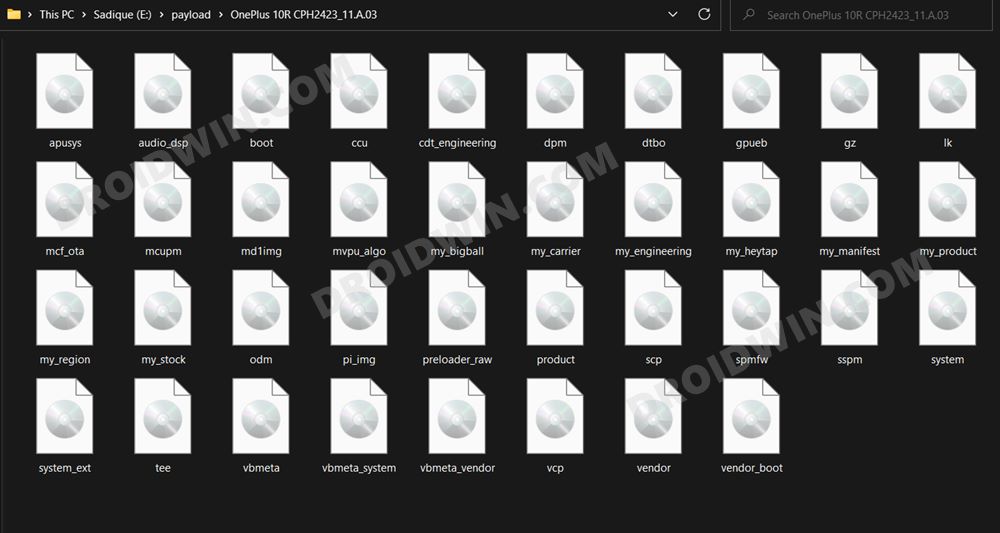
Next up, download the stock firmware for your device from the below link. OnePlus provides its firmware in payload.bin, which you need to extract in order to get hold of the partition files. I have already done that for a few firmware versions. So if your device has the same firmware/build installed, then you could directly download the Fastboot ROM [extracted payload] instead of the payload.bin
ONEPLUS 10R FASTBOOT ROM AND STOCK FIRMWARE
STEP 3: Extract OnePlus 10R Payload.bin
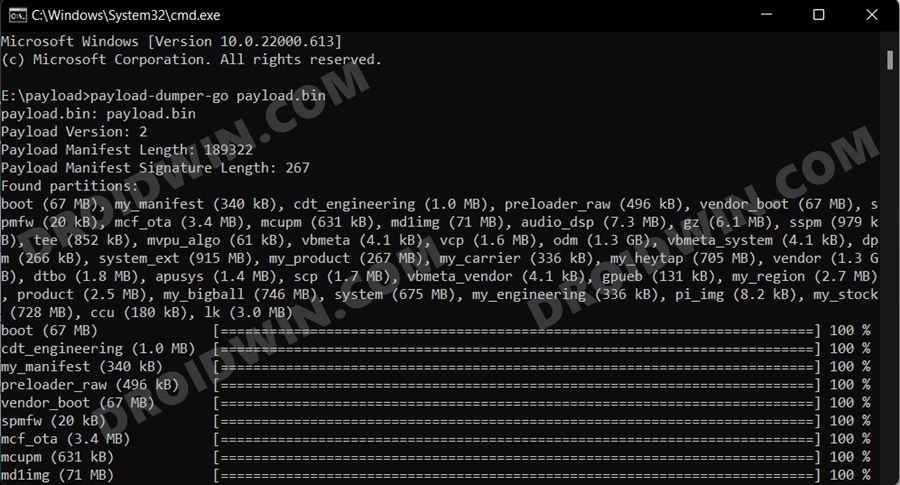
If you have downloaded the Fastboot ROM, then you could skip this step. On the other hand, if you have a payload.bin firmware, then you will have to extract it first and get the resultant IMG files. To do so, you may refer to our guide on How to Extract OnePlus Payload.bin file. Once extracted, make sure to transfer all the files to the platform-tools folder.
STEP 4: Boot Bricked OnePlus 10R to Fastboot Mode
In most cases, a soft-bricked or boot looped device might already be in the Fastboot Mode. However, if you are stuck in a bootloop, then long-press the Power key to turn it off. Then press and hold the Power and Volume Down keys (or Power and Volume Up in some devices) together to boot your device to Fastboot Mode.
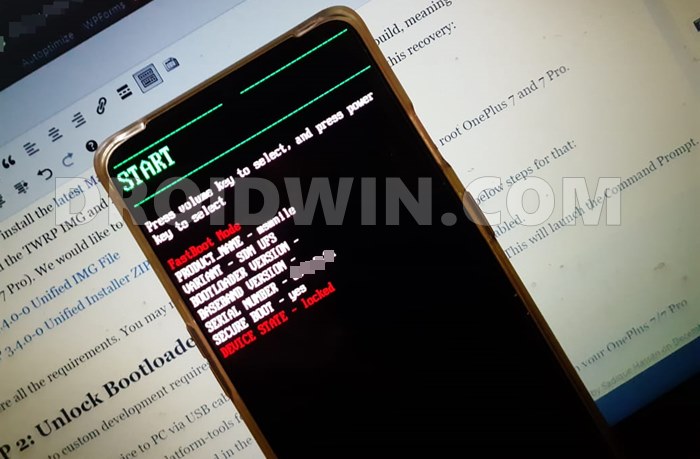
However, if you are unable to power off the device, then let its battery drain out. Once that happens, connect it to the charger. Then as soon as it is about to boot up, use the Power and Volume Up/Down keys and it will straightaway boot to Fastboot Mode.
STEP 5: Format Device via Fastboot
- Head over to the platform-tools folder where the extracted ROM is present.
- Then go to its address bar, type in CMD in its address and hit Enter. This will launch the CMD window.
- Now execute the below command to perform a factory reset (optional but recommended) fastboot -w
STEP 6: Flash OnePlus 10R Firmware in Fastboot Mode
Execute the below commands in the CMD window [that is opened in the platform-tools folder] to flash the partition file. Make sure to execute one command at a time. Furthermore, if you get an error, then don’t leave the process mid-way, rather move over to the next flashing command.
fastboot flash boot boot.img

fastboot flash dtbo dtbo.img

fastboot flash vendor_boot vendor_boot.img

fastboot flash vbmeta vbmeta.img

fastboot flash vbmeta_system vbmeta_system.img

fastboot flash vbmeta_vendor vbmeta_vendor.img
STEP 7: Flash OnePlus 10R Firmware Files in FastbootD Mode
- To begin with, boot your device to FastbootD Mode using the below command: fastboot reboot fastboot
- Now execute the below commands in the CMD window [that is opened in the platform-tools folder] to flash the remaining files. fastboot flash vendor vendor.img fastboot flash odm odm.img fastboot flash system system.img fastboot flash system_ext system_ext.img fastboot flash product product.img fastboot flash my_bigball my_bigball.img fastboot flash my_carrier my_carrier.img fastboot flash my_engineering my_engineering.img fastboot flash my_heytap my_heytap.img fastboot flash my_manifest my_manifest.img fastboot flash my_product my_product.img fastboot flash my_region my_region.img fastboot flash my_stock my_stock.img fastboot flash apusys apusys.img fastboot flash audio_dsp audio_dsp.img fastboot flash ccu ccu.img fastboot flash cdt_engineering cdt_engineering.img fastboot flash dpm dpm.img fastboot flash dtbo dtbo.img fastboot flash gpueb gpueb.img fastboot flash gz gz.img fastboot flash lk lk.img fastboot flash mcf_ota mcf_ota.img fastboot flash mcupm mcupm.img fastboot flash md1img md1img.img fastboot flash mvpu_algo mvpu_algo.img fastboot flash odm odm.img fastboot flash pi_img pi_img.img fastboot flash preloader_raw preloader_raw.img fastboot flash scp scp.img fastboot flash spmfw spmfw.img fastboot flash sspm sspm.img fastboot flash tee tee.img fastboot flash vcp vcp.img
- Finally, execute the below command to boot your device to the OS. fastboot reboot
- How to Unlock Bootloader on OnePlus 10R
- How to Root OnePlus 10R via Magisk Patched Boot.img
- Flash Stock Firmware on OnePlus 10R via Fastboot [Unbrick Guide]
- Download OnePlus 10R Fastboot ROM, Stock Firmware, Boot.img

(Cancel Reply)
Δ
