Unbrick OnePlus 11 via Fastboot Commands
In this guide, we will show you the steps to unbrick your OnePlus 11 via Fastboot commands. When it comes to custom development, then the devices from OnePlus are always quite an active player in custom development. Be it for flashing custom/GSI ROMs, gaining administrative access by flashing Magisk patched boot, or welcoming a plethora of mods, the possibilities stand endless.
On the flip side though, there’s always a risk of things going south. Just a slight issue and your device might end up in a bootloop or bricked state. While the bricked state is always a cause of concern, but when it came to OnePlus, we always had the backing of the MSM Download Tool. However, we might have seen the last of that tool.
With that said, if your device is in a soft brick or bootloop state, then you don’t even need to interact with EDL Mode or the MSM Tool. Instead, you could unbrick your OnePlus 11 by flashing the stock firmware [after extracting payload.bin] via Fastboot commands. And in this guide, we will show you how to do just that. Follow along.
- Unbrick OnePlus 11 via Fastboot Commands STEP 1: Install Android SDK STEP 2: Download OnePlus 11 Fastboot ROM STEP 3: Extract OnePlus 11 Payload.bin STEP 4: Boot Bricked OnePlus 11 to Fastboot Mode STEP 5: Format Device via Fastboot STEP 6: Flash OnePlus 11 Firmware in Fastboot Mode STEP 7: Flash OnePlus 11 Firmware in FastbootD Mode
Unbrick OnePlus 11 via Fastboot Commands
The below process will wipe off all the data from your device. So take a complete device backup beforehand by any means possible. Droidwin and its members wouldn’t be held responsible in case of a thermonuclear war, your alarm doesn’t wake you up, or if anything happens to your device and data by performing the below steps.
UPDATE: Oppo Flash Tool is now live for this device and it is highly recommended that you try out that method once [given below]. If that doesn’t work out then you may resume with the Fastboot Command method.
How to Unbrick OnePlus using Oppo Flash Tool
STEP 1: Install Android SDK

First and foremost, you will have to install the Android SDK Platform Tools on your PC. This is the official ADB and Fastboot binary provided by Google and is the only recommended one. So download it and then extract it to any convenient location on your PC. Doing so will give you the platform tools folder, which will be used throughout this guide to unbrick your OnePlus 10 Pro via Fastboot commands.
STEP 2: Download OnePlus 11 Fastboot ROM
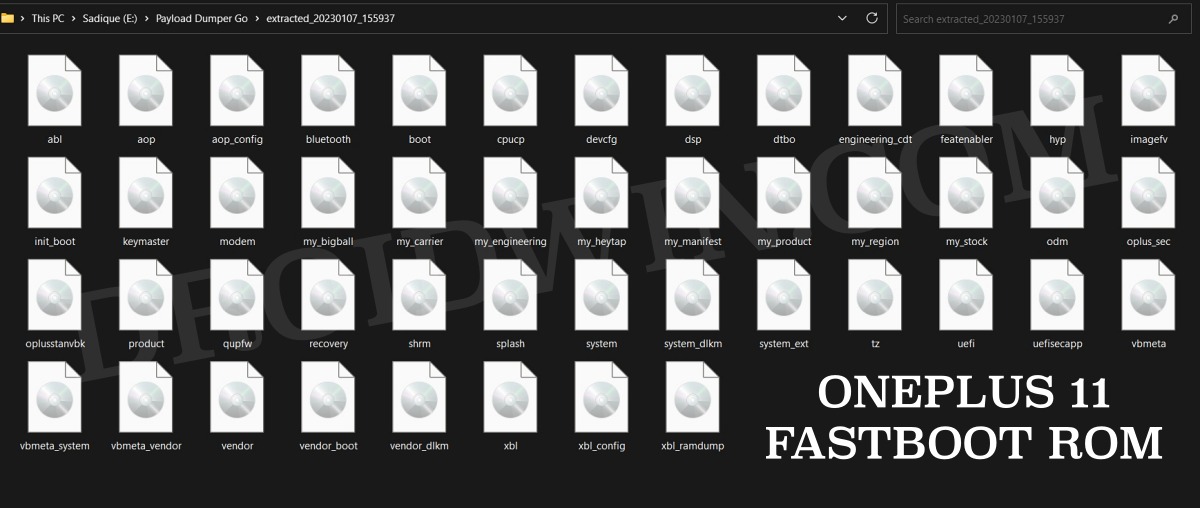
Next up, download the stock firmware or Fastboot ROM for your device from the below link. OnePlus provides its firmware in payload.bin, which you need to extract in order to get hold of the partition files. I have already done that for a few firmware versions. So if your device has the same firmware/build installed, then you could directly download the Fastboot ROM [extracted payload] instead of the payload.bin. Or else move over to the next step to manually do this task.
ONEPLUS 11 FASTBOOT ROM

ONEPLUS 11 STOCK FIRMWARE
STEP 3: Extract OnePlus 11 Payload.bin
If you have downloaded the Fastboot ROM, then you could skip this step. On the other hand, if you have a payload.bin firmware, then you will have to extract it first and get the resultant IMG files. To do so, you may refer to our guide on How to Extract OnePlus Payload.bin file. Once extracted, make sure to transfer all the files to the platform-tools folder.
STEP 4: Boot Bricked OnePlus 11 to Fastboot Mode
In most cases, a soft-bricked or boot-looped device might already be in the Fastboot Mode. However, if you are stuck in a bootloop, then long-press the Power key to turn it off. Then press and hold the Power and Volume Down keys (or Power and Volume Up in some devices) together to boot your device to Fastboot Mode.
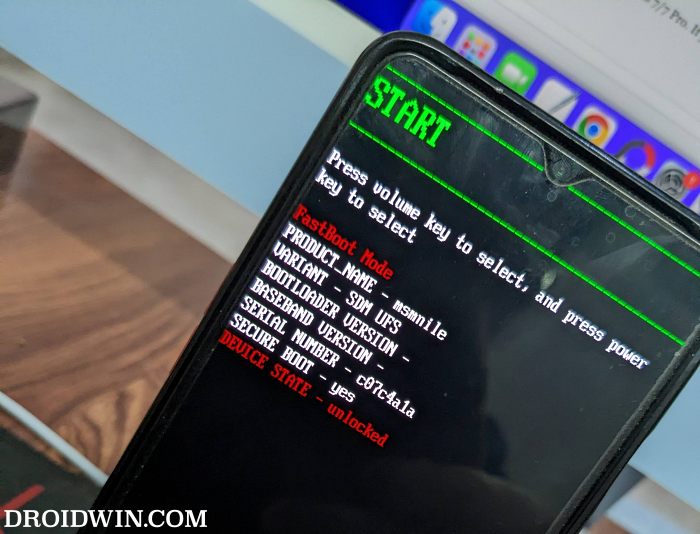
However, if you are unable to power off the device, then let its battery drain out. Once that happens, connect it to the charger. Then as soon as it is about to boot up, use the Power and Volume Up/Down keys and it will straightaway boot to Fastboot Mode.
STEP 5: Format Device via Fastboot
- Head over to the platform-tools folder where the extracted ROM is present.
- Then go to its address bar, type in CMD in its address and hit Enter. This will launch the CMD window.
- Now execute the below command to perform a factory reset (optional but recommended) fastboot -w
STEP 6: Flash OnePlus 11 Firmware in Fastboot Mode
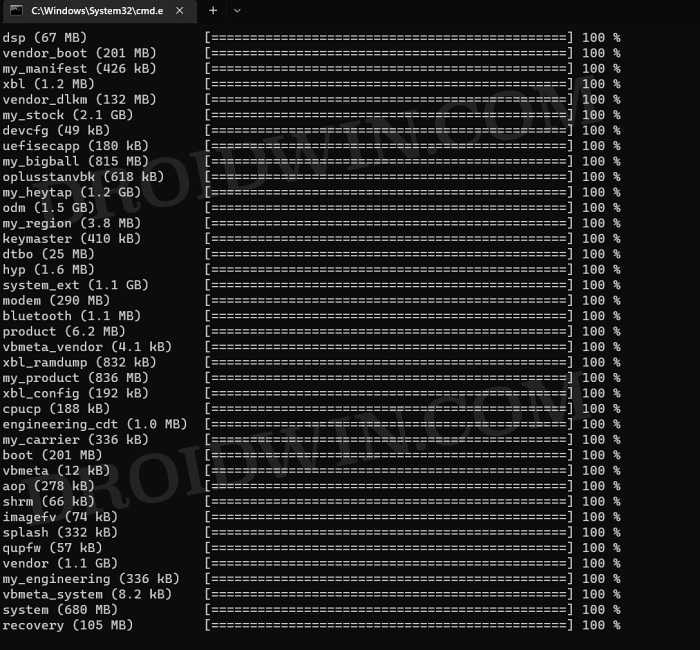
Execute the below commands in the CMD window [that is opened in the platform-tools folder] to flash the partition file. Make sure to execute one command at a time. Furthermore, if you get an error, then don’t leave the process mid-way, rather move over to the next flashing command.
fastboot --set-active=a


fastboot flash --slot=all boot boot.img

fastboot flash --slot=all modem modem.img

fastboot flash vendor_boot vendor_boot.img

fastboot flash vbmeta vbmeta.img

fastboot flash vbmeta_system vbmeta_system.img

fastboot flash vbmeta_vendor vbmeta_vendor.img
STEP 7: Flash OnePlus 11 Firmware in FastbootD Mode
You will now have to flash the remaining firmware files in the FastbootD Mode. So type in the below command to boot your device to this mode
fastboot reboot fastboot
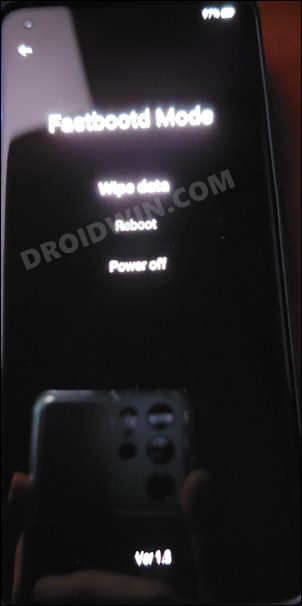
Now execute the below commands in the CMD window [one at a time] to flash the remaining files:
fastboot flash --slot=all abl abl.img

fastboot flash --slot=all aop aop.img

fastboot flash --slot=all aop_config aop_config.img

fastboot flash --slot=all bluetooth bluetooth.img

fastboot flash --slot=all cpucp cpucp.img

fastboot flash --slot=all devcfg devcfg.img

fastboot flash --slot=all dsp dsp.img

fastboot flash --slot=all dtbo dtbo.img

fastboot flash --slot=all engineering_cdt engineering_cdt.img

fastboot flash --slot=all featenabler featenabler.img

fastboot flash --slot=all hyp hyp.img

fastboot flash --slot=all imagefv imagefv.img

fastboot flash --slot=all init_boot init_boot.img

fastboot flash --slot=all keymaster keymaster.img

fastboot flash --slot=all oplus_sec oplus_sec.img

fastboot flash --slot=all oplusstanvbk oplusstanvbk.img

fastboot flash --slot=all qupfw qupfw.img

fastboot flash --slot=all recovery recovery.img

fastboot flash --slot=all shrm shrm.img

fastboot flash --slot=all splash splash.img

fastboot flash --slot=all tz tz.img

fastboot flash --slot=all uefi uefi.img

fastboot flash --slot=all uefisecapp uefisecapp.img

fastboot flash --slot=all xbl xbl.img

fastboot flash --slot=all xbl_config xbl_config.img

fastboot flash --slot=all xbl_ramdump.img xbl_ramdump.img


fastboot flash system system.img

fastboot flash system_ext system_ext.img

fastboot flash vendor vendor.img

fastboot flash product product.img

fastboot flash my_product my_product.img

fastboot flash odm odm.img

fastboot flash my_engineering my_engineering.img

fastboot flash vendor_dlkm vendor_dlkm.img

fastboot flash system_dlkm system_dlkm.img

fastboot flash my_stock my_stock.img

fastboot flash my_heytap my_heytap.img

fastboot flash my_carrier my_carrier.img

fastboot flash my_region my_region.img

fastboot flash my_bigball my_bigball.img

fastboot flash my_manifest my_manifest.img
Finally, execute the below command to boot your device to the OS
fastboot reboot
- How to Unlock Bootloader on OnePlus 11 [Video]
- How to Root OnePlus 11 via Magisk Patched Boot
- Download OnePlus 11 Fastboot ROM for Root & Unbrick Purpose
- Download OnePlus 11 Stock ROM Firmware: OxygenOS/ColorOS

- AGBOHOU Pierre 2 years ago Reply Please help me to unbrick my device OnePlus Ace 2 Pro. Telll me the steps to do that.
- John 2 years ago Reply fastboot -w Erasing ‘userdata’ OKAY [ 0.051s] F2FS-tools: mkfs.f2fs Ver: 1.14.0 (2020-08-24) Info: Disable heap-based policy Info: Debug level = 1 Info: Trim is disabled Info: Set conf for android Error: Sparse mode is only supported for android /usr/lib/android-sdk/platform-tools/make_f2fs failed with status 255 fastboot: error: Cannot generate image for userdata
- John 2 years ago Reply can you do a post on changing ROM on oneplus 11 5G from IND to Global? could be useful since the global rom supports esim from the INDIA one does not. plus, how to keep root?
- John 2 years ago Reply hey this isn’t working for me. fastboot flash –slot=all xbl_ramdump.img xbl_ramdump.img command didn’t go through, can u help?
- Halama 3 years ago Reply I’m getting a bootloop an this errors. Help me please I downloaded your fastboot rom. E:\platformtools>fastboot flash my_product my_product.img Sending sparse ‘my_product’ 1/3 (262140 KB) OKAY [ 6.345s] Writing ‘my_product’ FAILED (remote: ‘No such file or directory’) fastboot: error: Command failed E:\platformtools>fastboot flash odm odm.img Resizing ‘odm_a’ OKAY [ 0.003s] Sending sparse ‘odm_a’ 1/6 (262140 KB) OKAY [ 6.352s] Writing ‘odm_a’ OKAY [ 0.266s] Sending sparse ‘odm_a’ 2/6 (262140 KB) OKAY [ 6.373s] Writing ‘odm_a’ OKAY [ 0.214s] Sending sparse ‘odm_a’ 3/6 (262140 KB) OKAY [ 6.373s] Writing ‘odm_a’ OKAY [ 0.281s] Sending sparse ‘odm_a’ 4/6 (262140 KB) OKAY [ 6.388s] Writing ‘odm_a’ OKAY [ 0.186s] Sending sparse ‘odm_a’ 5/6 (262140 KB) OKAY [ 6.373s] Writing ‘odm_a’ OKAY [ 0.200s] Sending sparse ‘odm_a’ 6/6 (107960 KB) OKAY [ 2.611s] Writing ‘odm_a’ OKAY [ 0.107s] Finished. Total time: 36.617s E:\platformtools>fastboot flash my_engineering my_engineering.img Warning: skip copying my_engineering image avb footer (my_engineering partition size: 0, my_engineering image size: 335872). Sending ‘my_engineering’ (328 KB) OKAY [ 0.010s] Writing ‘my_engineering’ FAILED (remote: ‘No such file or directory’) fastboot: error: Command failed E:\platformtools>fastboot flash vendor_dlkm vendor_dlkm.img Resizing ‘vendor_dlkm_a’ OKAY [ 0.004s] Sending ‘vendor_dlkm_a’ (129288 KB) OKAY [ 3.137s] Writing ‘vendor_dlkm_a’ OKAY [ 0.199s] Finished. Total time: 3.355s E:\platformtools>fastboot flash system_dlkm system_dlkm.img Resizing ‘system_dlkm_a’ OKAY [ 0.006s] Sending ‘system_dlkm_a’ (340 KB) OKAY [ 0.010s] Writing ‘system_dlkm_a’ OKAY [ 0.067s] Finished. Total time: 0.106s E:\platformtools>fastboot flash my_stock my_stock.img Sending sparse ‘my_stock’ 1/4 (262140 KB) OKAY [ 6.346s] Writing ‘my_stock’ FAILED (remote: ‘No such file or directory’) fastboot: error: Command failed E:\platformtools>fastboot flash my_heytap my_heytap.img Sending sparse ‘my_heytap’ 1/4 (262140 KB) OKAY [ 6.290s] Writing ‘my_heytap’ FAILED (remote: ‘No such file or directory’) fastboot: error: Command failed E:\platformtools>fastboot flash my_carrier my_carrier.img Warning: skip copying my_carrier image avb footer (my_carrier partition size: 0, my_carrier image size: 335872). Sending ‘my_carrier’ (328 KB) OKAY [ 0.008s] Writing ‘my_carrier’ FAILED (remote: ‘No such file or directory’) fastboot: error: Command failed E:\platformtools>fastboot flash my_region my_region.img Warning: skip copying my_region image avb footer (my_region partition size: 0, my_region image size: 3887104). Sending ‘my_region’ (3796 KB) OKAY [ 0.097s] Writing ‘my_region’ FAILED (remote: ‘No such file or directory’) fastboot: error: Command failed E:\platformtools>fastboot flash my_bigball my_bigball.img Sending sparse ‘my_bigball’ 1/5 (262140 KB) OKAY [ 6.833s] Writing ‘my_bigball’ FAILED (remote: ‘No such file or directory’) fastboot: error: Command failed E:\platformtools>fastboot flash my_manifest my_manifest.img Warning: skip copying my_manifest image avb footer (my_manifest partition size: 0, my_manifest image size: 348160). Sending ‘my_manifest’ (340 KB) OKAY [ 0.009s] Writing ‘my_manifest’ FAILED (remote: ‘No such file or directory’) fastboot: error: Command failed E:\platformtools>fastboot reboot Rebooting OKAY [ 0.000s] Finished. Total time: 0.006s E:\platformtools>
- Onur 3 years ago Reply Tysm, it helped me fix my OnePlus 11. I’d like to point out that there is a typo for for xbl_ramdump It’s supposed to be: fastboot flash –slot=all xbl_ramdump xbl_ramdump.img (you wrote xbl_ramdump.img twice)
- vziv 3 years ago Reply always glad there are article like this, thank youu
(Cancel Reply)
Δ
