‘Unfortunately LG IMS has stopped’ Error on LG: How to Fix
In this guide, we will show you a couple of methods to fix the ‘Unfortunately LG IMS has stopped’ error on your LG device. While the OEM has officially bid adieu to the smartphone domain, it still seems to catch the attention of the masses. And unfortunately, not for all the right reasons. As of now, many users have voiced their concern that they are constantly getting bugged with the ‘Unfortunately LG IMS has stopped’ error on their LG smartphone. This pop-up appears after every few seconds and has made the device virtually unusable.
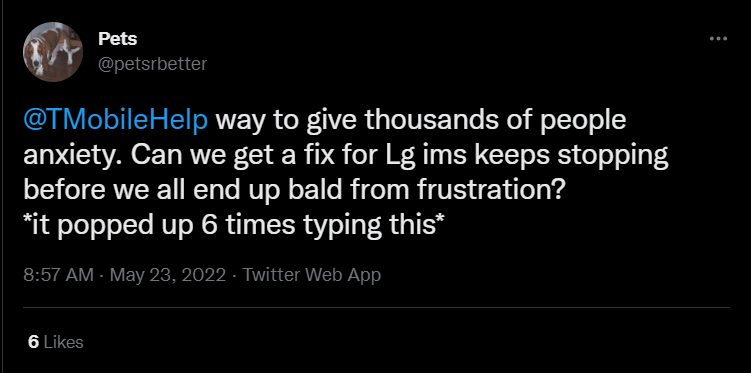
Moroever, this issue is prominent with the T-Mobile users along with Boost Mobile, Metro PCS, and Mint mobile as they use T-Mobile too. To resolve this problem, users have tried all the basic workarounds like restarting the device, deleting the cache, and even resetting their device to the factory default state, but to no avail. If you are also currently getting bugged with this issue, then this guide will make you aware of a couple of nifty workarounds that shall help you rectify this issue. Follow along.
- How to Fix ‘Unfortunately LG IMS has stopped’ Error on LG FIX 1: Delete Data of LG RCSProvider FIX 2: Use Google Messages and Phone
- UPDATE 1
How to Fix ‘Unfortunately LG IMS has stopped’ Error on LG
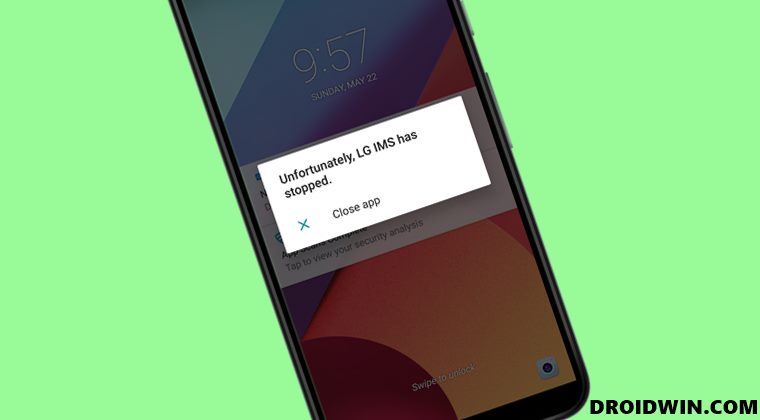
It is recommended that you try out each of the below-mentioned workarounds and then see which one spells out success for you. So with that in mind, let’s get started.
FIX 1: Delete Data of LG RCSProvider
The first fix, which has been recommended by LG as well, involves deleting the data and then restarting the RCSProvider system app. Here’s how it could be done.
- To begin with, turn on the Airplane Mode on your device.
- Then head over to the Settings > Apps & notifications > App info.
- Next up, tap on the overflow icon situated at the top right and select Show System. Reference Image
- Now select the com.lge.ims.rcsprovider app from the list and Delete its Data.
- After that, Force Stop this app. Repeat these steps [delete data and force stop] around 4-5 times.
- This should fix the ‘Unfortunately LG IMS has stopped’ error on your LG device. You may now disable the Airplane Mode as well.
FIX 2: Use Google Messages and Phone
Some users were able to rectify this issue by switching to the Google Messages and Phone app. So you should give it a try and then test out the results.
- To begin with download and install Google Messages from the Play Store.
- Then launch it and make it the default messaging app using the pop-up that appears.
- If the pop-up doesn’t appear, then you go to Settings > Default Apps and do the task from there. Reference Image
- After that, download and install the Google Phone app from the Play Store.
- Launch it and make it the default phone app using the pop-up that appears.
- That’s it. This should fix the ‘Unfortunately LG IMS has stopped’ error on your LG device.
UPDATE 1
T-Mobile has rolled out yet another update that should fix this issue. Titled Download for LG IMS Improved, here’s how to download and install it onto your device right away.
- To begin with, head over to Settings > System.
- Then go to Update Center > App Updates.
- After that, select Download for LG IMS Improved.
- Wait for the update to be downloaded and installed.
- Finally, restart your device and check if it spells out success for you or not.
These were the various methods to fix the ‘Unfortunately LG IMS has stopped’ error.. As far as the official stance on this matter is concerned, T-Mobile did roll out an update a couple of days back, but it didn’t fix the underlying issue. So we are still waiting for the remedial update to land. As and when that happens, we will update this guide accordingly. In the meantime, the aforementioned workarounds are your best bet.
- T-Mobile Visual Voicemail not working on Android: How to Fix
- T-Mobile Spam Message: Your bill is paid [How to Stop]
- YouTube Music Not Loading Songs on Sprint/T-Mobile [Fixed]
- Enable Greyed out OEM Unlock in OnePlus Carrier Locked T-Mobile

(Cancel Reply)
Δ
YouTube Music Not Loading Songs on Sprint/T-Mobile [Fixed]
In this guide, we will show you the steps to fix the issue of YouTube Music not loading songs on Android devices having Sprint/T-Mobile as the carrier. Google Play Music has for long been the go-to choice for Android users and was usually their default music player. However, similar to countless other Google products, it was also sent to Google’s Graveyard. To fill this position, the SiliconValley giants introduced the YouTube Music app which, to be fair, hasn’t yet reached the same level as its predecessor in some aspects.
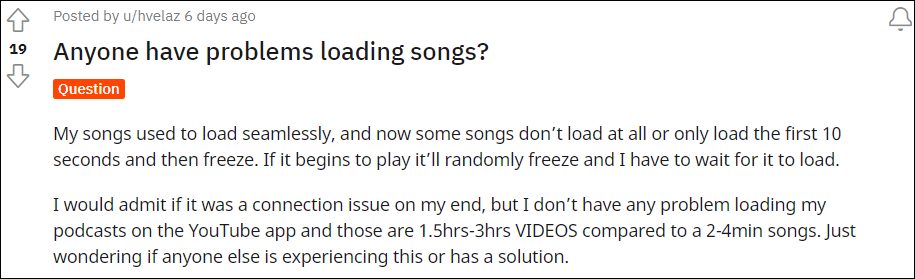
Moreover, it also gets bugged with an issue or two at regular intervals. As of now, various users have voiced their concern that YouTube Music isn’t able to load songs, rather it gets stuck at the buffering period. For others, the song load for the initial 10 seconds, and then it gets frozen. Going through all the reports, the issue seems to be only present while users were on their carrier data, there wasn’t an issue as such on WiFi. So one thing was pretty clear- the carrier network was conflicting with this app.
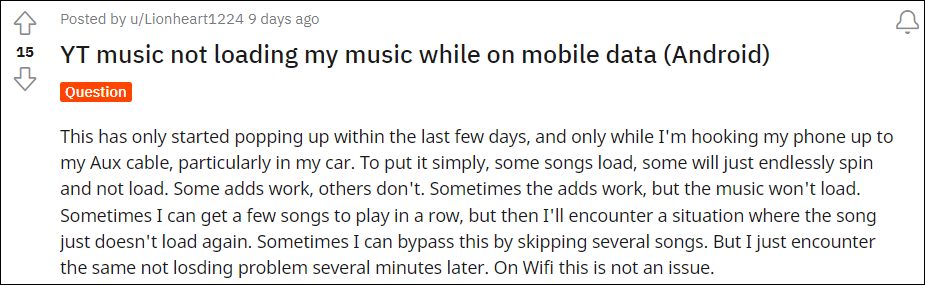
Digging deep into this issue, and is mostly happening with Sprint/T-Mobile users, and only on Android devices. Going even further, I found out that the issue is only present in the Chicago area. Joining all these dots, I found out that the issue stems from the way the APN profile has been configured. So making a few tweaks to the APN should be able to fix the issue of YouTube Music Not Loading Songs on Sprint/T-Mobile. And in this guide, we will show you how to do just that. Follow along.
YouTube Music Not Loading Songs on Sprint/T-Mobile
In order to rectify this issue, you will have to change the default APN Protocol to IPv4, from the current IPv6 or IPv4/IPv6. Here’s how it could be done:
- To begin with, head over to Settings > WiFi & Network.
- Then go to SIM & Network and select your Active SIM.
- After that, go to Access Point Names and select the default APN.
- Now scroll to the APN Protocol section and select IPv4. That’s it.
This should fix the issue of YouTube Music not loading songs on Sprint/T-Mobile. It’s still not clear as to why the app is having trouble establishing a successful connection with IPv6. Moroever, as far as the official stance on this matter is concerned, the developers are yet to acknowledge this issue, let alone give out any ETA for the rollout of a fix. As and when any of these two things happen, we will update this guide accordingly. In the meantime, the aforementioned workaround of choosing IPv4 as the APN Protocol is your best bet.
- How to Fix Cannot Turn Off Restricted Mode in YouTube
- YouTube Music App Not Working/Crashing/Freezing [Fixed]
- Fix YouTube Music Shuffle not shuffling all songs/entire playlist
- YouTube video links/URL redirecting to Your browser is up to date [Fixed]
(Cancel Reply)
Δ
