Uninstall Microsoft Intune App on Android via ADB Command
In this guide, we will show you the steps to uninstall the Microsoft Intune App from your Android device via ADB commands. This cloud-based management tool for mobile devices is a part of Microsoft’s Endpoint Manager and has become the go-to tool for corporates when it comes to the endpoint management system. However, a few days back it was in the news for its inability to function on the latest Android OS.
This is because Google recently removed the ability for apps to access hardware identifiers (such as serial number, IMEI, and MEID) on personally-owned work profile devices. As a result of which, the devices that were enrolled in a work profile and running Android 12 were losing access to certificates for email clients and VPN apps. While this issue will soon be addressed, what wouldn’t is the ability to easily bid adieu to this app.
Being part of the device administrator and baked into your device by the IT team, it sometimes might prove to be a challenging task in uninstalling the Microsoft Intune app from your Android device. Well, not anymore. In this guide, we will show you the steps to remove this device using a nifty ADB command. So without any further ado, let’s get started.
- How to Uninstall Microsoft Intune App on Android STEP 1: De-Register Microsoft InTune as Device Admin STEP 2: Download Android SDK STEP 3: Enable USB Debugging STEP 4: Verify ADB Shell Connection STEP 5; Uninstall Microsoft Intune from Android via ADB Command
How to Uninstall Microsoft Intune App on Android
The below instructions are listed under separate sections for ease of understanding. Make sure to follow the same sequence as mentioned.
STEP 1: De-Register Microsoft InTune as Device Admin
First and foremost you will have to de-register the Intune app as a Device Administrator. Here’s how it could be done:
- To begin with, head over to Settings > Security.
- Then go to Advanced Settings > Device Admin apps.
- After that, select Company Portal and scroll to the end.
- Now scroll to the end and tap on Deactivate this device admin app.
- Read the warning and if that’s well and good, tap OK.
NOTE: If you have a Samsung device, then your company might have enforced a policy via KNOX (a security framework that is pre-installed in Samsung devices), This might make it quite difficult to remove this app from the Device Admin category and as of now, there isn’t any workaround to bypass that security restriction (unless you get in touch with your network administrator).
STEP 2: Download Android SDK
You will also have to install the Android SDK Platform Tools on your PC. This is the official ADB and Fastboot binary provided by Google and is the only recommended one. So download it and then extract it to any convenient location on your PC. Doing so will give you the platform-tools folder, which will be used throughout this guide.

STEP 3: Enable USB Debugging
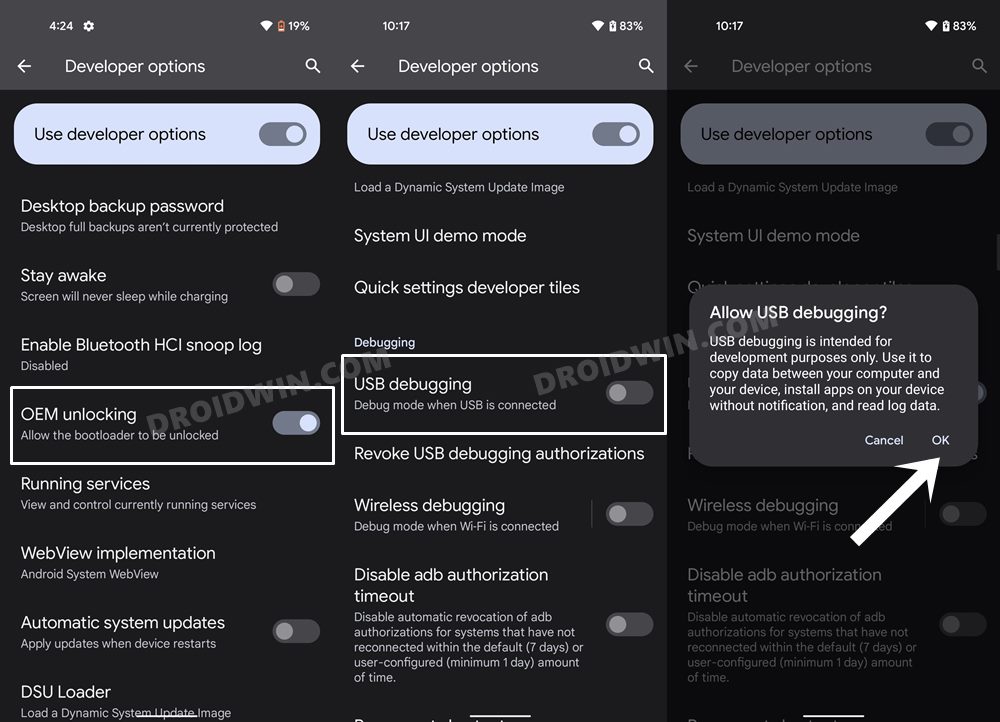
Next up, you will have to enable USB Debugging on your device so that it is recognizable by the PC in ADB mode. So head over to Settings > About Phone > Tap on Build Number 7 times > Go back to Settings > System > Advanced > Developer Options > Enable USB Debugging.
STEP 4: Verify ADB Shell Connection
- To begin with, connect your device to the PC via USB cable. Make sure USB Debugging is enabled.
- Then head over to the platform-tools folder, type in CMD in the address bar, and hit Enter. This will launch the Command Prompt.
- Now in the following command in the CMD window to verify the ADB connection: adb devices
- If you get the device ID, then the connection stands successful. Now type in the below command to open the Shell environment: adb shell
- It will now list out your device codename (such as sunfish for Pixel 4A), which means that the shell connection has been successfully established as well, and you are good to go ahead.
STEP 5; Uninstall Microsoft Intune from Android via ADB Command
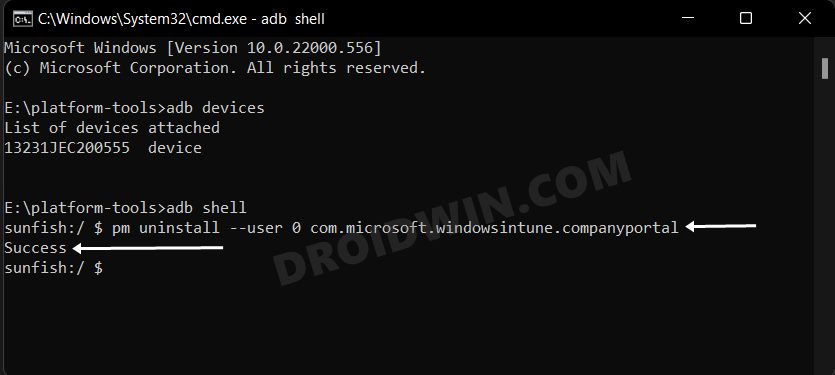
Now execute the below command in the CMD window and the app will be removed from your device. [In the below command, com.microsoft.windowsintune.companyportal is the app’s package ID which you could find using three different methods ].
pm uninstall --user 0 com.microsoft.windowsintune.companyportal
So these were the steps to uninstall the Microsoft Intune app from your Android device via ADB commands. If the are still facing any issues while executing the above steps, then either you are using the company’s phone or the company has imposed some policies on your device. In both these cases, you will have to get in touch with the Network Administrator and ask them to remove those restrictive policies (although the chances of that happening is slim). After that, you should re-try the above steps, and this time you should achieve success.
- Microsoft InTune Missing Certificate on Android 12: How to Fix
- How to Install Root Certificates in Windows 11
- Add ‘Open CMD as Admin’ in Windows 11 Right-Click Menu
- Force 120Hz Refresh Rate in any Android via ADB Commands

(Cancel Reply)
Δ
