Unlock any Android Device via ADB [PIN/Password/Pattern]
In this guide, we will show you two methods to unlock your Android device via ADB. Recently one of our readers bought up an intriguing query (well, at least for me, it must have been quite an unfortunate event for him!). His device fell off and the screen was all shattered. While the pixels were still up and running, the display was totally hanged and wouldn’t respond to any interaction. He had a chat with the service center employees, and they said that it would take 3-4 days for the screen replacement. While the time frame wasn’t an issue, it was the data that was a major concern.
The last backup to Google Drive was a couple of days old and his Downloads folder with some important files wasn’t even part of this backup. Hence a backup was an absolute necessity. Moroever, even the service center guys would anyway reset the device, so a backup should have to be taken anyway before sending the device. But the screen isn’t even responding, so how could one take a backup? Well, this is where I did a little exploration and found out two nifty methods through which you unlock your Android device via ADB [PIN/Pattern/Password unlock].
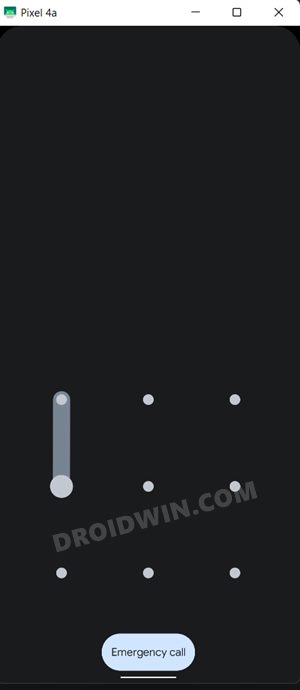
Not only that, but you will also be able to carry out all the desired tasks on your device. Be it for taking a backup, installing apps, sending messages, or calling someone, each of these activities will be just a click away, irrespective of the device you won or its Android version. However, there is one major requirement that you must have check-marked “beforehand”- USB Debugging should be enabled on your device. If that’s well and good, then let’s get started.
- How to Unlock any Android Device via ADB [PIN/Pattern/Password] METHOD 1: Via ADB Tool METHOD 2: Via ADB Commands
How to Unlock any Android Device via ADB [PIN/Pattern/Password]

We have listed two different methods below. The first one will give you complete control over your device, and you will be able to carry out all the desired tasks that we had listed above. On the other hand, the second method is a basic approach that would only help you to unlock your device. Moreover, the first method works on all types of lock-screen (PIN/Password/Pattern), whereas the second method doesn’t work on the pattern lock. So check out both these methods and then decide which to try out based on your requirements.
METHOD 1: Via ADB Tool
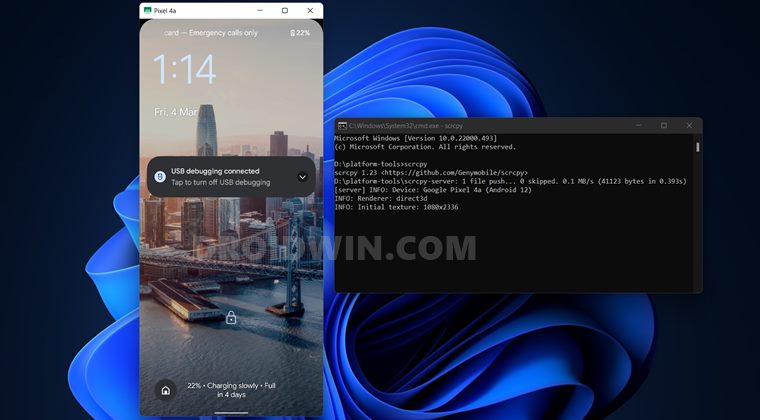
- To begin with, connect your device to the PC via USB cable.
- Then download Android SDK Platform Tool and extract it anywhere on your PC.
- Next up, download the Scrcpy ADB Tool from Github [ direct link ] and extract it inside the platform-tools folder.
- If it asks for the files to be replaced, then skip it (select Skip these files).
- Now head over to this folder’s address bar, type in CMD, and hit Enter. This will launch Command Prompt.
- Execute the below command to verify the ADB connection: adb devices
- If you get the Device ID, then the connection stands established and you could proceed ahead.
- So execute the below command for the tool to start: scrcpy
- It will now bring up your device but the screen will be black. So double-click or right-click on it to invoke the display.
- The screen will light up and you may now unlock your device by entering the desired PIN or Pattern.
- Once unlocked, you may now use your device and carry out the rest of the task. Pretty impressive, isn’t it?
METHOD 2: Via ADB Commands
- To begin with, connect your device to the PC via USB cable.
- Then download Android SDK Platform Tool and extract it anywhere on your PC.
- Now head over to this folder’s address bar, type in CMD, and hit Enter. This will launch Command Prompt.
- Execute the below command to verify the ADB connection: adb devices
- If you get the Device ID, then the connection stands established and you could proceed ahead.
- Now execute the below command to open the shell environment. It should list out your device codename/actual name. adb shell
- Next up, execute the below command to wake up the device’s display: input keyevent 26
- After that, execute the below command to unlock your device, replace XXXX with the PIN/Password: input text XXXX
- If you also had to tap on OK after entering the PIN/Password, then execute the below command: input keyevent 66
- How to Execute Android ADB Fastboot Commands Wirelessly
- How to Take Screenshots in Android via ADB Commands
- Run ADB Fastboot Commands directly on Android without Root
- Enable and Use ADB Commands in OnePlus Stock Recovery

- Utsav 2 years ago Reply The second method worked for me and saved my client, thank you for this tutorial. Sadique Hassan 2 years ago Reply Glad that it worked for you mate 🙂
- Gaurav 3 years ago Reply what if usb debugging is not enabled?
- Beata 3 years ago Reply Does this solution keep the data on the phone Sadique Hassan 2 years ago Reply There will be no data loss with either of the two methods.
(Cancel Reply)
Δ
