Unlock Bootloader on MediaTek Devices using MTKClient
In this guide, we will show you the steps to unlock the bootloader on your MediaTek device using MTKClient. Out of the three popular chipsets- Qualcomm, MediaTek, and Exynos, it is the former one that has been the most ‘custom development friendly’ as we could get hold of its source code quite easily. With that said, we have also seen a massive improvement from MTK in recent years when it comes to this domain. The number of OEMs adopting this chipset has forever been on the rise.
Likewise, its performance in the custom binary segment is worthy of praise as well. Be it for flashing custom ROMs or installing a custom recovery, there’s a lot to look forward to. Moreover, you could also gain administrative access by rooting your device via magisk. But to carry out any of these tasks you will first have to checkmark an important prerequisite of the list- the bootloader on your MediaTek device needs to be unlocked. In this regard, the native method to carry out this task is by using the Fastboot Commands.
More often than not, it is either the fastboot OEM unlock or fastboot flashing unlock that will get the job done. In some instances, you might additionally need to execute the fastboot flashing unlock_criticial command as well. However, there are a few MediaTek devices that don’t accept any of these Fastboot Commands. if your device also falls in this domain, then this guide shall help you out. In this tutorial, we will show you the detailed steps to unlock the bootloader on your MediaTek device using MTKClient.
- How to Unlock Bootloader on MediaTek Devices using MTKClient STEP 1: Install Python STEP 2: Install MediaTek USB Drivers STEP 3: Install UsbDk STEP 4: Download MTKClient STEP 5: Install Python Dependencies STEP 6: Boot Mediatek Device to BROM Mode STEP 7: Unlock MediaTek Bootloader
- Unlock Bootloader on MediaTek via MTKClient- GUI Method STEP 1: Install Python and its Requirements STEP 2: Install Drivers via Chimera Tool STEP 3: Bypass Authentication MTK Meta Utility Tool STEP 4: Unlock Bootloader via MTK Client
- Unlock Bootloader on Xiaomi MediaTek using a Script
- How to Relock the Bootloader on MediaTek
How to Unlock Bootloader on MediaTek Devices using MTKClient
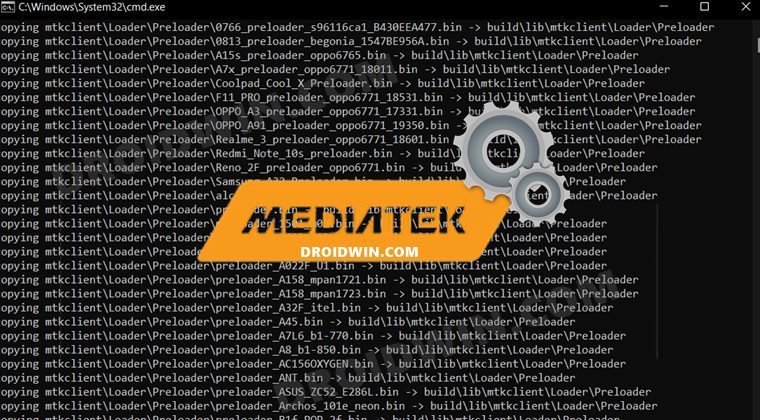
Make sure to take a complete device backup beforehand as the process will reset your device. Likewise, it could also nullify the device’s warranty. Droidwin and its members wouldn’t be held responsible in case of a thermonuclear war, your alarm doesn’t wake you up, or if anything happens to your device and data by performing the below steps.
UPDATE: In the below method, all the tasks will be carried out manually, and most of the tasks will be carried out via Command Line Interface [CLI]. While this is my preferred method but it might not be yours. So I have also added an Automatic Method with a GUI approach at the end as well. Do check it out as well.
STEP 1: Install Python
- To begin with, download Python from the official site.
- Then launch the setup and proceed with the on-screen instructions to install it on your PC.
- Also, when you launch the setup, make sure to checkmark Add Python to Path.
- We would also recommend you take a note of its installation directory.
- The default location is (replace username accordingly and XXX is the version number): C:\Users\username\AppData\Local\Programs\Python\PythonXXX
STEP 2: Install MediaTek USB Drivers
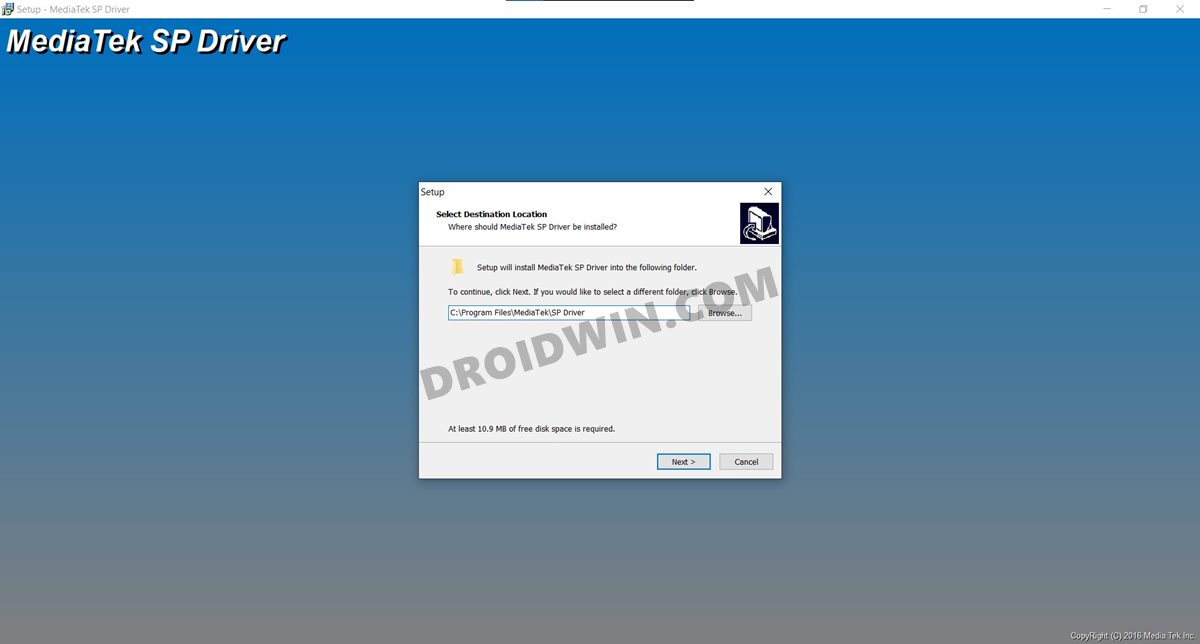
Next up download the USB Drivers for your MediaTek device . Then launch the setup and proceed with the on-screen instructions to install it.
STEP 3: Install UsbDk
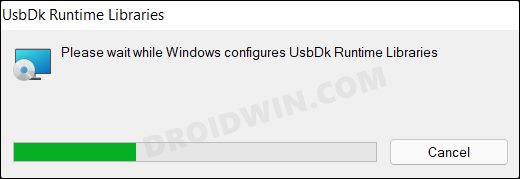
After that, you will have to download and install the UsbDk onto your PC as well. So download it from GitHub , launch the MSI setup file, and proceed with the on-screen instructions to install it.
STEP 4: Download MTKClient
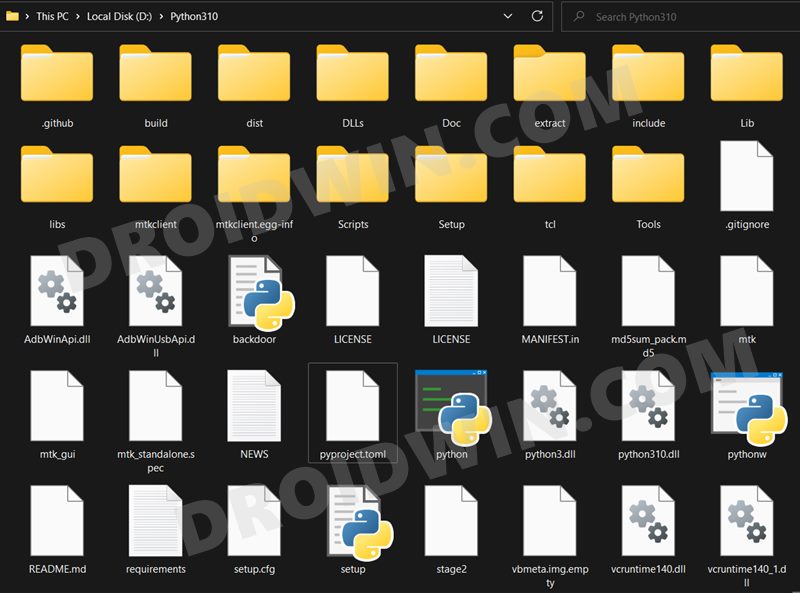
Now download the MTKClient from GitHub and extract it inside Python’s installation directory.
STEP 5: Install Python Dependencies
- Head over to the Python’s installation directory, type in CMD in its address bar, and hit Enter.
- This will launch Command Prompt. Now execute the below command to install the client’s setup file python setup.py install
- After that, execute the below command to install the required dependencies: python -m pip install -r requirements.txt
STEP 6: Boot Mediatek Device to BROM Mode
You will now have to boot your MediaTek device to BROM Mode. There isn’t any universal key combination or ADB Commands for the same. What you could do is power off the phone. Then press and hold either the Volume Up or Volume Down key, OR Volume Up+Volume Down+Power keys and then connect your device to PC via USB cable.
To check if the device has been booted to BROM Mode, execute the next command. If it accepts it, then your device has been successfully booted to BROM. If it shows any error, then try a different key combination until the code is accepted.
STEP 7: Unlock MediaTek Bootloader
- Execute the following command to wipe your device [it will erase all data]: python mtk e metadata,userdata,md_udc
- After that, again boot your device to the BROM Mode
- Then execute the below command to unlock the bootloader: python mtk xflash seccfg unlock
- If the above didn’t work out, then try out this one: python mtk da seccfg unlock
- The bootloader on your Mediatek device is now unlocked and you may boot your device to the OS.
Unlock Bootloader on MediaTek via MTKClient- GUI Method
In this method, most of the drivers will be installed in just one single click- using the Chimera Tool. Likewise, even the unlocking process will be done via just a single click- using the MTK Client GUI Tool. So with that in mind, let’s get started.
STEP 1: Install Python and its Requirements
- To begin with, download Python from the official site.
- Then launch the setup and proceed with the on-screen instructions to install it on your PC.
- Also, when you launch the setup, make sure to checkmark Add Python to Path.
- We would also recommend you take a note of its installation directory.
- The default location is (replace username accordingly and XXX is the version number): C:\Users\username\AppData\Local\Programs\Python\PythonXXX
- Now, go to the folder where Python is installed, type in CMD in the address bar. amd hit Enter. python -m pip install -r requirements.txt
STEP 2: Install Drivers via Chimera Tool
- To begin with, download and extract the Chimera Tool on the PC.
- Then launch the Chimera Tool Installer and select Custom Install.
- Select the ADB driver, MediaTek (MTK) Driver, UsbDk Drivers, and click Next to install them.
- Once done, restart your PC. Now sign in to your Chimera account in the tool [ create here first ].
- Now, power off your device. Then press and hold the Volume Up and Down keys and connect it to your PC.
- Once your device is detected by Chimera, you may disconnect the device and close the tool as well.
STEP 3: Bypass Authentication MTK Meta Utility Tool
- Download and extract the MTK Meta Utility Tool . Then launch it via its EXE file.
- Then select Disable Authentication and connect your device in the BROM Mode.
- Once you get the success message as shown in the image, you are good to go ahead.
STEP 4: Unlock Bootloader via MTK Client
- First off, download and extract the MTK Client on your PC. Then launch it using its EXE file.
- Now connect your device in BROM Mode, and it should be shown at the top right of the tool.
- Then go to Erase Partitions, select Metadata and Userdata, and click on the Erase Partitions.
- Now go to the Flash Tool and click on Unlock Bootloader [device should be in BROM Mode].
- Once the unlocking is done, boot your device to Fastboot Mode using the below command: adb reboot bootloader
- Then use the below command to fix the dm-verity corruption error [needed for some Xiaomi devices] fastboot oem cdms
- Finally, boot to the OS using the below command, and your task is complete. fastboot reboot
Unlock Bootloader on Xiaomi MediaTek using a Script
There’s also a script that might help you unlock the bootloader on some Xiaomi devices running the MediaTek chipset. So, please take a complete device backup and then proceed with the below steps: [Credits: XDA Member KingPrithvi123].
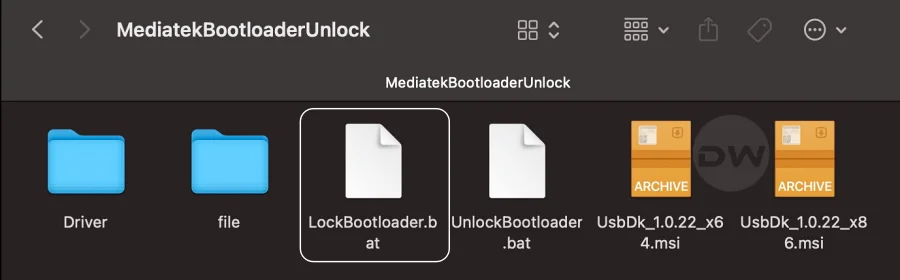
- First off, download and extract the MediaTek Bootloader Unlock on your PC.
- Once you are in the MTK unlock tool folder, install the MTK driver.
- For that, open the driver folder, right-click cdc-acm.inf file, and select Install.
- Now go back to the main folder and install USBDK (x64 for 64-bit OS, x86 for 32-bit OS) on your PC.
- Once both the files are installed, reboot your PC. Now, switch off your device to start the unlocking process.
- Then, from the MTK Unlock folder, run the UnlockBootloader.bat file to start the bootloader unlocking process.
- Connect the phone to the PC via a cable by holding the Power, Volume Up, and Volume Down keys.
- You will hear a sound on your PC. As soon as that happens, immediately release all the buttons [UnlockBootloader.bat should still be opened in the backend].
- Once the phone is detected, some commands will run on the UnlockBootloader.bat file.
- Let the commands finish; once done, the window will be closed. Your bootloader will then be unlocked.
How to Relock the Bootloader on MediaTek
If, for some reason, you wish to relock the bootloader on your MediaTek device, then first off, remove all the modifications from your device. In other words, flash the stock firmware if you are on a custom ROM or using a custom recovery like TWRP. Likewise, you will also need to unroot your device. For that, you could either use the Magisk App or simply flash the stock firmware.
Moreover, the process will also wipe off all the data from your device, so take a complete backup beforehand. Once all that has been done, boot your device to the BROM Mode (see STEP 6) and then execute either of the two commands to relock the bootloader (if you had earlier used the first command to unlock the bootloader in STEP 7, then use the first command below to relock it, and so on).
python mtk xflash seccfg lock

python mtk da seccfg lock
On the other hand, if you used the Script method, then the LockBootloader.bat file will get the job done for you [the rest of the steps will remain the same as outlined in the above script section].
- How to Install TWRP on MediaTek using SP Flash Tool
- Guide to Unbrick any MediaTek Phone using SP Flash Tool
- How to Root any MediaTek Device Using SP Flash Tool
- How to Download and Install MediaTek Fastboot Drivers

- Some one 2 years ago Reply Check USB Connection: Ensure that the USB cable is properly connected between your computer and the device. Try using a different USB cable or port to rule out any physical connection issues. Restart the Device: Sometimes, a simple device restart can resolve communication errors. Disconnect the device from the computer, power it off, wait for a few seconds, and then power it back on before reconnecting it. Restart the Computer: Restarting your computer might also help refresh the USB communication and resolve any software conflicts. Update USB Drivers: Make sure you have the latest USB drivers installed for your device. Visit the manufacturer’s website or support page to download and install the most recent drivers. Check Compatibility: Ensure that the software you are using is compatible with your device model and version. Check for any updates or patches that might address compatibility issues. Check Device Mode: Some devices have different modes (e.g., “charging mode,” “data transfer mode,” “developer mode,” etc.). Make sure your device is in the correct mode for the operation you’re performing. Check Permissions: Ensure that you have the necessary permissions and administrative rights to access and communicate with the device. Try Another Computer: If possible, try performing the operation on a different computer to see if the issue persists. This can help identify whether the problem is specific to your computer or the device itself. Contact Support: If none of the above steps resolve the issue, consider reaching out to the manufacturer’s technical support or seeking help from online forums or communities where others might have encountered similar problems.
- moaz 3 years ago Reply C:\Users\KhaledBinAlwaleed\AppData\Local\Programs\Python\Python311>python setup.py install python.exe: can’t open file ‘C:\Users\KhaledBinAlwaleed\AppData\Local\Programs\Python\Python311\setup.py’: [Errno 2] No such file or directory What is the solution?? try this command “python -m pip install .” 1 year ago Reply python -m pip install .
- Hitanshu Gaur 3 years ago Reply Port – Device detected 🙂 Preloader – CPU: MT6877(Dimensity 900) Preloader – HW version: 0x0 Preloader – WDT: 0x10007000 Preloader – Uart: 0x11002000 Preloader – Brom payload addr: 0x100a00 Preloader – DA payload addr: 0x201000 Preloader – CQ_DMA addr: 0x10212000 Preloader – Var1: 0xa Preloader – Disabling Watchdog… Preloader – HW code: 0x959 Preloader – Target config: 0xe0 Preloader – SBC enabled: False Preloader – SLA enabled: False Preloader – DAA enabled: False Preloader – SWJTAG enabled: False Preloader – EPP_PARAM at 0x600 after EMMC_BOOT/SDMMC_BOOT: False Preloader – Root cert required: False Preloader – Mem read auth: True Preloader – Mem write auth: True Preloader – Cmd 0xC8 blocked: True Preloader – Get Target info Preloader – BROM mode detected. Preloader – HW subcode: 0x8a00 Preloader – HW Ver: 0xca00 Preloader – SW Ver: 0x0 Preloader – ME_ID: 32993668EB4B4D231D8C1EBAAE7B7B58 Preloader – SOC_ID: 70D2AEEC41FAFC8277AC77DAC843F110913450DFDAC62279F70FD82135670657 DA_handler – Device is unprotected. DA_handler – Device is in BROM-Mode. Bypassing security. PLTools – Loading payload from mt6877_payload.bin, 0x264 bytes PLTools – Kamakiri / DA Run Kamakiri – Trying kamakiri2.. DeviceClass – USBError(5, ‘Input/Output Error’) Traceback (most recent call last): File “C:\Python 3.10.9\mtk”, line 814, in mtk = Main(args).run(parser) File “C:\Python 3.10.9\mtkclient\Library\mtk_main.py”, line 615, in run mtk = da_handler.configure_da(mtk, preloader) File “C:\Python 3.10.9\mtkclient\Library\mtk_da_cmd.py”, line 101, in configure_da mtk = mtk.bypass_security() # Needed for dumping preloader File “C:\Python 3.10.9\mtkclient\Library\mtk_class.py”, line 155, in bypass_security if plt.runpayload(filename=self.config.payloadfile): File “C:\Python 3.10.9\mtkclient\Library\pltools.py”, line 102, in runpayload if self.kama.payload(payload, addr, True, exploittype): File “C:\Python 3.10.9\mtkclient\Library\kamakiri.py”, line 139, in payload if self.exploit2(payload, addr): File “C:\Python 3.10.9\mtkclient\Library\kamakiri.py”, line 117, in exploit2 ptr_send = unpack(“<I", self.da_read(self.mtk.config.chipconfig.send_ptr[0][1], 4))[0] + 8 TypeError: a bytes-like object is required, not ‘NoneType’ What do i do now? I’ve followed all the steps, not sure why is it giving I/O error. I tried with second usb on other port but got the same message. Kindly suggest how to rectify this. Some one 2 years ago Reply It seems like you’re encountering technical issues while attempting to perform certain operations on a device. The error message “USBError(5, ‘Input/Output Error’)” suggests that there might be a communication problem between your computer and the device you’re working on. Here are a few steps you can take to try and rectify this issue: Check USB Connection: Ensure that the USB cable is properly connected between your computer and the device. Try using a different USB cable or port to rule out any physical connection issues. Restart the Device: Sometimes, a simple device restart can resolve communication errors. Disconnect the device from the computer, power it off, wait for a few seconds, and then power it back on before reconnecting it. Restart the Computer: Restarting your computer might also help refresh the USB communication and resolve any software conflicts. Update USB Drivers: Make sure you have the latest USB drivers installed for your device. Visit the manufacturer’s website or support page to download and install the most recent drivers. Check Compatibility: Ensure that the software you are using is compatible with your device model and version. Check for any updates or patches that might address compatibility issues. Check Device Mode: Some devices have different modes (e.g., “charging mode,” “data transfer mode,” “developer mode,” etc.). Make sure your device is in the correct mode for the operation you’re performing. Check Permissions: Ensure that you have the necessary permissions and administrative rights to access and communicate with the device. Try Another Computer: If possible, try performing the operation on a different computer to see if the issue persists. This can help identify whether the problem is specific to your computer or the device itself. Contact Support: If none of the above steps resolve the issue, consider reaching out to the manufacturer’s technical support or seeking help from online forums or communities where others might have encountered similar problems.
- blitzz 3 years ago Reply I’m getting this error after executing this command “python setup.py install” python.exe: can’t open file ‘C:\Users\Abdul\AppData\Local\Programs\Python\Python311\setup.py’: [Errno 2] No such file or directory Gokul 2 years ago Reply The error message you’re encountering indicates that the
setup.pyfile could not be found in the specified directory. Here are a few steps you can take to address this issue: 1. Check Directory: Make sure you are in the correct directory where thesetup.pyfile is located. You can use thecdcommand in the command prompt to navigate to the correct directory before running thepython setup.py installcommand. For example, if thesetup.pyfile is located inC:\Users\KhaledBinAlwaleed\SomeDirectory, you would need to run: “cd C:\Users\KhaledBinAlwaleed\SomeDirectory python setup.py install “2. File Name and Path: Double-check the file name and path. It’s case-sensitive, so ensure that the file name matches exactly, including any capitalization. 3. File Existence: Verify that thesetup.pyfile actually exists in the specified directory. You can use thedircommand to list the files in the current directory and confirm that the file is present. 4. Virtual Environment: If you are using a virtual environment, make sure you have activated the virtual environment before running the command. Thesetup.pyfile should be located within the virtual environment’s directory if that’s where you intend to install the package. 5. Re-download Files: If you’re working with code from a project repository, there might have been an issue during the download or extraction of files. Try re-downloading or re-extracting the necessary files. 6. Path Length: Sometimes, long file paths can cause issues. Ensure that the path to thesetup.pyfile is not excessively long. 7. Check for Typos: Check for any typos or mistakes in the command you’re typing. A small mistake could lead to this error. 8. Use Quotes: If the file path includes spaces, make sure to enclose the entire path in double quotes. For example: “python “C:\Users\Khaled Bin Alwaleed\Some Directory\setup.py” install “By following these steps, you should be able to identify the issue and successfully run thesetup.pyscript. - Liam 4 years ago Reply I followed step by step, no errors but it did not unlock the bootloader when I check the Mi Unlock status inside developer options on my Xiaomi 11T MANU 3 years ago Reply Does you unlock your bootloader?
- OkeNugroho 4 years ago Reply To check if the device has been booted to BROM Mode, execute the next command. Where is “Next Command”? Are this “python mtk e metadata,userdata,md_udc” Missing next commands Sir, every time is “Handshake failed” All drivers and requirements have passed, test using device Realme C15 RMX2180
(Cancel Reply)
Δ
