“Update Apple ID Settings” prompt on iOS 16: How to Stop
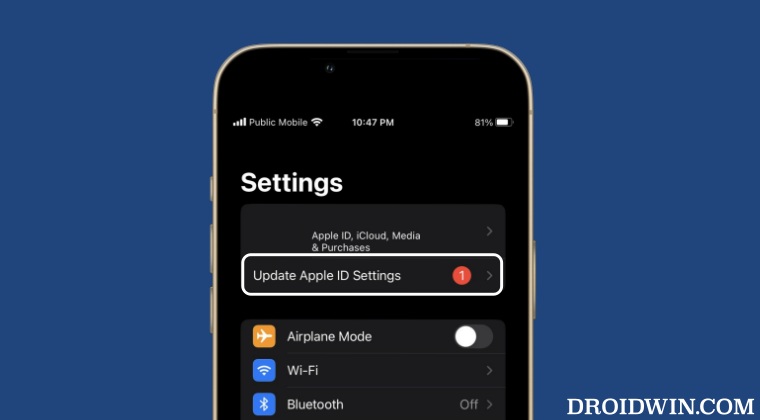
In this guide, we will show you numerous methods to stop the “Update Apple ID Settings” prompt on iOS 16. Numerous users have voiced their concern that after updating their device [iPad/iPhone] to the sixteenth iteration of the OS, they are constantly getting greeted with the aforementioned error message.
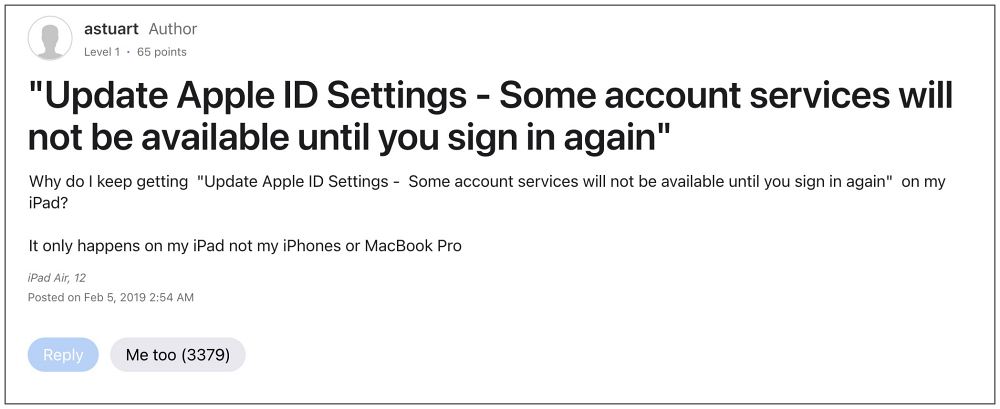
The complete prompt reads as follows: “Update Apple ID Settings, some account services will not be available until you sign in again”. In some cases, it tends to appear right after a reboot whereas, in other instances, it randomly appears all of sudden. If you are also currently getting bugged by this prompt, then this guide will make you aware of numerous methods that shall help you put an end to this alert. Follow along.
- Stop “Update Apple ID Settings” Prompt on iOS 16 FIX 1: Re-Login to Apple Account FIX 2: Enable Two Factor Authentication FIX 3: Reset Device Settings
Stop “Update Apple ID Settings” Prompt on iOS 16
It is recommended that you try out each of the below-mentioned workarounds and then see which one spells out success. So with that in mind, let’s get started.
FIX 1: Re-Login to Apple Account
Your first course of action should be to sign out oF your Apple account and then sign back in. This will refresh the account underlying settings and could well rectify the issue that we are currently dealing with. So give it a try using the below-listed steps and then check out the results.
- Head over to Settings > Apple ID and tap on Sign out > Sign out.
- Then restart your device. Now go to Settings and tap Sign in to your iPhone.
- Type in your account credentials and then check if it stops the prompt.
FIX 2: Enable Two Factor Authentication
Some users were able to rectify this issue after enabling Two Factor Authentication on their devices. So do give it a try using the below-listed steps and check out the results.
- Head over to Settings > Username > Password & Security.
- Then tap on Turn On Two-Factor Authentication > Continue.
- Now follow the onscreen instructions to complete the setup.
- Once done, check if it stops the “Update Apple ID Settings” prompt.
FIX 3: Reset Device Settings
The issue might also arise if the account or the system settings get corrupted. In such cases, your only course of action should be to reset the settings on your device and then set it up from scratch. Here’s how it could be done:
- Head over to Settings > General > Reset > Reset All Settings.
- Then tap on Reset All Settings in the confirmation prompt.
- Once done, restart your device and then check out the result.
- iOS 16 Message: User has notifications silenced bug
- HomeKit Devices No Response Error on iOS 16.3: How to Fix
- Cellular Data not working on iOS 16.3: How to Fix
- Fix iCloud Drive Backup: ‘An unknown Error occurred on iOS 16.3

(Cancel Reply)
Δ
