Username and profile picture missing on Lock Screen on Mac [Fix]
In this guide, we will show you the steps to fix the issue of the username and profile picture missing from the Lock Screen on Mac. By default, the macOS displays our avatar, username, and the field to type in the password of your account. However, some users have reported that their Mac is not displaying the first two options.
While this might sound much of an issue if you are the only one using this PC, however, if there exist multiple accounts on your Mac, then it would get extremely challenging in determining which account you are currently logged in to and subsequently what password you need to type in. With that said, there does exist a nifty workaround that should help you rectify this issue. So without further ado, let’s check it out.
Fix Username and profile picture missing from Lock Screen on Mac
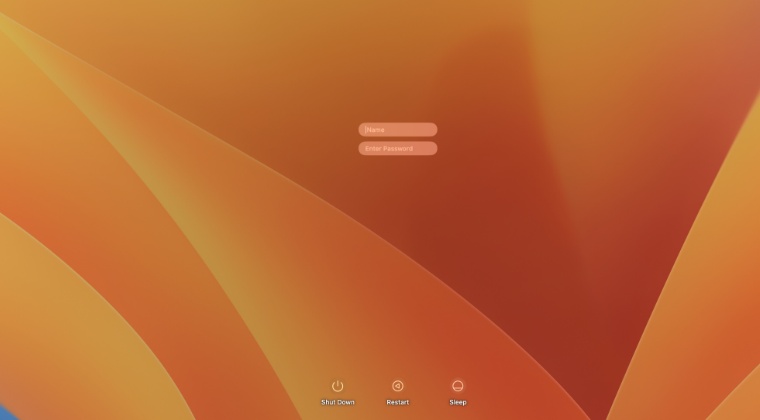
To fix this bug, all you need to do is simply refresh the login window settings page. Here’s how it could be done:
- Click on the Apple logo situated at the top left and select System Settings.
- Then select Lock Screen from the left-hand side and set ‘Login window shows’ to List of users’.
- If it’s already set to List of Users, then change it to Name and Password and then switch back to List of Users.
- Finally, restart your Mac and the underlying issue should be resolved.
- Universal Control not working in Ventura: How to Fix
- Schedule Shutdown missing in macOS Ventura: How to Fix
- How to Turn off Time Machine in macOS Ventura
- Wrong Icons for Aliases in Dock folder on Ventura: How to Fix

- Fred Johnson 1 year ago Reply I have the same problem. I also can’t change the photo on myself in “Contacts.” After selecting a photo and clicking Save the new photo appears on my Contact listing (in edit mode). Then when I click Done, the photo reverts back to the original photo.
- Marcin 2 years ago Reply !!!ANSWER!!! 1.Shut down your pc by pressing Fingerprint key by few seconds until macbook will close. 2.Rebbot your macbook by pressing option + command + ‘S’ key (screen will show you comunicates under apple logo when starting system – keep pressing this) 3. Click Settings on right and check there a username which is also login to macbook for example it can be: Dave Kowalski 4. shut down your macbook 5. Login to macbook using this username even with space so in this example it will be -> Login:Dave Kowalski 6. use your password and log in. For me it works! Don’t use your APPLE ID, but just name of the user!
- Sadat 3 years ago Reply I have similar issue. Lock screen stuck on name and password. I have tried all combinations but cant unlock.
- Daniel 3 years ago Reply I have the same problem the only thing is that i dont recall the password, and i cannot log in, and do the steps you guys say to follow, i dont know what to do
- Willi Mutschler 3 years ago Reply For me this did not directly work. I had to additionally first delete a plist file in the terminal: sudo rm /Library/Preferences/com.apple.loginwindow.plist Then switching the option back and forth finally made it work. Lei 3 years ago Reply This helped me. I tried the other tips (admin photo, contact cards, lock screen) but didn’t work until i deleted the plist. Thanks for this! Sadique Hassan 3 years ago Reply Thanks Willi for sharing this valuable piece of information with us.
(Cancel Reply)
Δ
