What is Pixel Xpert? How to Install it on Pixel Devices
In this guide, we will be having a look at Pixel Xpert, which is one of the most popular customization modules for AOSP ROMs, and then list out the steps to install it onto your Pixel device. So without any further ado, let’s get started.
Pixel devices have always been known to offer the cleanest stock UI/UX with a minimal number of bloatware apps and no crappy ads in the OS which numerous Chinese OEMs are infamous for. That is one major reason why many users are inclined toward these devices [apart from the exceptional camera quality and day 1 updates].
With that said, there have been a bunch of users for whom the Pixel UI translates to an unfinished product as it tends to lack numerous customization features that the likes of Samsung have to offer. While this is always up for debate, what isn’t is the fact that the devices from the Silicon Valley giant are among the most active in custom development.
As a result of which, there are a plethora of modules that you can make use of to customize the look and feel of the stock OS as per your liking. In this regard, the Pixel Xpert occupies the topmost position on the priority list for the tech enthusiast. But what exactly is this mod, what features does it behold, and more importantly, how can you install it onto your device? In this guide, we will be addressing all these queries. So without further delay, let’s get started.
- What is Pixel Xpert
- Compatibility
- Download Pixel Xpert
- How to Install Pixel Xpert STEP 1: Android SDK Platform Tools STEP 2: Root Your Device STEP 3: Install LSPosed Framework STEP 4: Flash Pixel Xpert Via Magisk STEP 5: Enable Pixel Xpert via LSPosed STEP 6: Check out Pixel Xpert
What is Pixel Xpert

- Status bar
- Quick Settings panel
- Lock screen
- Notifications
- Gesture Navigations
- Phone & Dialer
- Hotspot
- Package Manager
- Screen properties
Compatibility
Pixel Xpert is only compatible with Pixel devices running the stock Pixel firmware. It is not supported across any other AOSP ROM, including the likes of Pixel Experience and PixelOS. Likewise, it will obviously not work with the likes of HypoerOS, One UI, ColorOS, and OxygenOS, among others. Moreover, on Pixel devices, you can only use the module variants as explained below:
- Android 12/12.1: final version: v2.4.1 .
- Android 13 stable QPR1 (up until November 2022 firmware): final version: v.2.4.1 .
- Android 13 stable QPR3 (starting from December 2022 firmware till QPR3): starting with v.2.5 up until the latest stable/canary versions.
- Android 14: starting with v.2.9 up until the latest stable/canary versions.
- Android 15 beta builds: Only the latest Canary version
Download Pixel Xpert
You may grab hold of the Pixel Xpert from its official GitHub page, whose link we have shared below [make sure to keep in mind the above version numbers while downloading the module]:
Pixel Xpert: DOWNLOAD LINK
How to Install Pixel Xpert
Before starting, please take a backup of all the data on your device. Droidwin and its members wouldn’t be held responsible in case of a thermonuclear war, your alarm doesn’t wake you up, or if anything happens to your device and data by performing the below steps.
STEP 1: Android SDK Platform Tools
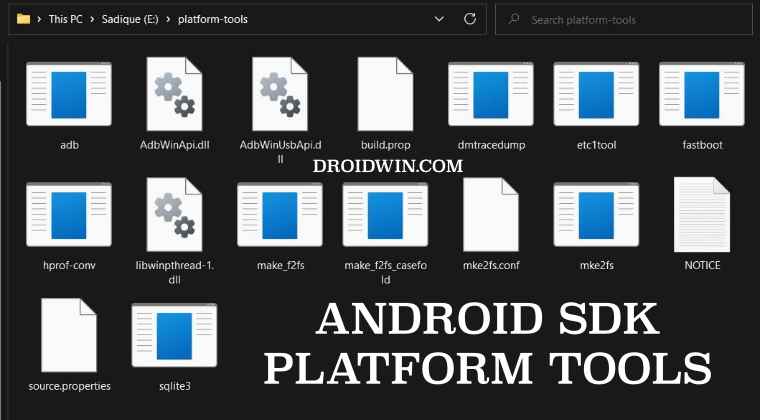
First and foremost, download and extract the Android SDK Platform Tools on your PC.
STEP 2: Root Your Device
After that, you’ll have to root your device via Magisk [recommended] or KernelSU [don’t use APatch for now].
STEP 3: Install LSPosed Framework

Next up, install and set up the LSPosed Framework app on your device.
STEP 4: Flash Pixel Xpert Via Magisk
- Launch Magisk, go to Modules, and tap on Install from Storage.
- Select the Pixel Xpert module and tap OK in the confirmation dialog.
- It will now be flashed. Once done, hit Reboot at the bottom right.
STEP 5: Enable Pixel Xpert via LSPosed
- Launch LSPosed and go to the Modules section.
- Then enable Pixel Xpert and restart your device.
STEP 6: Check out Pixel Xpert
Now that the setup of Pixel Xpert is complete, you can access it from the app drawer and dive deep into the plethora of customizations that it has to offer!

- How to Flash iodeOS on Pixel and Lock Bootloader [Video]
- How to Get Pixel 9 Pro Add Me on Older Pixel Phones
- Unlock Bootloader and Root Pixel 9, Pro, XL, and Fold
- How to Install CalyxOS ROM on Pixel Devices

- Screamir58 1 year ago Reply After the installation of the module for unlimited Google Photo storage The Zoom Enhance function has disappeared. Which flag in GMS Flags should be activated to return the function? Please figure it out and write an article. I’ll be waiting impatiently!
(Cancel Reply)
Δ
