What is the BIOS shortcut key for my PC [HP, Dell, Lenovo, Acer, Asus, etc]
In this guide, we will make you aware of the shortcut key/keys to directly boot your PC to the the BIOS. The Basic Input/Output System provides the essential runtime services for the OS and numerous system apps during the bootup process. For the tech enthusiasts, it beholds a slew of important features. These include the likes of changing the boot device order, switching between UEI and Legacy firmware, and enabling TPM 2.0, among others.
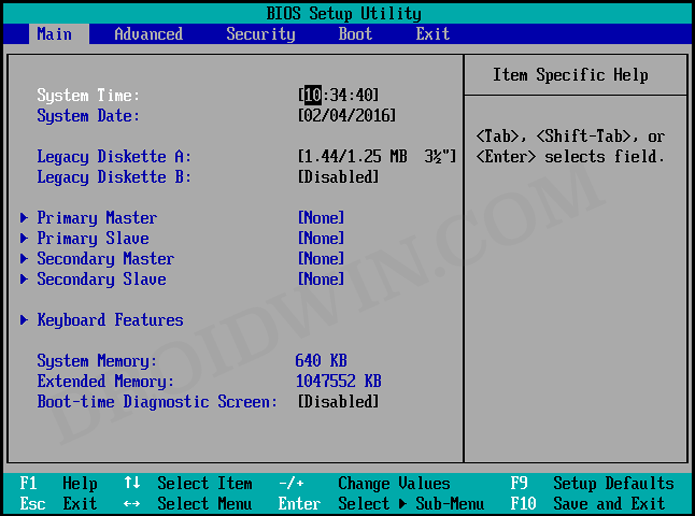
Likewise, in case your PC is unable to boot to the OS, then more often than not you will have to visit the BIOS menu and carry out the repair task. But how could you access this screen? Well, this is where things begin to go south for the end-users. If your PC could access OS, then there is a straightforward and universal method to boot to the BIOS, irrespective of the OEM.
However, if your PC cannot boot to the OS, then you will have to take the help of shortcut keys, which is different for different manufacturers. So in his guide, we will be having a look at the BIOS key combination for each OEM, including the likes of HP, Dell, Lenovo, Acer, Asus, and many more. Follow along.
- What is the BIOS key for my PC Acer BIOS shortcut key Alienware BIOS shortcut key ASRock BIOS shortcut key Asus BIOS shortcut key Dell BIOS shortcut key Fujitsu BIOS shortcut key Gigabyte BIOS shortcut key HP BIOS shortcut key Lenovo BIOS shortcut key LG BIOS shortcut key MSI BIOS shortcut key Razer BIOS shortcut key Samsung BIOS shortcut key Toshiba BIOS shortcut key Xiaomi BIOS shortcut key
- What is the BIOS Shortcut key for my Motherboard? AOpen Motherboard BIOS shortcut key ASRock Motherboard BIOS shortcut key Asus Motherboard BIOS shortcut key Biostar Motherboard BIOS shortcut key EVGA Motherboard BIOS shortcut key Gigabyte Motherboard BIOS shortcut key Intel Motherboard BIOS shortcut key MSI Motherboard BIOS shortcut key NZXT Motherboard BIOS shortcut key Zotac Motherboard BIOS shortcut key
What is the BIOS key for my PC
Acer BIOS shortcut key
if you have an Acer laptop, then press either the F1 or F2 key to access the BIOS. For Acer desktop users, pressing the Del key will take them to the BIOS screen. If those keys don’t work out, then you may also try it via F12,, F8 or F10.
BIOS Key for Laptop: F1 or F2


BIOS Key for Desktop: Del


Alternate Key: F12, F8 or F10
Alienware BIOS shortcut key
Alienware users should press the F2 key to access the BIOS menu. If you are unable to do so, then press the Ctrl+Esc keys to access the BIOS recovery screen and rectify the BIOS-related issues. Once done, you may then use the F2 key to boot to the BIOS.
BIOS Key: F2
ASRock BIOS shortcut key
For most ASRock users, the F2 or Del key should help you boot to the BIOS. But if that doesn’t do the job, then you should use the F6 or F11 key.
BIOS Key: F2 or Del


Alternate Key: F6 or F11
Asus BIOS shortcut key
Press the F2 key when your Asus PC is booting up to access the BIOS. Or you could also use the Esc key to bring up the Startup screen and then select the BIOS option from the list accordingly.
BIOS Key: F2


Alternate Key: Esc
Dell BIOS shortcut key
When your Dell PC is booting up, press the F2 key and you should be booted to the BIOS. If that doesn’t work out, then press F12 to access the setup screen and then the F2 key to boot to the BIOS.
BIOS Key: F2


Alternate Key: F12 followed by F2
Fujitsu BIOS shortcut key
You could use the F2 or F12 key to boot your Fujitsu PC to the BIOS. If that doesn’t work out, then you may also use the F11 key for the same.
BIOS Key: F2 or F12


Alternate Key: F11
Gigabyte BIOS shortcut key
Gigabyte users need to press the Del key to boot to the BIOS. However, if that doesn’t work, then you may use the F12 key for the same.
BIOS Key: Del


Alternate Key: F12
HP BIOS shortcut key
When your HP PC is booting up, press the Esc key to bring up the Startup screen, then press the F10 key to boot your PC to the BIOS. Some HP PCs could directly be booted to BIOS by pressing the F10 key on bootup.
BIOS Key: Esc followed by F10


Alternate Key: F10
Lenovo BIOS shortcut key
Pressing either the F1 or F2 key will boot your Lenovo PC to the BIOS. If that doesn’t work out, then press the F12.
BIOS Key: F1 or F2


Alternate Key: F12
LG BIOS shortcut key
LG users should press the F2 key to boot to the BIOS. Or use the F10 key to open the BIOS menu and then select the BIOS option accordingly.
BIOS Key: F2


Alternate Key: F10
MSI BIOS shortcut key
MSI uses the Del key to boot to BIOS. If that doesn’t work, then press the Esc key to bring up the Startup screen and then select the BIOS option from the list.
BIOS Key: Del


Alternate Key: Esc
Razer BIOS shortcut key
Razer users can access the BIOS either via the F1 key or the Del key.
BIOS Key: F1


Alternate Key: Del
Samsung BIOS shortcut key
While Samsung users could access the BIOS using the F2 key, however, on most of their PC, the default keyboard wouldn’t work. So you will have to use an external keyboard to carry out this task.
BIOS Key: F2
Toshiba BIOS shortcut key
You could use the F1 or F2 key to boot your Toshiba PC to the BIOS. Or use the Esc key to bring up the Startup screen and then select the BIOS option from the list.
BIOS Key: F1 or F2


Alternate Key: Esc
Xiaomi BIOS shortcut key
Xiaomi users should press the F2 key to bring up the BIOS menu and then select BIOS from the menu. There’s no dedicated button to directly access the BIOS.
BIOS Key: F2
What is the BIOS Shortcut key for my Motherboard?
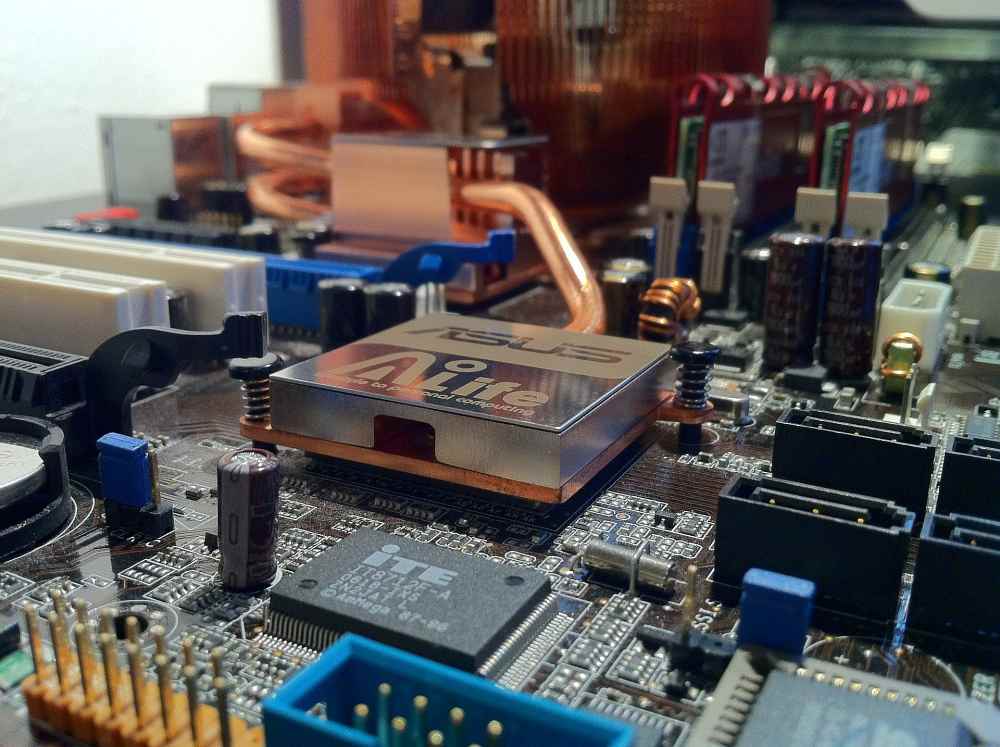
If you have an assembled PC and configured it according to your need, then you might as well have a motherboard from another manufacturer than the rest of the PC. So here’s how you could boot your PC to the BIOS, corresponding to your motherboard manufacturer.
AOpen Motherboard BIOS shortcut key
When it comes to AOpen Motherboard PC, users should press the Del key to boot to the BIOS. Or bring up the Advanced Boot menu via F12 or F10 and then select the appropriate choice.
BIOS Key: Del


Alternate Key: F12 or F10
ASRock Motherboard BIOS shortcut key
ASRock motherboard users can use the F2 or Del key to boot to the BIOS menu.
BIOS Key: F2


Alternate Key: Del
Asus Motherboard BIOS shortcut key
Asus motherboard users could use the Del, F11, or F12 key to boot to the BIOS. if that doesn’t work out, then press the Esc key to bring up the BIOS menu and then select the BIOS option from the list.
BIOS Key: Del, F11, or F12


Alternate Key: Esc
Biostar Motherboard BIOS shortcut key
Biostar motherboard users could boot to the BIOS using the Del key or bring up the BIOS menu via the F9 key and then select BIOS from the list.
BIOS Key: Del


Alternate Key: F9
EVGA Motherboard BIOS shortcut key
You may use the F2 or Del key to boot your PC having the EVGA Motherboard to the BIOS. Or use the F7 key to bring up the BIOS menu and then select BIOS from the list.
BIOS Key: F2 or Del


Alternate Key: F7
Gigabyte Motherboard BIOS shortcut key
Use the Del key on your Gigabyte motherboard PC to boot to the BIOS. or bring up the BIOS menu via F12 and then select BIOS from the list.
BIOS Key: Del


Alternate Key: F12
Intel Motherboard BIOS shortcut key
Intel Motherboard users could use the F2 key to access the BIOS. Likewise, they could bring up the BIOS menu via the F10 key and then select BIOS accordingly.
BIOS Key: F2


Alternate Key: F10
MSI Motherboard BIOS shortcut key
For MSI motherboard users, the Del key should help them access the BIOS. If that doesn’t work out, then press the F11 key to open the BIOS menu and then select BIOS from the list.
BIOS Key: Del


Alternate Key: F11
NZXT Motherboard BIOS shortcut key
Press Del or F2 key to directly access the BIOS on your NZXT motherboard.
BIOS Key: Del


Alternate Key: F2
Zotac Motherboard BIOS shortcut key
Users having a PC with a ZOTAC motherboard needs to press the Del key to access the BIOS. Or they could press the F8 or F11 key to bring up the BIOS menu and then select BIOS from the list.
BIOS Key: Del


Alternate Key: F8 or F11
- How to Reset BIOS in Windows 11
- Open Command Prompt when PC cannot boot to OS
- Convert Legacy BIOS to UEFI and MBR to GPT in Windows 11
- Active Partition Not Found Error in Windows: How to Fix

(Cancel Reply)
Δ
