WiFi not working on iOS 16.1: How to Fix [15 Methods]
In this guide, we will show you various methods to fix the issue of WiFi not working on iOS 16.1. The latest stable version of the sixteenth iteration of the OS has just been rolled out by the Cupertino giant. While it does tend to rectify a few underlying issues, however, a slew of bugs have managed to creep in as well.
In this regard, we recently covered the call volume control issue and the alarm clock widget bug. And now, there has been another entry to this list. Numerous users have voiced their concern that WiFi is not working along the expected lines on their iPhones after updating it to the latest iOS 16.1. It tends to suddenly disconnect and then re-connect a few seconds later.
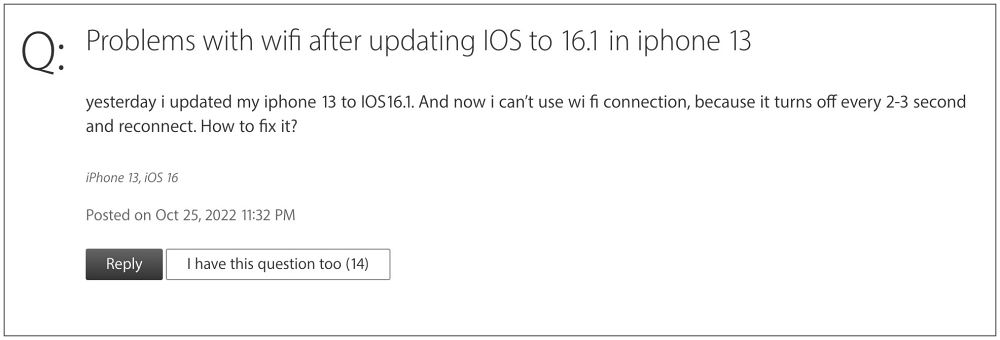
All this happens on its own, without any manual intervention from the user. What is even more concerning to note is the fact that this issue was also present in the beta build and has still managed to sneak into the stable build. With that said, there does exist a few nifty workarounds that should help you rectify this issue. So without further ado, let’s check them out.
- Fix WiFi not working on iOS 16.1 [15 Methods] FIX 1: Toggle Networking & Wireless FIX 2: Disable Limit IP Address Tracking FIX 3: Try these 13 iOS 16 WiFi Fixes
Fix WiFi not working on iOS 16.1 [15 Methods]
It is recommended that you try out each of the below-mentioned workarounds and then see which one spells out success for you. So with that in mind, let’s get started.
FIX 1: ToggleNetworking & Wireless
First and foremost, you should consider disabling and then re-enabling the Networking & Wireless feature and then check out the result. Here’s how it could be done:
- Head over to Settings > Privacy Settings > Location Services.
- Then go to System Services and disable Networking & Wireless.
- Now wait for a few seconds and then re-enable this feature.
- Check if it fixes WiFi not working issue on iOS 16.1.
FIX 2: Disable Limit IP Address Tracking
Next up, consider disabling the Limit IP Address Tracking functionality and then check if it spells out success for you or not. Here’s how it could be done:
- Head over to Settings > WiFi and tap on the ‘i’ icon next to your WiFi.
- Then disable the toggle next to Limit IP Address Tracking.
- Now check if it fixes WiFi not working issue on iOS 16.1.
FIX 3: Try these 13 iOS 16 WiFi Fixes
We recently covered an extensive guide on you could fix the numerous WiFi issues on your iPhone running iOS 16. You could apply the same fixes in this scenario here as well. We have provided the direct links to those fixes below, try out each one of them and then check which one works out in your favor.
FIX 1: Restart & Force Reboot Device

FIX 2: Toggle WiFi

FIX 3: Restart Router

FIX 4: Toggle Airplane Mode

FIX 5: Forget the WiFi network

FIX 6: Turn Off Wi-Fi Assist

FIX 7: Turn off Private Address

FIX 8: Disable Wi-Fi Networking Services

FIX 9: Disable Low Data Mode

FIX 10: Disable VPN

FIX 11: Check for Update [Using Carrier Data]

FIX 12: Reset Network

FIX 13: Reset Device
That’s it. These were the fifteen different methods to fix the issue of WiFi not working on iOS 16.1. As far as the official stance on this matter is concerned, the developers are yet to acknowledge this issue, let alone give out any ETA for the rollout of a fix. As and when any of these two things happen, we will update this guide accordingly. In the meantime, the aforementioned workarounds are your best bet.
- Call Volume controls not working on iOS 16.1
- Alarm Clock widget not working on iOS 16.1: How to Fix
- Blur not working with Collections Wallpaper in iOS 16/iPhone 14 Pro
- How to Downgrade from iOS 16 to iOS 15 [Any Version] without Data Loss

(Cancel Reply)
Δ
