Windows 11 Error Code 0x87E10BC6 when opening MS Paint [Fix]
In this guide, we will show you various methods to fix the Windows 11 Error Code 0x87E10BC6 when opening MS Paint. If you are just looking for a basic and simple raster graphics editor, then the built-in offering from Microsoft might be enough to checkmark most of your prerequisites. However, as of late, it seems to be giving a tough time to many.
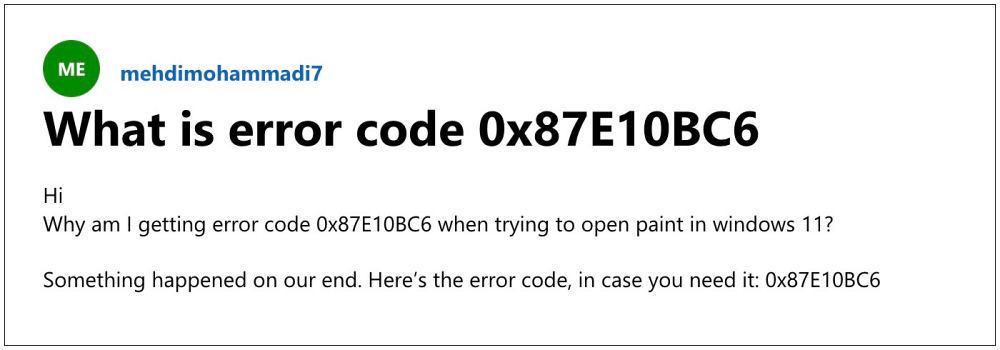
Numerous users have voiced their concern that they are greeted with the Error Code 0x87E10BC6 when they try to open MS Paint on their Windows 11 PC. The complete error message reads out “Something happened on our end. Here’s the error code, in case you need it: 0x87E10BC6”. If you are also getting bugged by this issue, then this guide will help you out. Follow along for the fixes.
- Fix Windows 11 Error Code 0x87E10BC6 when opening MS Paint FIX 1: Run Windows Store Troubleshooter FIX 2: Reset MS Paint FIX 3: Re-install MS Paint
Fix Windows 11 Error Code 0x87E10BC6 when opening MS Paint

It is recommended that you try out each of the below-mentioned workarounds and then see which one spells out success. So with that in mind, let’s get started.
FIX 1: Run Windows Store Troubleshooter
- Launch the Settings menu via the Windows+I shortcut keys.
- Then select System > Troubleshooter > Other troubleshooters
- Now select the Windows Store Apps and hit Run next to it.
- Then click on the suggested fix to implement it right away.
- Check if it fixes Windows 11 Error Code 0x87E10BC6 when opening MS Paint.
FIX 2: Reset MS Paint
- Launch PowerShell as an administrator from the Start Menu.
- Then copy-paste the below command and hit Enter: Get-AppxPackage Microsoft.Paint | Reset-AppxPackage
- Now restart your PC and check if it fixes the MS Paint bug.
FIX 3: Re-install MS Paint
- Launch PowerShell as an administrator from the Start Menu.
- Then execute the below command to uninstall MS Paint Get-AppxPackage Microsoft.MSPaint | Remove-AppxPackage
- After that, type in the below command to reinstall MS Paint Get-AppxPackage -allusers Microsoft.MSPaint | Foreach {Add-AppxPackage -DisableDevelopmentMode -Register “$($_.InstallLocation)\AppXManifest.xml”}
- The underlying MS Paint issue should now be rectified.
- Cannot Install Apps outside of Microsoft Store in Windows 11 [Fix]
- Cannot download games from Microsoft Store: Visual C++ 2015 Bug Fix
- How to Change the Default Installation Location of Microsoft Store Apps
- How to Install (or Reinstall) Microsoft Store in Windows 10/11

(Cancel Reply)
Δ
