Windows 11 Games Crashing/BSOD due to FASR: How to Fix
In this guide, we will show you a couple of methods that should help you fix the Windows 11 games crashing/BSOD error due to FASR. For secured-core PCs that lack hardware-based Dynamic Root of Trust for Measurement, a small set of firmware components that present a reduced attack surface is attested into the operating system.
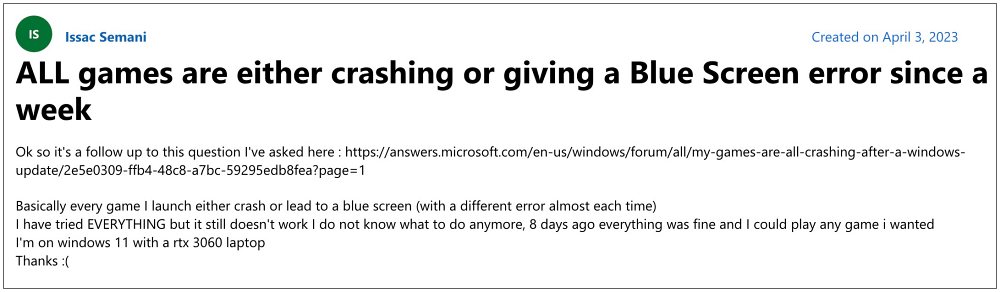
This approach is known as Firmware Attack Surface Reduction (FASR) and supports both the Certified Boot Path and Custom Boot Path. However, as of late, it is giving a tough time to many. Numerous users have voiced their concern that numerous games on their Windows 11 PC are constantly crashing or going into a BSOD due to the FASR.

This issue mostly tends to happen when a user launches a game or tends to update their graphics drivers. The accompanying error messages are either ‘DRIVER_IRQL_NOT_LESS_OR_EQUAL‘ or ‘video dxgkrnl fatal error‘. If you are also getting bugged by this issue, then this guide will help you out. Follow along for the fixes.
- Fix Windows 11 Games Crashing/BSOD due to FASR FIX 1: Disable Hardware Acceleration FIX 2: Uninstall Windows 11 Updates
Fix Windows 11 Games Crashing/BSOD due to FASR
It is recommended that you try out each of the below-mentioned workarounds and then see which one spells out success. So with that in mind, let’s get started.
FIX 1: Disable Hardware Acceleration
Your first course of action should be to disable hardware acceleration on your Windows 11 PC. This could be done either via the Settings menu which we have discussed below or using Registry Editor, which you could get a hold of from here.
- Bring up the Settings menu via Windows+I shortcut keys.
- Then go to System > Display > Advanced Display.
- After that, click on Display adapter properties for display 1.
- The Graphics Properties dialog box will now open, go to its Troubleshoot tab.
- Now click on Change Settings and go to the Display Adapter Troubleshooter bar.
- Finally, slide the toggle to the extreme left.
- Once that is done, head over to System > Display > Graphics > Default Graphics Settings.
- Now disable the toggle next to Hardware Accelerated GPU Scheduling.
- Check if it fixes the Windows 11 game crashing/BSOD error due to FASR.
FIX 2: Uninstall Windows 11 Updates
The culprit might well prove to be the latest Windows update that you have recently installed. Therefore, you. should consider rolling back to the earlier stable OS build. To do so, please take a backup of all your data and then refer to our guide on How to Uninstall Windows 11 Updates via Settings/CMD/Recovery .
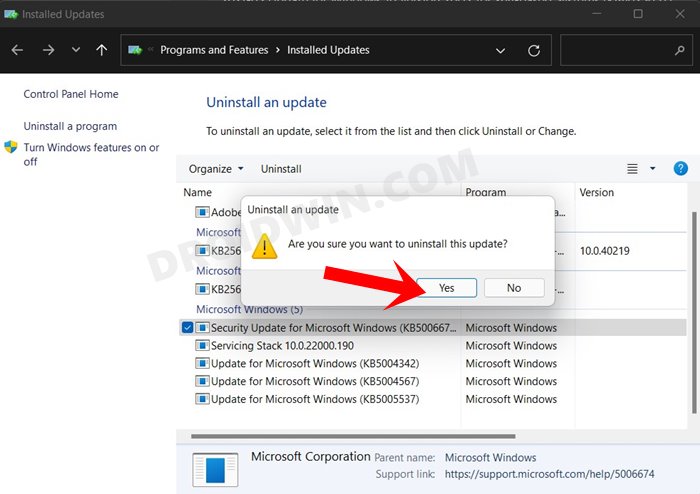
That’s it. These are the two different methods that should help you fix the Windows 11 game crashing/BSOD error due to FASR. As far as the official stance on this matter is concerned, the developers are yet to acknowledge this issue, let alone give out any ETA for the rollout of a fix. As and when any of these two things happen, we will update this guide accordingly. In the meantime, the aforementioned workarounds are your best bet.
- Prevent BSOD with Intel SST Driver and install Windows 11 Update
- Windows PC randomly turning off after boot: How to Fix
- WHEA Uncorrectable Error in Windows 11: How to Fix
- Windows 11 Stuck in Bootloop/Cannot Boot to OS: How to Fix

(Cancel Reply)
Δ
