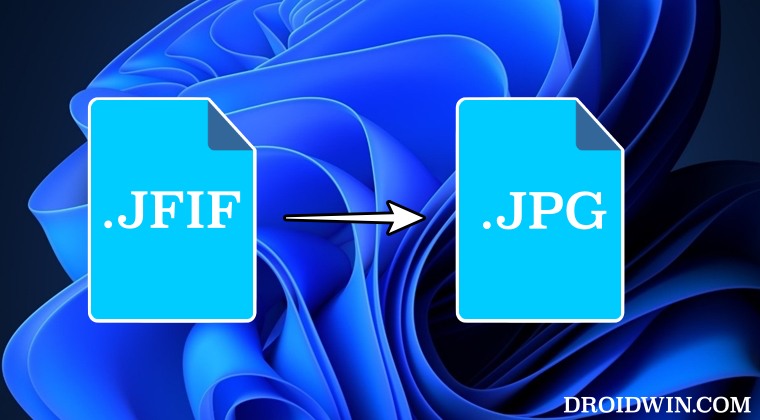
Windows saving JPG/JPEG images as JFIF: How to Fix
To rectify this issue, you could opt for workarounds like using MS Paint [or any other image editor app of your choice] to convert JFIF to JPG or try out an online image converter website. But manually doing so for every image time and again will require quite a lot of additional time and effort. To overcome this concern, this guide will show you a nifty method using which you could fix this issue once and for all. So without further ado, let’s get started.
- Fix Windows saving JPG/JPEG images as JFIF Manual Registry Edit Via Script
Fix Windows saving JPG/JPEG images as JFIF
We have listed two methods that will help you get this job done. But before starting with the below steps, please take a registry backup.
Manual Registry Edit
- Launch Run via Windows+R, type in regedit, and hit Enter.
- This will launch Registry. So head over to the below location: Computer\HKEY_CLASSES_ROOT\MIME\Database\Content Type\image/jpeg
- Now open the Extension key from the right.
- Its Value Data will be .jfif. Change it to .jpg and hit OK to save it.
Via Script
- Create a new text document [Notepad] and paste the below command: Windows Registry Editor Version 5.00 [HKEY_CLASSES_ROOT\MIME\Database\Content Type\image/jpeg] “AutoplayContentTypeHandler”=“PicturesContentHandler” “CLSID”="{25336920-03F9-11cf-8FD0-00AA00686F13}" “Extension”=".jpg" “Image Filter CLSID”="{607fd4e8-0a03-11d1-ab1d-00c04fc9b304}" [HKEY_CLASSES_ROOT\MIME\Database\Content Type\image/jpeg\Bits] “0”=hex:02,00,00,00,ff,ff,ff,d8
- Then go to File > Save As and change Save As to All File Types.
- Now give it any name of your choice but keep the extension .reg.
- Then run this .reg file. You’ll get a prompt, click on Run/YES/OK.
- How to Uninstall Windows Backup in Windows 11? Is it Possible?
- Windows 11 File Explorer Sort By not working: How to Fix
- Fix Google Nearby Share not working on Windows 11
- How to Disable/Enable Registry Editor in Windows 11 [2 Methods]

(Cancel Reply)
Δ
