YouTube videos not playing/loading in Firefox: How to Fix
In this guide, we will show you a couple of workarounds that shall help you fix the issue of YouTube videos not playing/loading in Firefox. While there are a slew of web browsers to choose from, however, when it comes to privacy, then it’s the offering from Mozilla that is right at the top of the priority queue for many. Beholding a plethora of privacy-centric approaches, its three different layers of security gives you more granular control over its functionality.
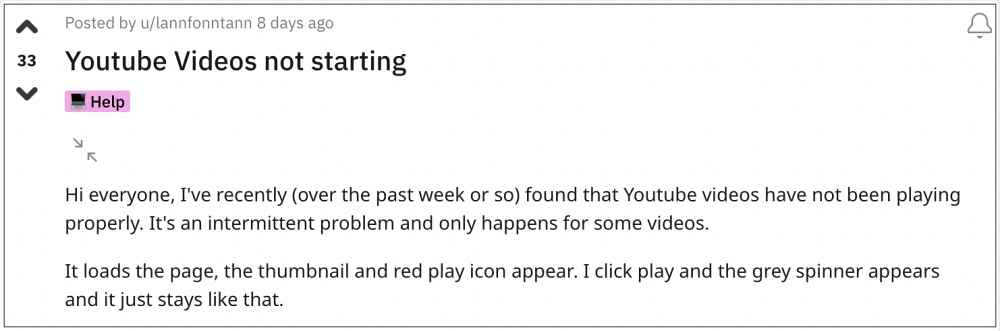
However, in spite of all the goodies attached, it isn’t free from its fair share of issues either. As of now, various users have voiced their concern that the YouTub videos are not playing and are instead stuck at the loading screen in Firefox.
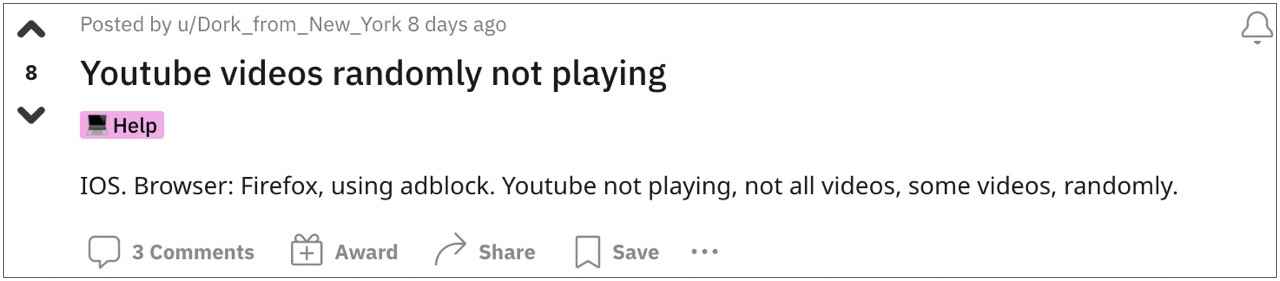
This issue isn’t from the video streaming service end as it is working well and good across other web browsers. So Firefox seems to be the only one that is currently affected by this problem. If you are also getting bugged with this issue, then this guide shall help you rectify it. Follow along for the fixes.
- Fix YouTube videos not playing/loading in Firefox FIX 1: Change Video Quality FIX 2: Use Private Mode
Fix YouTube videos not playing/loading in Firefox
It is recommended that you try out each of the below-mentioned workarounds and then see which one spells out success for you. So with that in mind, let’s get started.
FIX 1: Change Video Quality
- As strange as it may sound, changing the quality of the video does seem to rectify this issue.
- So click on the settings icon and select a different resolution from the list [lower or higher any will do].
- Once done, check if it fixes the YouTube videos not playing/loading issue in Firefox.
FIX 2: Use Private Mode
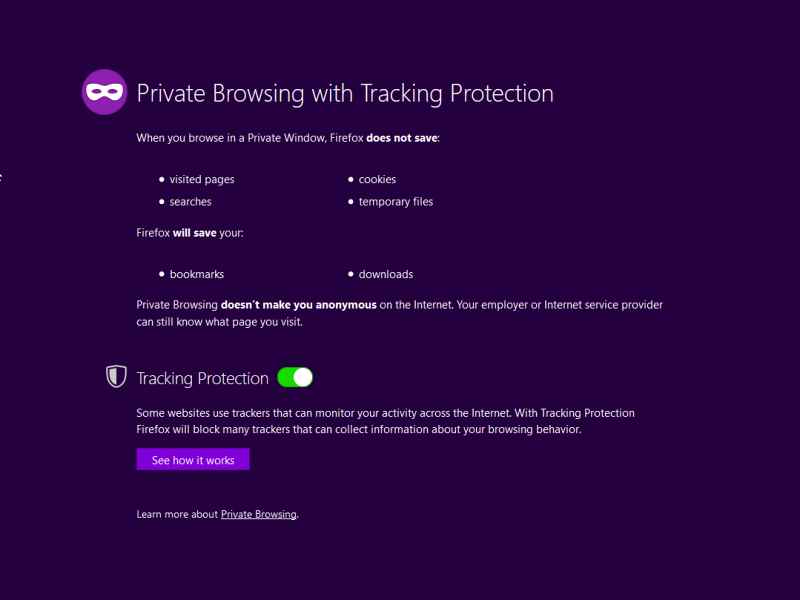
Watching the videos in private/incognito mode also prevents the issue from appearing. Since the Private Mode disables all the extensions, the fingers could be pointed at the extensions as the culprit behind this issue. Anyways, coming back to the point, use the Shift + CTRL + P [on Windows/linux] or Shift + ⌘ + P [on Mac] shortcut keys to open a new Private window and then try streaming YouTube, you should no longer face any issues.
That’s it. These were the two different methods that shall help you fix the issue of YouTube videos not playing/loading in Firefox. As far as the official stance on this matter is concerned, the developers are yet to acknowledge this issue, let alone give out any ETA for the rollout of a fix. As and when any of these two things happen, we will update this guide accordingly. In the meantime, the aforementioned workaround is your best bet.
- Firefox not opening/working in Windows 11: How to Fix [11 Methods]
- Video Lags in Firefox Browser: How to Fix
- How to Disable Forced Dark Mode in Firefox v96.0 [2 Methods]
- How to Fix Netflix Error Code F7121-3078 on Firefox

(Cancel Reply)
Δ
