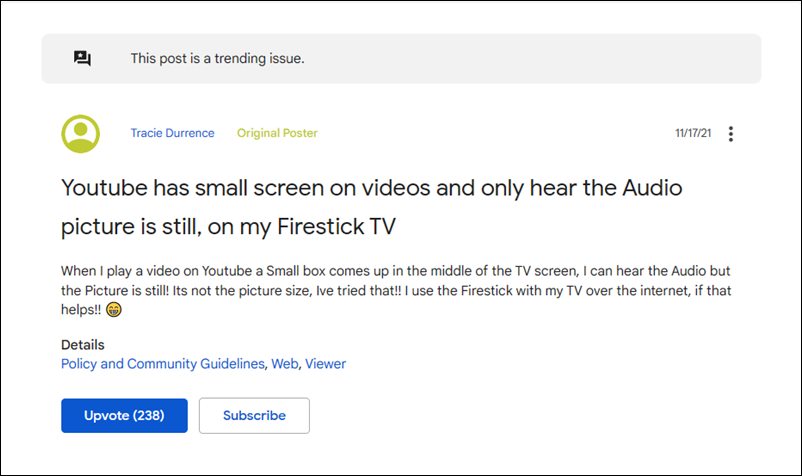
- How to Fix YouTube videos on Amazon Fire TV Stick stuck on thumbnail FIX 1: Restart Amazon Fire TV Stick FIX 2: Delete YouTube Cache on Amazon Fire TV Stick FIX 3: Delete YouTube Data on Amazon Fire TV Stick FIX 4: Reinstall YouTube on Amazon Fire TV Stick
![YouTube videos on Amazon Fire TV Stick stuck on thumbnail [Fixed] - 2](https://droidwin.com/wp-content/uploads/2021/11/fix-YouTube-videos-on-Amazon-Fire-TV-Stick-stuck-on-thumbnail.jpg)
Do note that all the workarounds listed below seem to be giving only a temporary respite to the users. For some, it worked for a few hours to even an entire day, but for others, it worked for only a few minutes. But since there’s no official fix as such, these workarounds might prove to be your best best. So keeping that in mind, let’s get started.
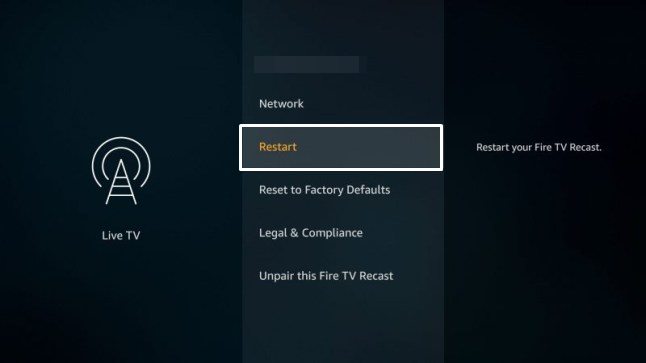
If a lot of temporary data gets accrued over the cure course of time, then it could conflict with the proper functioning of the app. Therefore, you should consider deleting these data right away, which could be done as follows:
- To begin with, head over to the Settings menu on your Fire TV.
- Then Select Applications and go to the Manage Installed Applications section.
- After that, select YouTube from the list and select Clear Cache.
- Now check if the YouTube videos on Amazon Fire TV Stick stuck on thumbnail issue has been fixed or not.
If the app’s data has got corrupted, then just removing its cache might not be enough. Rather you will have to delete the entire app and let it re-populate it from scratch.
- To begin with, head over to the Settings menu on your Fire TV.
- Then Select Applications and go to the Manage Installed Applications section.
- After that, select YouTube from the list and select Delete Data.
- Now launch the app and sign in with your account credentials.
- Check if it manages to fix the issue of YouTube videos on the Amazon Fire TV Stick stuck on the thumbnail.
If the app’s settings or configuration files have been corrupted, then you will have to take the nuclear route of uninstalling the app and then re-installing its latest build. Here’s how it could be done:
- To begin with, head over to the Settings menu on your Fire TV.
- Then Select Applications and go to the Manage Installed Applications section.
- After that, select YouTube from the list and select Uninstall.
- Now click on the search icon present at the top left of your screen.
- Type in YouTue and then hit the Download icon.
- The app will be downloaded and then subsequently installed on your TV.
- Now launch it and try streaming your preferred video, the underlying issue should have been rectified.
- How to Remove Lock Screen Ads From Amazon Fire Tablets
- How to Remove Bloatware from Amazon Fire 7/8/10 Tablets
- Fix An error has occurred DP-4040: Fire TV Live Stream
- How to Fix YouTube Can’t Run Channel Error On Roku

(Cancel Reply)
Δ
